
Taking a screenshot on an HP laptop is much easier than it may seem. If you need to save an error, a receipt, or a useful screen, How to Screenshot on HP Laptop methods can help in seconds. I have found that Windows 10 and 11 give you several quick options, from PrtSc to Windows + Shift + S. Let’s see the easiest ways to capture, save, and find your screenshots.
How to Screenshot on HP Laptop - 5 Easy Methods
The easiest way to take a screenshot on an HP laptop is to use a keyboard shortcut. Windows 10 and 11 both offer several quick options, so you can capture the full screen, one window, or only a small part of it. Below are five simple methods you can use based on what you need.
Windows + PrtSc - Full-Screen Screenshot
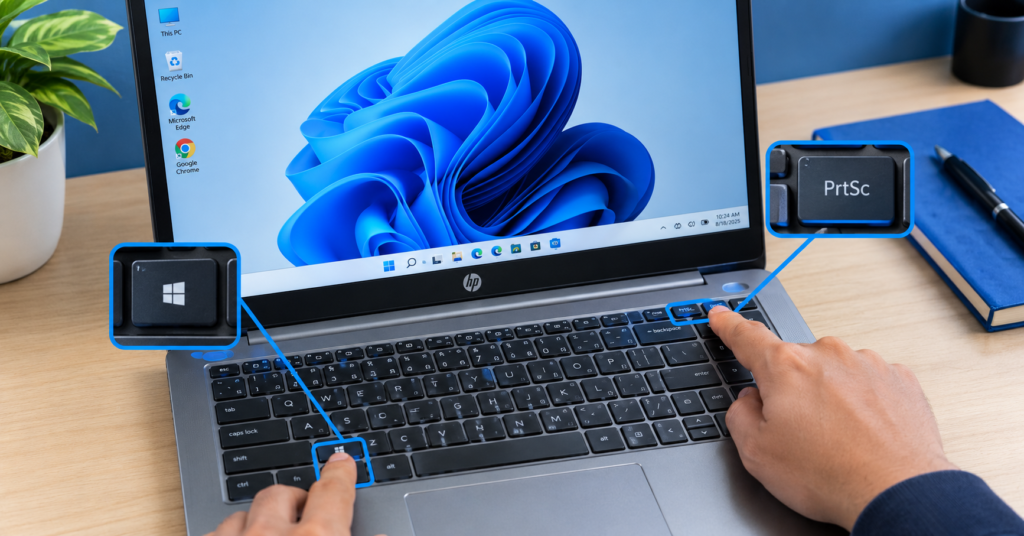
To save a full-screen screenshot, press Windows + PrtSc at the same time. Your screen may dim for a moment, which means the screenshot was taken. Windows saves the image automatically in Pictures > Screenshots, so you do not need to paste it into another app first.
This is one of the easiest HP screenshot shortcut options when you want to save the whole screen. I use this method when I need a quick copy of everything shown on the display.
PrtSc / Fn + PrtSc - Copy Your Screen
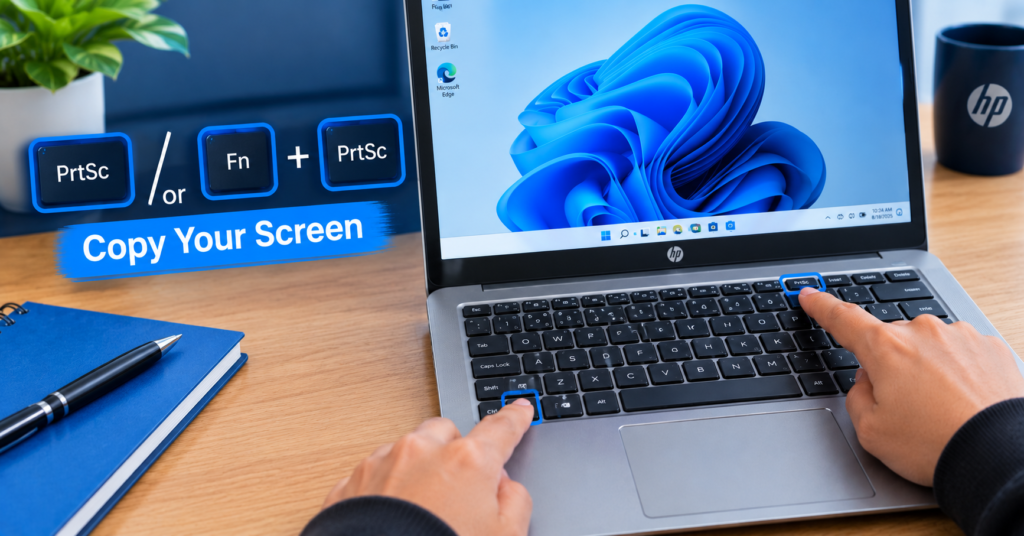
Press PrtSc to capture the full screen and copy it to your clipboard. The image is not saved as a file yet, so open Paint, Word, or another image app and press Ctrl + V to paste it. You can then edit or save the screenshot where you want.
Some HP laptops place the Print Screen function on another key. In that case, press Fn + PrtSc instead. If nothing happens, check whether Fn Lock is on or off.
Alt + PrtSc - Screenshot of the Active Window
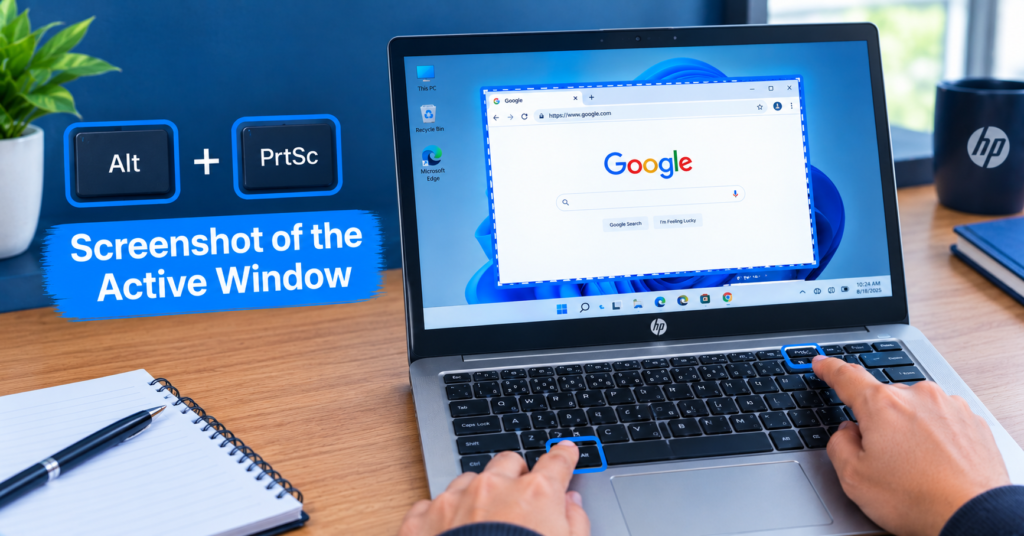
If you only want to capture the window you are using, press Alt + PrtSc. This takes a screenshot of the active window instead of the entire desktop. The image is copied to the clipboard, so press Ctrl + V in Paint, Word, or another app to view and save it.
This method is handy when you have many windows open and only need one. It keeps the screenshot clean and removes the extra clutter from your desktop.
Windows + Shift + S - Select a Specific Area
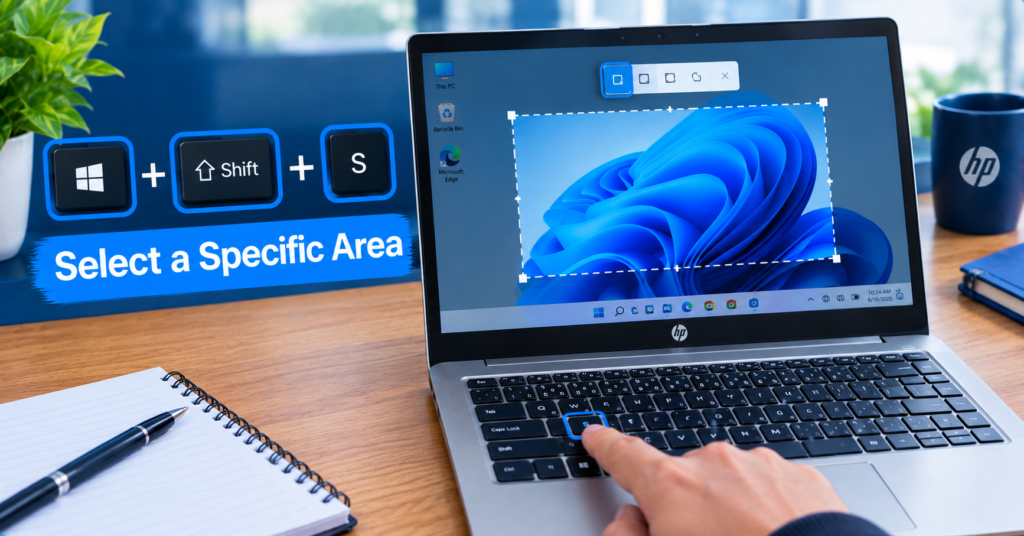
Press Windows + Shift + S to open the screen capture tool. Your screen will dim, and you can drag over the part you want to capture. The selected screenshot is copied to the clipboard, and you can paste it into an app or open the capture notification to edit and save it.
This is a great choice when you only need one part of the screen. For example, you can capture an error message, a photo, or a small section of a web page without taking the whole screen.
Snipping Tool - Capture and Edit Screenshots
The Snipping Tool is another simple way to take a screenshot on an HP laptop. Search for Snipping Tool from the Windows search box, open it, and select New. You can then choose the area you want to capture and make simple edits before saving the image.
For beginners, this tool can feel like a small pair of scissors for your screen. It gives you more control than a basic keyboard shortcut and works well when you want to capture only a specific part of the display.
How to Screenshot on HP Windows 10 and 11
The screenshot steps are almost the same on HP laptops with Windows 10 and Windows 11. You can use Windows + PrtSc to save the full screen, or Windows + Shift + S to pick a small area. Both systems also have the Snipping Tool, which lets you capture and edit a screenshot before saving it.
On Windows 10, these shortcuts work well for most everyday tasks. Windows 11 keeps the same key options but gives the Snipping Tool a more useful role for quick screen captures. If you want a simple way to screenshot on HP Windows 10 or 11, Windows + Shift + S is a handy choice because you can select only what you need.
The Snipping Tool is also easy to use on both versions. Open it from Windows Search, click New, and select the part of the screen you want. For a full screen that you want saved right away, Windows + PrtSc is faster.
Where Are Screenshots Saved on an HP Laptop?
If you use Windows + PrtSc, your screenshot is usually saved in Pictures > Screenshots. This is the first place to check when you cannot find an image you just captured. Open File Explorer, select Pictures, and then open the Screenshots folder.
If you use PrtSc or Alt + PrtSc, the screenshot goes to your clipboard instead of being saved as a file. Open Paint or Word and press Ctrl + V to paste it. You can then save the image to any folder you like.
Screenshots taken with the Snipping Tool can also be saved after you capture them. Open the tool, take your shot, and use the Save option to pick a folder. If you use Xbox Game Bar for a game capture, check Videos > Captures for the saved image.
If your HP laptop feels slow or gets stuck while you work, a screenshot may not save as expected. In that case, check the system first and see our guide on HP Laptop Loading Screen for steps to fix startup and loading issues.
What If the Screenshot Shortcut Isn't Working?
If your HP screenshot shortcut is not working, start with Fn + PrtSc. Some HP keyboards use the Print Screen key with another function, so the Fn key may be needed. You can also check Fn Lock if the shortcut still does not respond.
Still stuck? Try Windows + Shift + S instead. This opens the screen capture tool and lets you select the part of the screen you want. If that shortcut also fails, search for Snipping Tool in Windows and use the New option.
A dirty or stuck key can also cause shortcut problems. If other keys feel hard to press or do not respond well, cleaning the keyboard may help. Our guide on How to Clean a Laptop Keyboard can walk you through a safe way to clean it.
Can You Screenshot an HP Laptop Without PrtSc?
Yes, you can take a screenshot on an HP laptop without the PrtSc key. The easiest option is Windows + Shift + S, which lets you select an area of your screen. You can also open Snipping Tool from Windows Search and capture the screen with your mouse.
These options are useful when the PrtSc key is missing, not working, or shared with another key. You do not need to change any hardware just to take a screenshot. If you are having a wider hardware issue with your HP laptop, use the right hardware guide for that problem instead of changing parts just for screenshots.
HP Screenshot Shortcuts Cheat Sheet
If you want a quick way to remember the main HP screenshot shortcuts, use this simple cheat sheet. Each shortcut does a different job, so you can choose one based on what you want to capture.
Shortcut | What It Does |
PrtSc | Copies the full screen to the clipboard |
Windows + PrtSc | Saves the full screen in Pictures > Screenshots |
Alt + PrtSc | Captures only the active window |
Windows + Shift + S | Lets you select a specific area of the screen |
For most beginners, Windows + PrtSc is the easiest choice when you want to save the whole screen. If you only need part of the screen, Windows + Shift + S is faster and gives you more control. On some HP laptops, you may need to press Fn + PrtSc if the Print Screen key shares another function.
FAQs
The fastest way to take a screenshot on an HP laptop is to press Windows + PrtSc. Windows saves the full screen in Pictures > Screenshots. For a selected area, press Windows + Shift + S and drag over the part you want.
The most useful HP screenshot shortcut is Windows + PrtSc for a full-screen capture. It saves the image automatically, so you do not need to paste it into another app. If you only want part of the screen, Windows + Shift + S is a better choice.
On HP Windows 10 laptops, press Windows + PrtSc to save the full screen. You can also press PrtSc to copy the screen, or Alt + PrtSc to copy the active window. For a small area, Windows + Shift + S opens the screen capture tool.
To screenshot on HP Windows 11, press Windows + PrtSc for a full-screen image or Windows + Shift + S to select an area. You can also open Snipping Tool from Windows Search for more capture options. If your Print Screen key does not work, try Fn + PrtSc or check Fn Lock.
Screenshots taken with Windows + PrtSc are usually saved in Pictures > Screenshots. Screenshots taken with PrtSc or Alt + PrtSc are copied to the clipboard, so you need to paste them into Paint, Word, or another app before saving. Snipping Tool lets you choose where to save the captured image.
Conclusion
Taking a screenshot on an HP laptop is simple once you know the right shortcut. For a full-screen image, press Windows + PrtSc and find it in Pictures > Screenshots. If you only need part of the screen, Windows + Shift + S is a quick and flexible option.
If the PrtSc key does not work, try Fn + PrtSc or use the Snipping Tool instead. With these easy methods, you can capture, save, and share anything on your HP screen in just a few seconds.
2 thoughts on “How to Screenshot on HP Laptop: Easy Methods for Windows 10 & 11”
Really helpful guide! The step-by-step instructions on taking screenshots on an HP laptop are clear and easy to follow, especially for beginners. I also liked that you covered multiple methods like using keyboard shortcuts and built-in tools. It would be even better if you could add some troubleshooting tips for users who face issues with screenshot keys. Overall, great content—keep it up!
Thank you very much for this proper feedback, this is extremely helpful for us.
You are 100% correct about the troubleshooting part. I am actually going to add that whole section to this article tomorrow. Nobody has ever pointed this out before.
Really appreciate you took the time to write this properly. Have a good one!