
If your laptop hangs on that logo, it can feel like your whole day just hit pause. In HP Laptop Loading Screen: Easy Ways to Fix the Problem, I will show why you may see the HP logo, a spinning circle, an hp laptop black screen, or a screen that never moves. Here is the quick truth: most cases of an hp laptop stuck on loading screen are caused by a small boot glitch, a bad update, or a USB device getting in the way, and I have fixed this for years. We will start with the easy, safe fixes first, then step up to Safe Mode and deeper checks if your hp laptop stuck on hp logo or hp laptop stuck on startup screen still will not load. Stay with me, and you will know what to do next even if your hp laptop wont turn on.
Why Is My HP Laptop Stuck on the Loading Screen?
Most of the time, an HP laptop stuck on loading screen means Windows can’t finish one small step as it starts. You might see the HP logo, a spinning circle, the Windows startup screen, or even an hp laptop black screen right after the logo. I think of it like a car that turns the key but won’t fully catch power is there, but the next step fails.
A temporary startup glitch is the simplest cause, and yes, it’s very real. Your laptop can freeze for no big reason after sleep, low battery, or a sudden shut down. In my day-to-day fixes, this is often why an hp laptop stuck on hp logo suddenly works again after a clean restart.
A Windows update problem is another big one, especially if the laptop was updating and got forced off. The short answer is: a half-done update can trap you on the spinning dots or hp laptop stuck on startup screen. I’ve seen this happen after “Restart to update” when people close the lid too soon or the battery dies mid-way.
Connected devices can also block boot, and this surprises a lot of people. The quick answer: a USB drive, SD card, printer, or dock can make the laptop try to boot from the wrong thing. I’ve fixed many “stuck on HP logo” cases just by unplugging everything and starting with only the charger.
Driver or system-file issues can keep Windows from loading even when the laptop itself is fine. The simple answer is: if a key Windows file or a driver breaks, Windows may hang at the loading screen to avoid crashing. This often shows up right after a new driver install, a Windows update, or a security app change.
Storage problems are a common “hidden” cause, especially on older laptops with a hard drive. The short answer: if the drive (HDD/SSD) is slow, full, or failing, Windows may sit on the spinner for a long time. When someone tells me “it loads… but takes forever,” I start thinking about the drive first.
Power or hardware issues can also look like a loading problem, even when it’s really a weak power start or a failing part. The quick answer: a bad charger, weak battery, overheating, or faulty RAM can stop boot halfway and leave you staring at a logo or a black screen. If your hp laptop wont turn on at all (no lights, no fan, no logo), that’s usually power not Windows.
Force Restart Your HP Laptop
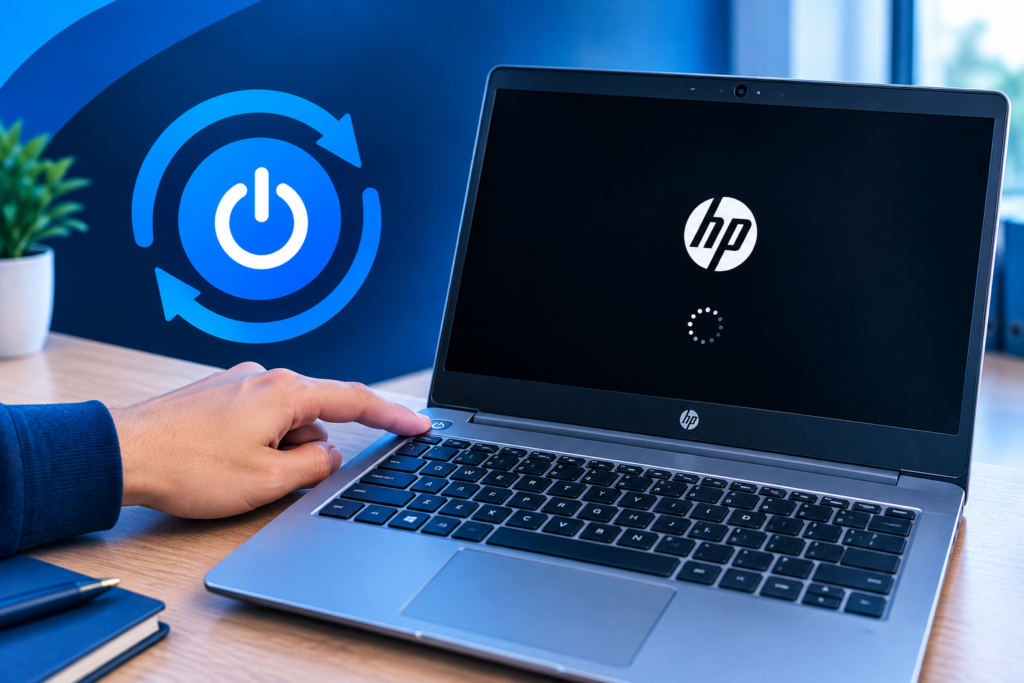
If your HP laptop is frozen on the HP logo or spinning dots, start with a force restart. It sounds basic, but I have seen this fix many startup freezes caused by a temporary Windows or power glitch. Think of it as giving the laptop a clean reset when it stops responding.
First, press and hold the Power button for about 10 seconds. Keep holding it until the laptop shuts down completely. Once it is off, wait for a few seconds, then press the Power button again to start it.
Give Windows a little time to load after the restart. If the HP Laptop Loading Screen was caused by a temporary freeze, your laptop may boot normally this time. This is often the quickest fix when nothing else seems to respond.
One small warning: do not keep forcing the laptop off again and again. A forced shutdown can interrupt Windows while it is writing files or installing an update. If your HP laptop gets stuck on the loading screen every time you start it, move on to the next fixes instead of relying on repeated restarts.
Disconnect Connected Devices
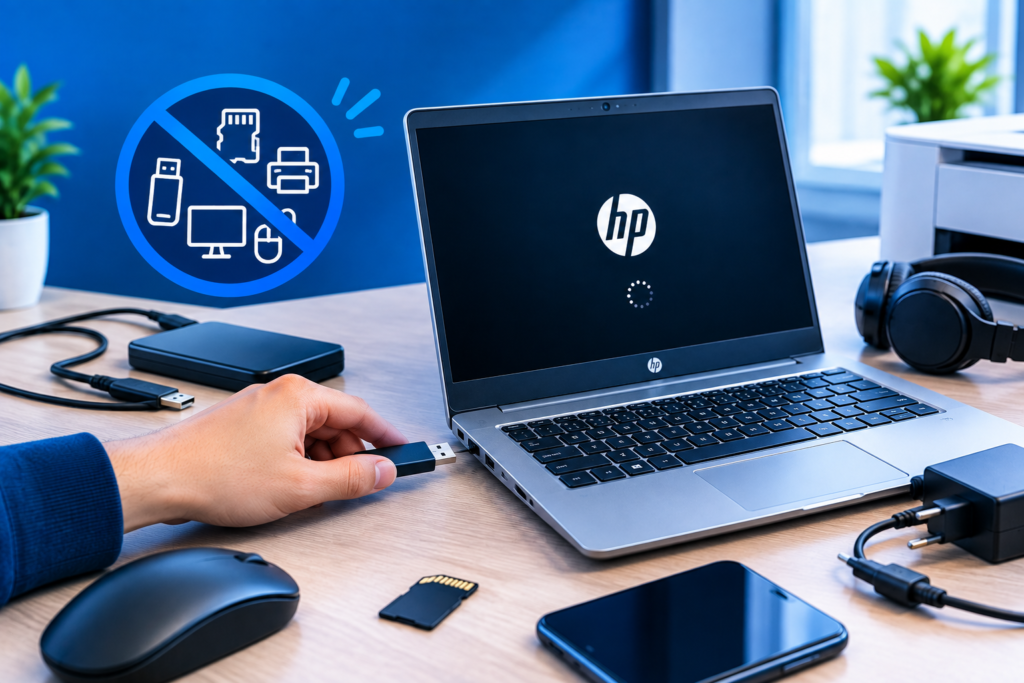
Sometimes the thing stopping your HP laptop from loading is not the laptop at all. A USB drive, SD card, printer, mouse, external monitor, or docking device can confuse the startup process. I have seen simple boot issues disappear just by removing every extra device before turning the laptop on.
Start by shutting down the laptop if it is still running. Then unplug all USB devices, memory cards, printers, external drives, and other accessories. If you use an external monitor or dock, disconnect that too, and leave only the charger connected.
Now press the Power button and let the laptop start. If Windows loads normally, reconnect your devices one at a time. This makes it much easier to find out if one particular device is causing the HP Laptop Loading Screen problem.
If your laptop is still stuck on the HP logo or spinning dots with nothing connected, do not worry. That tells us the problem is likely somewhere else, so you can move on to the next troubleshooting step without guessing.
Restart Your HP Laptop in Safe Mode
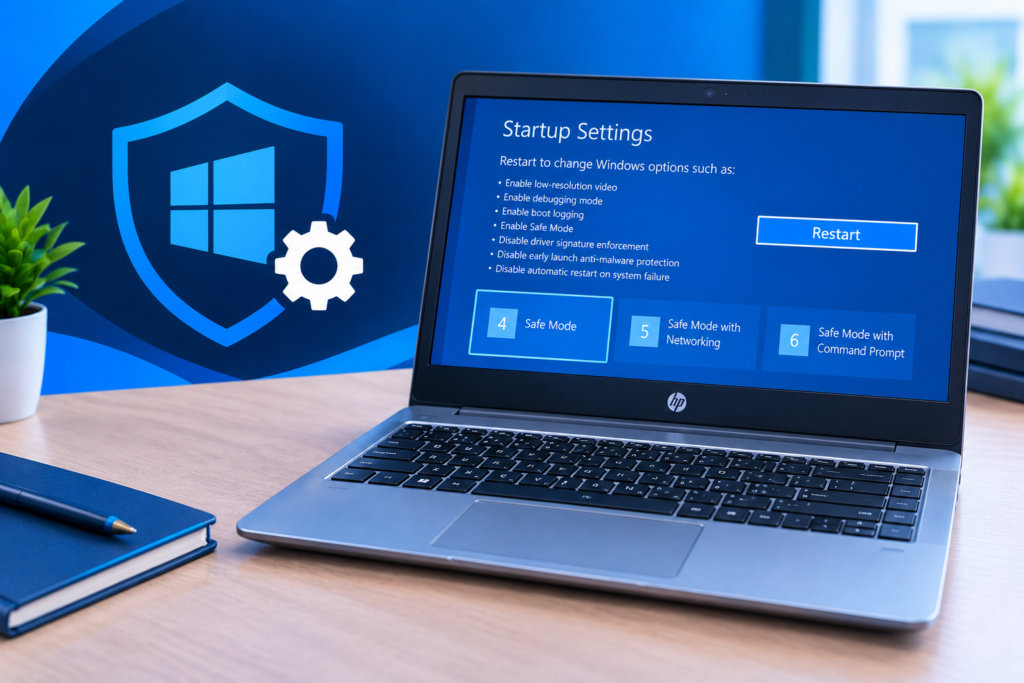
If your HP laptop still will not move past the HP logo or spinning dots, Safe Mode is a good next step. It starts Windows with only the basic drivers and services it needs. This can help you find out if a bad driver, update, or recently installed program is causing the problem.
If Windows will not start normally, you can reach Windows Recovery Environment first. Turn on the laptop and, when Windows starts loading, hold the Power button to shut it down. Repeat this a few times until Windows opens its recovery screen.
From there, select Troubleshoot, then Advanced options, and choose Startup Settings. Click Restart, and when the options appear, press the key for Safe Mode. Your screen may look a little different in Safe Mode, and that is normal.
Once you are in Safe Mode, think about what changed before the problem began. If you recently installed a driver, Windows update, or new program, try removing it first. You can also check your startup apps and run a trusted malware scan to see if something unwanted is slowing or blocking Windows.
If the laptop starts normally after you remove a recent change, you have a useful clue. If it still freezes even in Safe Mode, the problem may be deeper, such as damaged system files or a storage issue. In that case, the next repair steps can help narrow it down.
Tip: Safe Mode is mainly a troubleshooting tool. Do not worry if your screen looks plain or some features do not work while you are there. Once you restart the laptop normally, Windows should return to its usual mode.
Restore the System to a Previous Point
If your HP laptop worked fine a few days ago and then got stuck on the loading screen, System Restore may be worth trying. It can take Windows back to an earlier point, before a bad driver, update, or system change caused the trouble. Think of it like turning the clock back without changing your personal files.
To start, open Windows Recovery Environment and go to Troubleshoot → Advanced options → System Restore. Choose your Windows account if asked, then enter your password. You should see the restore points available on your laptop.
Pick a restore point from a date when the laptop was still starting normally. Windows will show the changes that may be affected, so take a moment to read them before you continue. Then follow the steps on screen and let the process finish without turning the laptop off.
There is one important catch: System Restore only works if Windows has an available restore point. It also does not replace a proper backup of your personal files. If you have important files and can still access them, back them up before making deeper system changes.
After the restore is complete, restart your laptop and check whether it can pass the HP logo and Windows loading screen. If the problem started after a recent system change, this simple step can sometimes bring things back to normal.
Check Your HP Laptop for Hardware Problems
If Windows still refuses to load after the steps above, it is time to check the hardware. Do not panic. A hardware check does not mean your laptop is broken. It simply helps us find out if the memory or storage is causing the HP Laptop Loading Screen to freeze.
HP laptops have built-in HP PC Hardware Diagnostics that can test key parts of the computer. To open it, turn off the laptop and press the Power button. As soon as it starts, tap Esc several times until the Startup Menu appears, then look for the option for System Diagnostics.
Run the Memory Test first. This checks the laptop’s RAM, which helps Windows load and run. If the test reports an error, note the failure code because it can point to a memory problem that may need repair.
Next, run the Storage Test. This checks the hard drive or SSD where Windows and your files are stored. If the test fails, especially with a failure ID or error code, the storage drive may be damaged or starting to fail.
A slow drive can also cause very long startup times without giving an obvious error at first. If you hear unusual drive noises on an older HDD, see repeated freezes, or notice that Windows takes much longer to load than before, take the warning seriously. If the drive needs to be replaced, you can also check my guide on How to Remove Hard Drive from HP Laptop before doing any hardware work.
Write down any diagnostic failure code you see. It can be very useful when talking to HP Support or a repair shop. And if your important files are still accessible, back them up before a suspected drive problem gets worse.
What If Your HP Laptop Shows a Black Screen?
Seeing a black screen after the HP logo can be worrying, but it does not always mean your laptop is seriously damaged. If the power light is on, the fan is running, or you can hear the laptop working, Windows may still be starting in the background. The key is to first find out whether you have a display problem or a power problem.
Start by disconnecting everything from the laptop. Remove USB drives, SD cards, external monitors, docks, and other accessories. Then hold the Power button until the laptop turns off, wait a few seconds, and turn it on again with only the charger connected.
If you are dealing with an hp laptop black screen but the power light stays on, check the screen closely. You can also try increasing the screen brightness and disconnecting any external display. If the laptop works with an external monitor but its own screen stays black, the display or its connection may need further attention.
Now look at the power signs. If there are no lights, no fan noise, and no response when you press the Power button, this is different from a black screen during startup. In that case, the issue may be related to the charger, battery, power connection, or another hardware part.
If the HP logo appears and then the screen turns black, Windows may be failing during startup. Try entering Windows Recovery Environment and using the repair options there. If the black screen keeps returning after these basic steps, avoid repeatedly forcing the laptop to shut down and move on to the deeper troubleshooting steps in this guide.
What If Your HP Laptop Won't Turn On?
If your hp laptop wont turn on, first check whether it has any sign of power. Look for a charging light, Power button light, fan noise, or even a brief flash on the screen. If you see any of these signs, the laptop may have power but another startup problem could be stopping Windows from loading.
Start with the charger. Make sure it is firmly connected to both the laptop and the wall outlet. If possible, try a different power outlet and check the charging light again. If your charger has a loose connection or looks damaged, do not keep using it until you can replace it safely.
If there are still no signs of power, try a hard reset. Disconnect the charger and remove any connected devices. Then hold the Power button for about 15 seconds, reconnect the charger, and try turning the laptop on again.
If the laptop has a removable battery, the battery can also be part of the problem. A weak or failed battery may stop the laptop from starting normally, although some models can still run from the charger. If you want a more detailed guide, my article on hp laptop not turning on can walk you through the common checks step by step.
Still nothing? If there are no lights, no fan, no screen activity, and no response after checking the charger and trying a hard reset, the issue may be related to the battery, charging circuit, motherboard, or another hardware part. At that point, it is better to stop repeated power attempts and consider HP Support or a qualified repair service.
What If Your HP Laptop Keeps Overheating During Startup?
If your HP laptop gets very hot while starting, do not ignore it. Too much heat can make the laptop slow down, shut off, or struggle to finish startup. In some cases, what looks like an HP Laptop Loading Screen problem may actually be linked to poor airflow or a cooling issue.
Start by checking where you are using the laptop. Keep it on a hard, flat surface so air can move through the vents. A bed, pillow, or thick blanket can block the vents and trap heat, almost like wrapping the laptop in a warm blanket.
Also check the air vents for dust and dirt. If the vents are blocked, the fan may have to work much harder to cool the laptop. Let the laptop cool down before trying to start it again, especially if the bottom feels unusually hot.
If the laptop keeps overheating during startup, there may be a deeper cooling problem. A noisy fan, very slow performance, sudden shutdowns, or heat that returns quickly can be useful clues. For more help finding the cause, see my guide on Why is my laptop overheating?
Do not keep restarting an overheating laptop again and again. Give it time to cool first, then check the airflow and vents. If the heat problem continues even with good airflow, it is worth having the cooling system checked by a qualified technician.
When Should You Contact HP Support?
Sometimes an HP Laptop Loading Screen problem is more than a simple Windows glitch. If HP PC Hardware Diagnostics reports a failed memory or storage test, write down the failure code and contact HP Support or a qualified repair service. That code can help the technician find the real problem faster.
You should also get professional help if the laptop has physical damage, keeps freezing during startup, or has BIOS or firmware problems. BIOS changes can affect how the laptop starts, so it is better not to guess if you are unsure what to change.
If you have tried the basic fixes in this guide and your HP laptop still will not start, it is also a good time to ask for help. And if your laptop is still under warranty, check the warranty terms before opening the laptop or replacing any internal parts yourself.
FAQs
An HP laptop can get stuck on the loading screen because of a Windows glitch, failed update, bad driver, connected USB device, or storage problem. A hard restart and removing connected devices are good first steps. If the problem keeps coming back, try Safe Mode or System Restore.
Start by unplugging all USB devices, memory cards, external drives, and other accessories. Then perform a force restart and try starting the laptop again. If it still stops at the HP logo, use Windows Recovery Environment and try Safe Mode or System Restore.
A stuck startup screen can happen when Windows cannot load a needed file, driver, or update. A failing HDD or SSD can also make startup very slow or stop it completely. If basic fixes do not help, run HP PC Hardware Diagnostics and check the storage test.
A normal startup should not stay on the same loading screen for an unusually long time. If the spinner keeps moving but nothing changes after several minutes, there may be a startup problem. At that point, try the safe troubleshooting steps in this guide instead of waiting indefinitely.
Yes. A slow or failing hard drive can make Windows take a very long time to start or stop during the boot process. If your HP laptop has an older HDD and you notice slow loading, freezes, or unusual drive sounds, run the storage test in HP PC Hardware Diagnostics.
Conclusion
An HP Laptop Loading Screen can look scary, but many startup problems are easier to fix than they seem. Start with the simple steps first. Force restart the laptop, disconnect USB devices, and check the charger and power connection.
If the problem stays, move on to Safe Mode and System Restore. These tools can help when a bad driver, update, or Windows change is stopping the laptop from starting normally. Take your time and avoid making several changes at once.
When Windows still will not load, run HP PC Hardware Diagnostics and check the memory and storage tests. A failed test can point to a hardware problem that needs more attention. If the laptop keeps getting stuck, shows physical damage, or has a BIOS or hardware issue, contact HP Support or a qualified repair service.
Most importantly, back up important files whenever you can. A little care now can save you a lot of stress later and help keep your HP laptop starting smoothly.
2 thoughts on “HP Laptop Loading Screen: Easy Ways to Fix the Problem”
This is hands down one of the best troubleshooting articles I’ve read. You explained everything so clearly, patiently, and in a very easy-to-understand way. From simple causes like temporary glitches and connected devices to more serious issues like failed updates, corrupted drivers, storage problems, and hardware faults, every possibility is covered perfectly.
I especially loved how you organized the fixes from easiest to advanced (Force Restart → Disconnect Devices → Safe Mode → System Restore → Hardware Diagnostics). The step-by-step instructions are practical and feel like a professional technician is guiding you personally.
The sections on “HP laptop black screen” and “HP laptop won’t turn on” are particularly helpful. I’ve faced this loading screen issue many times and always felt lost. After reading this, I now know exactly what to do instead of panicking or forcing restarts repeatedly.
Thank you so much for writing such a high-quality, detailed, and helpful post. This will surely save a lot of people time, frustration, and money. Your writing style is excellent informative yet very comforting.
Keep up the great work! Looking forward to reading more of your guides.
Hi MaSu, thank you so much for your thoughtful and detailed feedback! I’m really glad to hear that the guide was clear and easy to follow, and that the step-by-step order from basic checks to advanced fixes—helped you feel more confident while troubleshooting.
It means a lot that the sections on HP laptop black screen and won’t turn on / loading screen issues were useful for you. If you ever face the issue again and want to share your exact model number or the error symptoms, feel free to comment—I’ll be happy to suggest the most relevant steps.
Thanks again for your support, and I truly appreciate you taking the time to leave such an encouraging comment!