
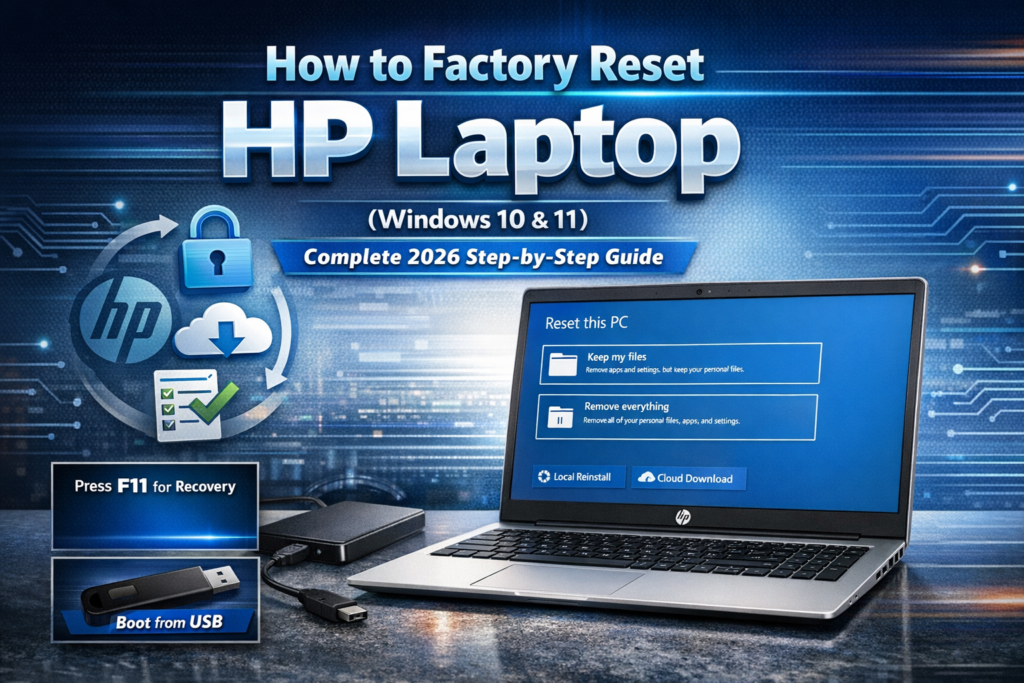
If your HP laptop has started running slow, freezing, throwing weird errors, or you are getting ready to sell or give it away, this is the only guide you need. This is how to factory reset an HP laptop, and it works on almost every HP model made after 2016, for both Windows 10 and Windows 11. You don’t need any USB drives, you don’t need to pay a repair shop, you don’t even need your Windows password, and you will not break your laptop.
This is the exact same procedure every IT technician uses, this is not a hack, this is built directly into every HP laptop. Almost every single problem people have with their laptop is fixed with this one process. We will go slow step by step, and I will tell you all the stupid little mistakes everybody makes so you don’t make them.
Things to Do Before Factory Reset (Very Important)
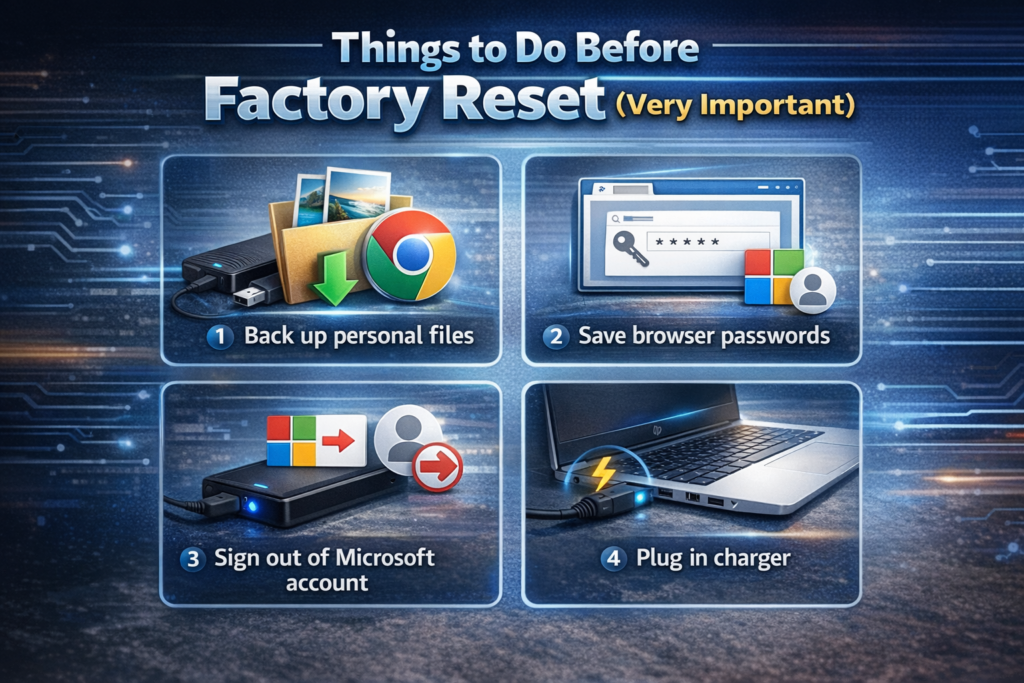
Okay, stop right here for a second. This is the most important part of this entire guide. You can mess up almost every step after this one and it will still be fine. But if you skip this part, you might really regret it.
You do not need to do a million complex tasks. You only need to do a few simple things to keep your data safe. Let’s get your laptop ready so you don’t lose anything you love.
Back up personal files
This sounds obvious, but please check one last time. Copy any photos, documents, or downloads that you would cry if you lost. Put them on a USB stick, an external hard drive, or upload them to Google Drive. You don’t need to save the whole system. Just save the files that actually matter to you.
If you need to keep a record of your desktop layout or specific error messages before the wipe, capturing the screen is the best way. For a quick walkthrough, check out our manual on How to Screenshot on HP Laptop.
Save browser passwords
This is the one thing everybody forgets. We all rely on Chrome or Edge to remember our passwords. But once you reset the laptop, those saved passwords might vanish if they aren’t synced. Go into your browser settings and export your passwords, or just write the important ones down on a piece of paper. You will thank me later when you try to log into your email.
Sign out of Microsoft account
You don’t technically have to do this, but I highly recommend it. If you are selling the laptop, this prevents the new owner from getting stuck at a login screen asking for your password. If you are keeping it, signing out now just makes the setup process much faster later on. It saves you from weird permission errors during the reset.
Plug in charger
This is not a suggestion. This is rule number one. Never factory reset on battery power.
The process takes a lot of energy. If your battery dies halfway through, the installation stops, and your laptop could turn into a brick. Plug it into the wall charger before you press a single button. There are no exceptions here.
Understand difference between: Keep My Files, Remove Everything, Clean Install
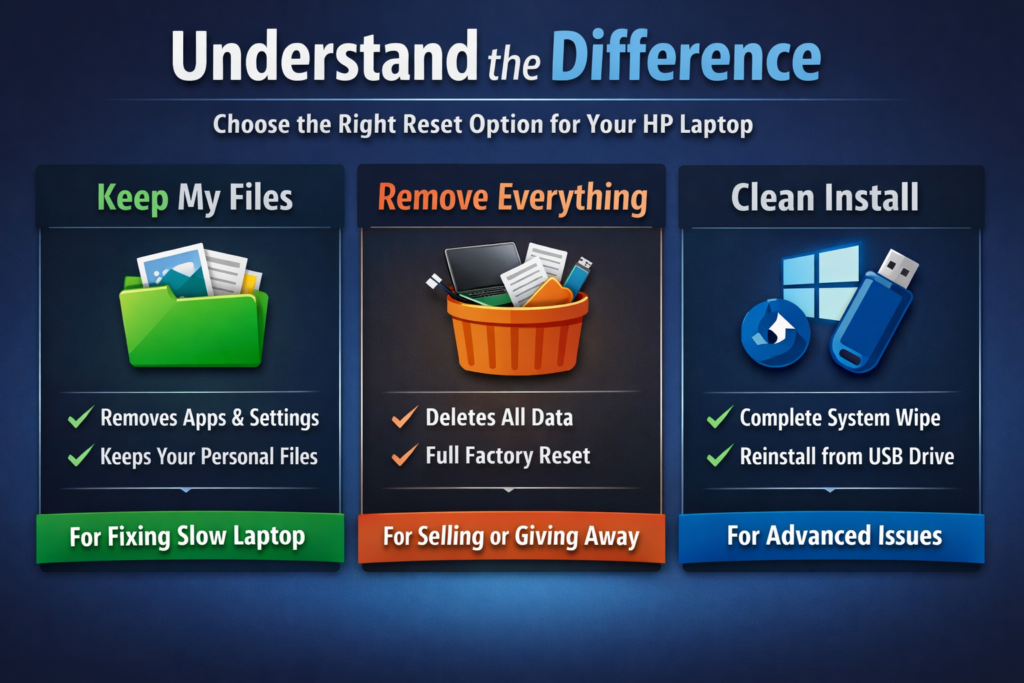
When you start the reset, you will see three confusing options. Nobody ever explains what they actually mean in plain English. Here is the breakdown so you pick the right one.
Keep My Files
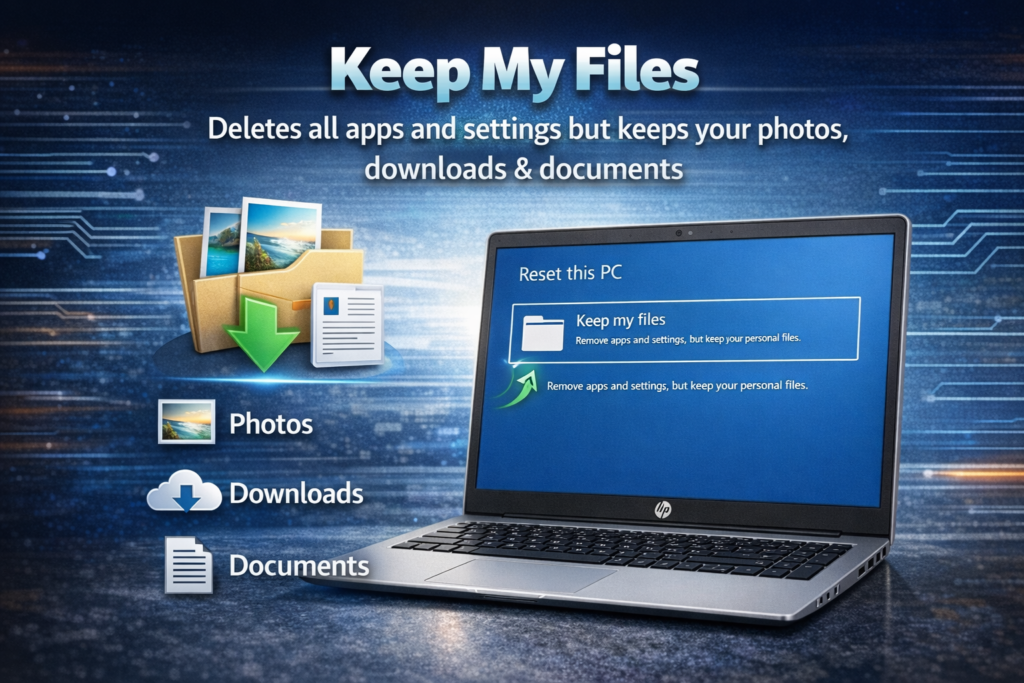
This option deletes all your installed programs, viruses, and broken settings. However, it leaves all your photos, downloads, and documents exactly where they are.
Pick this if: You are just fixing a slow or broken laptop and you want to keep your stuff.
Remove Everything
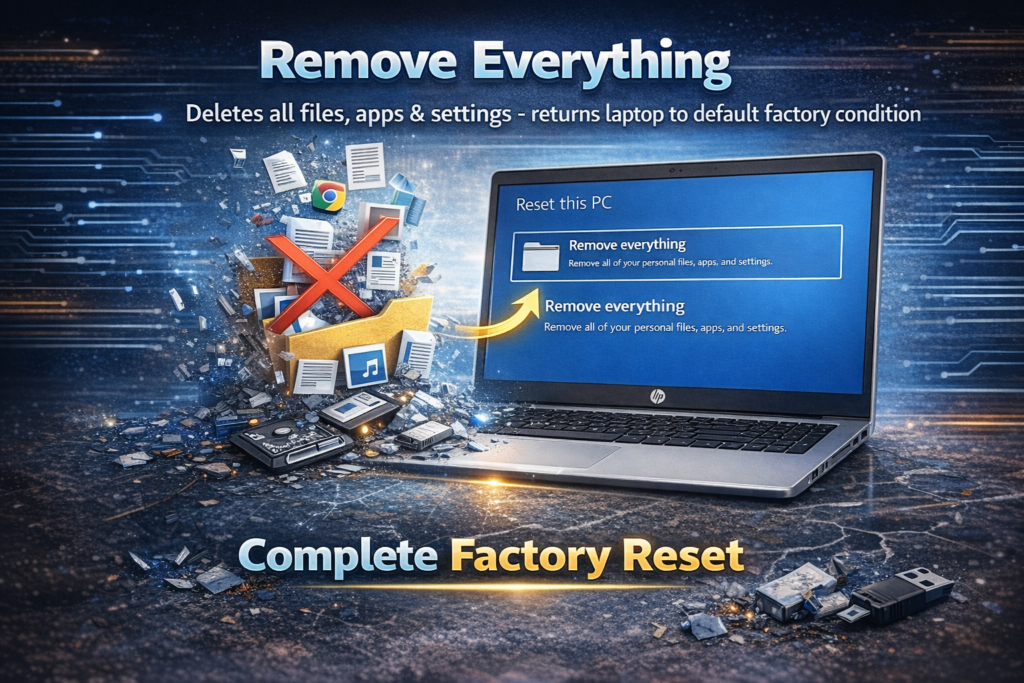
This deletes absolutely everything. It returns the laptop to exactly how it was the day you took it out of the box. The hard drive is wiped clean.
Pick this if: You are selling the laptop, giving it to a friend, or you just want a completely fresh start.
Clean Install
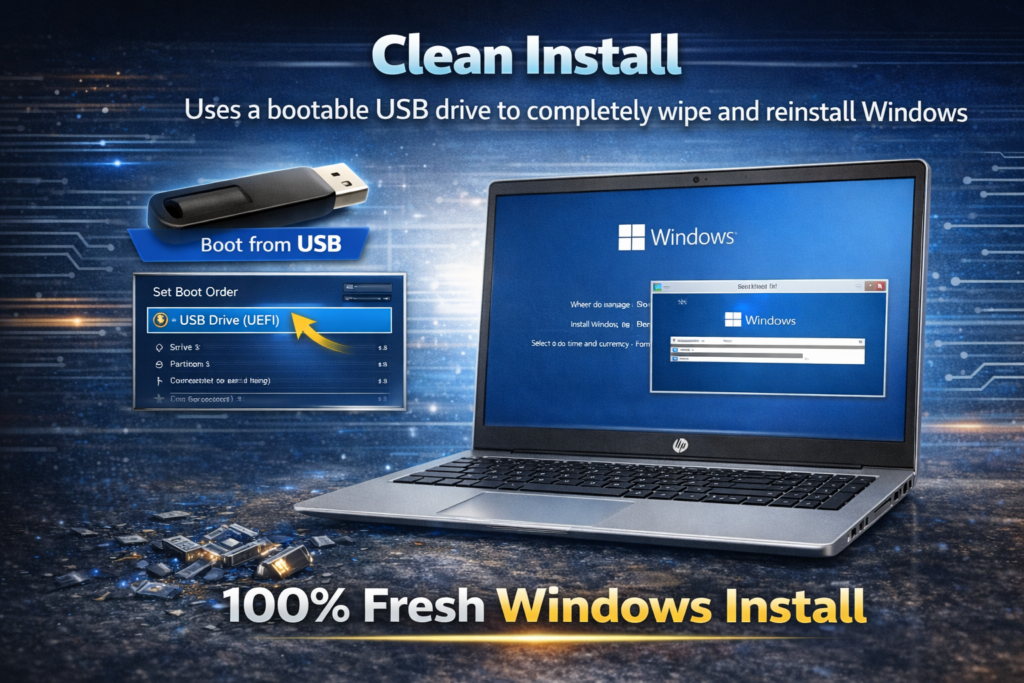
This is the advanced method. It usually involves using a USB drive to wipe the system completely. You rarely need to do this unless the standard reset fails.
If your laptop is being stubborn and won’t start the internal recovery, you might need to use an external drive. To get that working, you can follow our easy guide on Boot from USB HP Laptop.
How to Factory Reset HP Laptop from Settings (Windows 11)
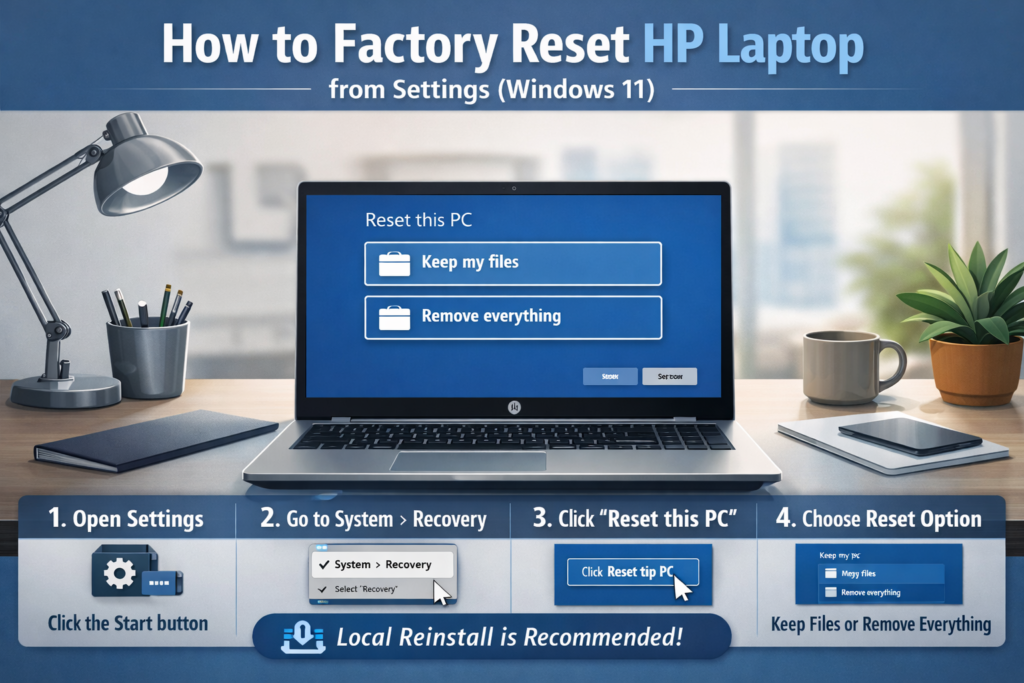
If your laptop still turns on and you can log in, you are in luck. This is the easiest method. You don’t need to press any fast buttons during startup. You can do it all from your desktop.
It feels much less scary than the other methods. The menus are clear, and Windows walks you through it gently.
Quick Summary (For the Pros)
If you just want the fast version, here is the cheat sheet:
- Open Settings.
- Go to System > Recovery.
- Click Reset this PC.
- Select Keep my files or Remove everything.
- Choose Local reinstall and click Reset.
The Detailed Step-by-Step Guide
If you want me to walk you through it, follow along here.
1. Open your Settings
Click the Start button in the center of your taskbar. Look for the gear icon that says Settings. If you can’t find it, just type “reset” in the search bar.
2. Go to System and Recovery
On the left side of the window, make sure you have System selected. Now, look at the list on the right. Scroll down a little bit until you see Recovery. Click on that.
3. Click Reset this PC
You will see a button labeled Reset PC. Go ahead and click it. Don’t worry, the process won’t start instantly. You still have to confirm things.
4. Make your big choice
A blue window will pop up. It asks if you want to Keep my files or Remove everything.
Remember what we talked about? If you are fixing a bug, keep your files. If you are selling the laptop, remove everything.
5. Cloud download vs Local reinstall
Next, Windows asks how you want to reinstall. This confuses a lot of people.
- Cloud download: Downloads a fresh copy of Windows from the internet.
- Local reinstall: Uses the files already hidden on your laptop.
Here is my honest advice: Choose Local reinstall.
Cloud download sounds fancy, but it is slow. If your WiFi drops for one second, the whole thing fails. Local reinstall is faster and much safer. It works perfectly 99% of the time.
6. Confirm and wait
Review your choices one last time. When you are ready, click Reset.
Your screen will go black. The HP logo will appear. The fans might spin up a bit loud. This is normal. Just sit back and let it do its work. It will take about 20 to 40 minutes.
How to Factory Reset HP Laptop Windows 10
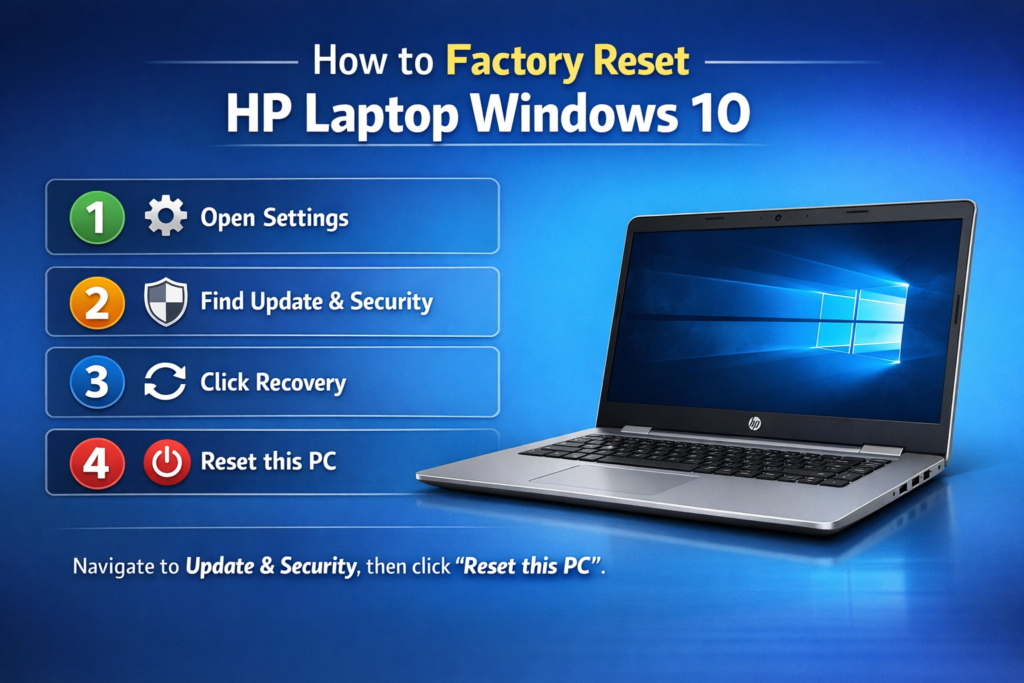
Still rocking Windows 10? Don’t worry. Millions of people are still using it.
The reset process is almost the same as Windows 11, but Microsoft hid the buttons in a slightly different spot. If you try to look under “System” like the Windows 11 users, you won’t find it. You have to dig a little deeper.
Here is exactly how to find it.
1. Open Settings
Click your Start menu and hit the little gear icon to open Settings.
2. Find Update & Security
This is the big difference. Do not look at the System tab. instead, look at the very bottom of the menu. Click on Update & Security.
3. Click Recovery
Look at the menu on the left side of the screen. You will see a tab called Recovery. Click that.
4. Reset this PC
At the very top, you will see a section called Reset this PC. Click the grey button that says Get started.
5. Follow on-screen instructions
From here on out, it looks exactly the same as Windows 11.
You will see the blue box pop up. It will ask you to Keep my files or Remove everything.
The Main Difference to Remember
The only real difference between Windows 10 and 11 is how you get to the menu.
- Windows 11 puts it under System.
- Windows 10 hides it inside Update & Security.
Once you hit that “Get started” button, the actual reset software is identical. It will take the same amount of time, and it is just as safe.
How to Factory Reset HP Laptop from Startup (When Windows Won’t Boot)
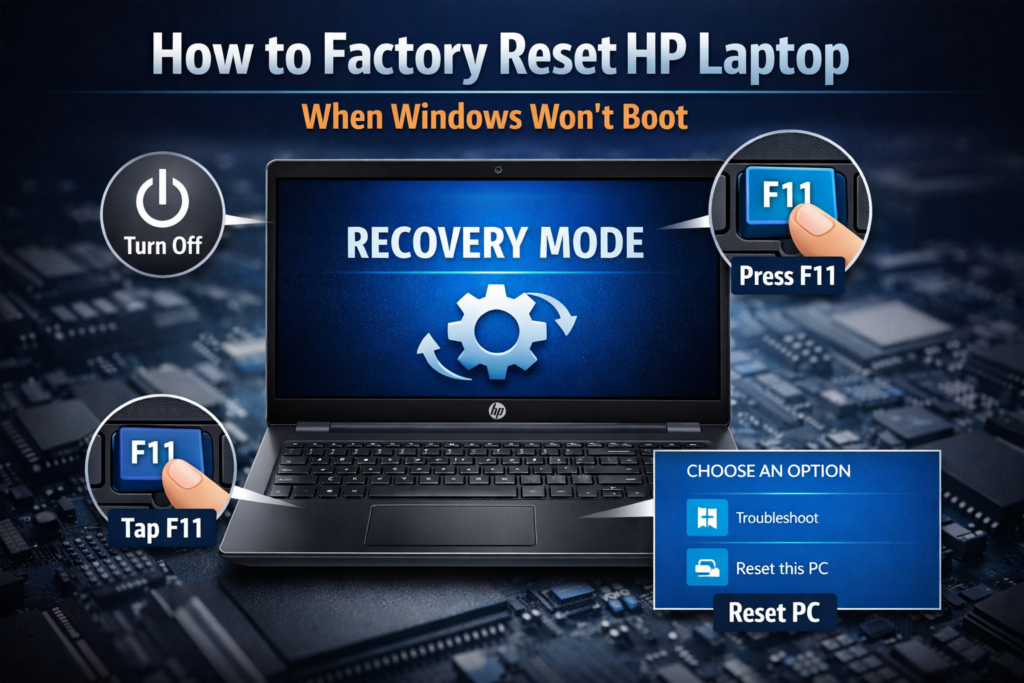
Use this method if your laptop is stuck on a blue screen, if you have a nasty virus, or if you completely forgot your password and can’t get in. This allows you to factory reset HP laptop from startup before Windows even tries to load.
1. Turn the laptop completely off
Hold down the power button for a full 5 to 10 seconds. Watch the little lights on the side. Make sure everything is dark.
2. Get your finger ready on F11
Locate the F11 key on the top row of your keyboard. This is the secret recovery key for HP.
3. The Timing Game
Press the Power button once to turn it on.
Immediately start tapping F11.
Do not hold it down. Tap it repeatedly, about once per second. Tap, tap, tap.
Do this as soon as the screen lights up. Do not wait for the HP logo. If you see the Windows spinning dots, you waited too long. Turn it off and try again.
4. “Please Wait”
If you timed it right, you will see a message that says “Please Wait” or “Entering Recovery.”
A few seconds later, you will see a blue screen with the title Choose an option. You can stop tapping now.
5. Navigate the Menu
Since you are not in Windows, your mouse might move a bit slow. That is normal.
- Click on Troubleshoot.
- Click on Reset this PC.
6. Pick your Reset Option
Just like the other methods, it will ask you to Keep my files or Remove everything.
Select the one you want. The laptop will restart and begin the cleaning process.
What to do if F11 does not work?
Sometimes, the F11 key is turned off, or the special recovery partition on your hard drive is damaged.
- Try the Esc key: Turn the laptop off. Turn it on and tap Esc repeatedly. A menu will appear. Press F11 from that menu.
- Check your drive: If the menu never appears no matter what you do, your hard drive might be wiped or empty.
How to Factory Reset HP Laptop Without Password
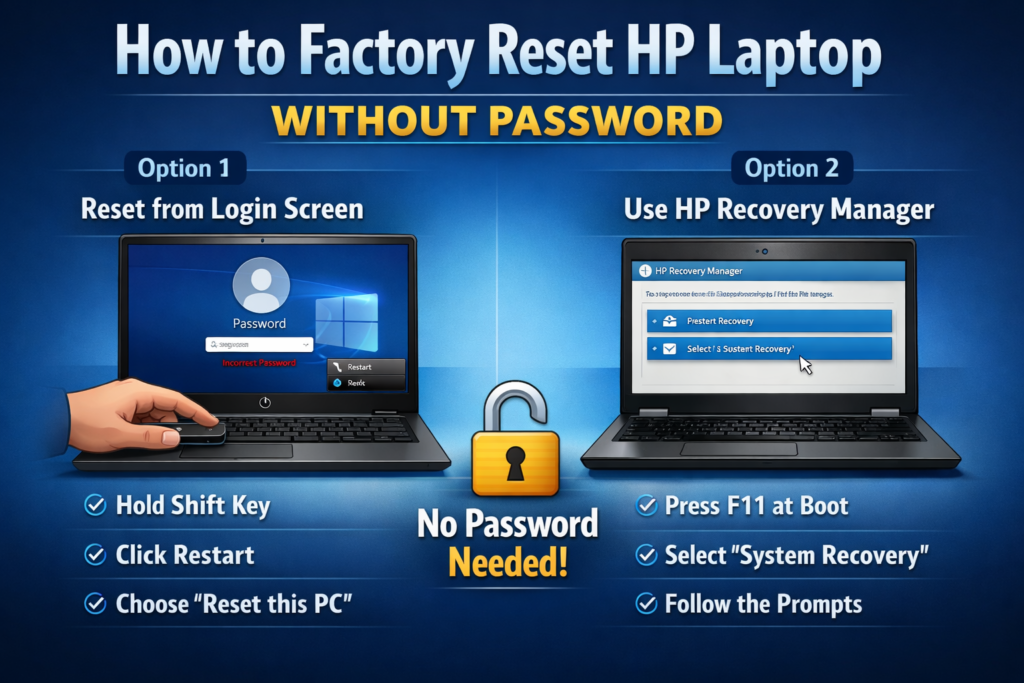
It is a terrible feeling to be locked out of your own computer. Maybe it’s an old laptop you haven’t used in years, or maybe you just changed your password and it slipped your mind. Whatever the reason, you can still get a fresh start. You have two main ways to how to factory reset hp laptop without password, and neither one requires a computer degree.
Option 1: Reset from the Login Screen
This is a neat little trick that most people don’t know exists. You don’t even need to be “inside” Windows to trigger a reset.
- On the Windows login screen, look at the bottom right corner for the Power icon.
- Hold down the Shift key on your keyboard. Do not let go of it!
- While still holding Shift, click Restart.
- Keep holding Shift until the screen goes blue and says “Choose an option.”
- Once you see that blue menu, you can let go of the key. Just like before, click Troubleshoot and then Reset this PC.
This bypasses the password check entirely because you are telling the hardware to reset before the security system fully loads.
Option 2: Using HP Recovery Manager
If your laptop is an older model (usually made before 2018), it might have a special tool called the HP Recovery Manager. This is a life-saver if Windows is completely mangled.
- Turn the laptop off.
- Turn it on and immediately tap the F11 key repeatedly.
- When the menu appears, look for an option called System Recovery under the “Help” or “Troubleshoot” section.
- Follow the prompts to restore the laptop to its original factory condition.
What if the recovery option is missing?
Sometimes, you might follow these steps and find that the “Reset” or “Recovery” button just isn’t there. This usually happens because the hidden “recovery partition” on your hard drive was deleted or damaged. This often happens if you bought the laptop used or if the hard drive is starting to fail.
If the recovery partition was deleted due to hard drive replacement or damage, you may need to check the storage device. See our guide on How to Remove Hard Drive from HP Laptop for hardware inspection steps. If the drive is fine but the recovery data is gone, you’ll need to use a bootable USB drive to get things moving again.
Factory Reset Using HP Recovery Manager (Older Models)
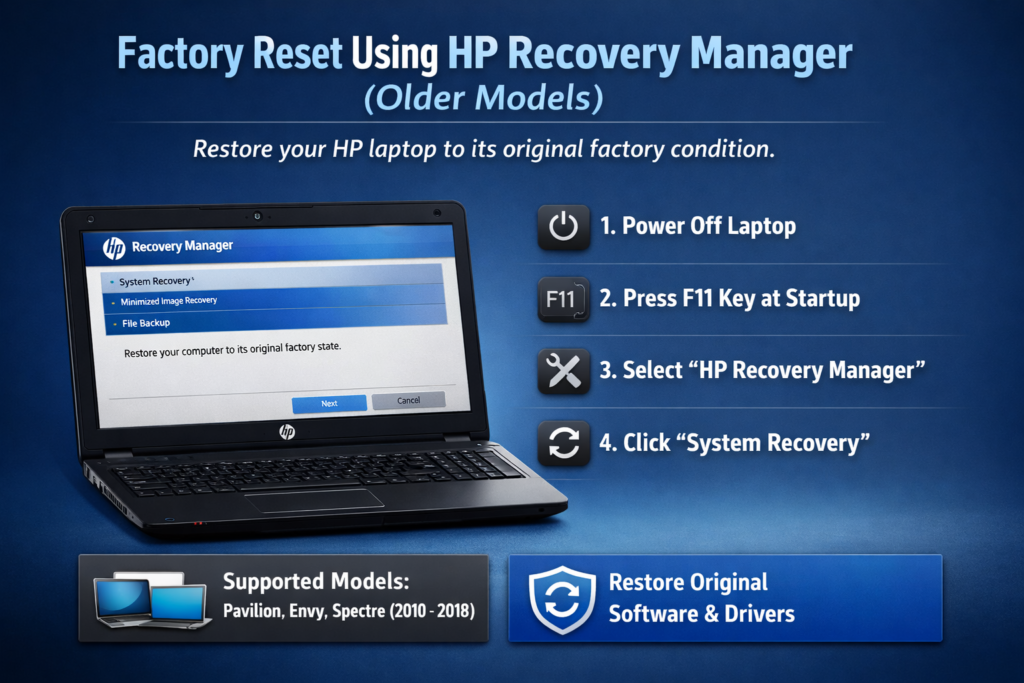
If you own an HP laptop made around 2018 or earlier, you might have access to the HP Recovery Manager. This was a special piece of software that HP used to include on every single machine. It lives in a secret, protected part of your hard drive.
I always loved this tool because it felt like a safety net. Even if Windows was so broken that it wouldn’t even try to start, this manager stayed tucked away, ready to rescue your files and your PC.
What is HP Recovery Manager?
Think of it as a “factory in a box.” It contains a perfect copy of your laptop’s original software. When you run it, it doesn’t just reset Windows; it puts back all the original HP apps and drivers that came with the laptop on day one. It is a very deep, very clean way to start over.
Which models support it?
Most HP Pavilion, Envy, and Spectre models made between 2010 and 2018 have this. If your laptop came with Windows 7, 8, or early versions of Windows 10, this is likely your best bet for a successful restore.
Steps to launch and reset
Getting into the manager feels a bit like entering a secret code, but it is very simple once you know the key.
- Start with the power off: Make sure your laptop is fully shut down and plugged into the charger.
- The F11 Key: Turn the laptop on and immediately start tapping the F11 key.
- Choose the Manager: Instead of the standard Windows blue menu, you might see a screen with an option for HP Recovery Manager. Click it.
- Select System Recovery: Look under the “Help” section for an option called System Recovery. This is the one that actually performs the reset.
- Back up (Optional): The manager will ask if you want to back up your files first. If you haven’t done it yet, this is your last chance!
- Confirm the Reset: Follow the final prompts to begin the “Factory Reset” confirmation.
The laptop will restart several times. It might show a white screen with a progress bar, or a black screen with text. This is all perfectly normal. Since this is an older method, it can take a bit longer sometimes up to an hour so grab a coffee and let it finish. Once it’s done, your laptop will be exactly as fast as the day you first unboxed it.
Advanced Method: Clean Factory Reset Using USB Installation Media
Sometimes, the standard “Reset this PC” button just gives up. You might see an error that says “There was a problem resetting your PC.” When that happens, it usually means your internal recovery files are corrupted. It feels like you’re stuck, but you aren’t. You just need to bring in the big guns: a bootable USB drive.
I call this the “Scrub-and-Bleach” method. It doesn’t just reset your laptop; it completely wipes the slate clean and installs a 100% fresh, perfect version of Windows.
1. Create your bootable Windows USB
You will need a working computer and an empty USB drive (at least 8GB). Go to Microsoft’s official website and download the “Media Creation Tool” for Windows 10 or 11. Run the tool, select your USB drive, and wait. It will turn that thumb drive into a magic wand that can fix any PC.
2. Enter BIOS and Change Boot Order
Now, plug that USB into your broken HP laptop. Turn the laptop on and immediately start tapping the F10 key (or Esc then F10). This takes you into the BIOS the “brain” of the computer.
Look for a tab called Boot Options. You need to move “USB Flash Drive” to the very top of the list. This tells the laptop, “Hey, don’t try to start from the broken hard drive; look at the USB stick instead!”
3. Delete Partitions and Install
When it asks “Which type of installation do you want?”, choose Custom. You will see a list of “Drive Partitions.” This part looks scary, but it’s okay. Delete every single partition until you see nothing but “Unallocated Space.”
Select that empty space and click Next. Windows will now begin a truly clean install. It will build a brand new system from scratch. This is the ultimate way to fix any software problem, no matter how bad it is. It takes about 20 minutes, and when it’s done, your HP laptop will literally be faster than the day you bought it.
Common Factory Reset Problems and Fixes
The most common heart-attack moment for HP owners is when the reset gets stuck at 1%, 66%, or 99%. If it has been on the same number for less than two hours, do not touch it. Windows often processes huge chunks of data at these specific percentages. It isn’t frozen; it’s just working hard. However, if it stays there for five or six hours, something has likely crashed. In that case, you may need to try the “USB Method” we talked about earlier.
Another annoying message is “There was a problem resetting your PC.” This usually happens because your laptop’s internal “emergency files” are missing or broken. Think of it like trying to fix a car with a broken wrench. If you see this, stop trying the internal reset. It won’t work. Your best bet is to use a fresh Windows USB drive to overwrite the broken files.
If your laptop won’t turn on after a reset, or if you see a black screen, check your power cable first. Sometimes the laptop finishes the reset and just needs a “hard restart.” Hold the power button for 15 seconds to force it off, then turn it back on. If you notice display abnormalities like vertical or horizontal lines after reset, read our troubleshooting guide on Black Line on Laptop Screen HP. These lines are usually hardware issues rather than software bugs.
Lastly, you might worry about Windows activation issues. Good news: HP hides your Windows license key inside the motherboard itself. Even if you wipe the whole drive, Windows will “talk” to your laptop and realize it is already paid for. You shouldn’t have to type in any codes or pay for a new license as long as you install the same version (Home or Pro) that you had before.
What to Do After Factory Reset
Now that your system is clean, you want to keep it that way. Think of this as the “aftercare” for your computer. Following these few steps will make sure you don’t end up back at the reset menu in a few weeks.
Set up Windows
The first thing you’ll see is the region and keyboard selection. Just follow the prompts. If you’re keeping the laptop, sign in with your Microsoft account to sync your settings. If you’re selling it, this is where you should stop and let the new owner take over. It’s like handing over the keys to a freshly detailed car.
Install drivers and Update Windows
Even though the reset puts back the basic software, your HP laptop needs the latest updates to be safe. Go to Settings > Windows Update and click “Check for updates.” Let it run until it says you are up to date. This often installs better drivers for your touchpad, webcam, and battery, making the whole machine feel much smoother.
Install antivirus
Windows comes with built-in security, but if you do a lot of browsing, a little extra protection doesn’t hurt. Now is the best time to install a clean antivirus program while the system is empty. It’s much easier to keep a clean house than to clean one that’s already messy.
Restore backup files
Remember that USB stick or cloud drive we used earlier? Now you can bring your photos and documents back home. I recommend only moving back what you actually need. A factory reset is a great excuse to get rid of digital clutter.
If you opened your laptop for cleaning before the reset process, you may also need guidance on safely reconnecting internal components. Here’s how to How to Remove Battery from HP Laptop properly to ensure everything is seated and safe. Once the hardware is secure and the software is updated, your HP laptop is officially ready for action!
FAQ
How long does factory reset take on HP laptop?
A factory reset usually takes between 30 and 60 minutes. If you have an older laptop with a traditional hard drive, it might take up to two hours. If you have a modern SSD, it can be as fast as 20 minutes. Just remember to stay plugged into power the entire time!
Does factory reset remove viruses?
Yes, a factory reset is one of the best ways to remove stubborn viruses and malware. By choosing the “Remove everything” option, you wipe the system clean and reinstall fresh Windows files. This deletes any hidden malicious code. It is like giving your laptop a completely clean bill of health.
Will I lose my Windows license?
No, you will not lose your Windows license. HP stores your digital product key inside the laptop’s motherboard. Once the reset finishes and you connect to the internet, Windows will “see” your hardware and activate itself automatically. You won’t have to pay a single cent or type in any long codes.
Can I cancel a factory reset once it has started?
No, you cannot cancel a factory reset once the progress bar appears. If you force the laptop off while it is resetting, you could corrupt the system files and make the laptop unbootable. If it feels stuck, give it at least two hours before you try to interrupt it.
What does F11 do on an HP laptop?
The F11 key is the secret shortcut to the HP Recovery Manager or the Windows Recovery Environment. By tapping F11 during startup, you can access tools to fix startup errors, perform a factory reset, or run hardware diagnostics even if you cannot log into Windows.
Is factory reset safe for an SSD?
Yes, a factory reset is perfectly safe for an SSD. While you shouldn’t do it every single day, performing a reset once or twice a year will not hurt the lifespan of your drive. In fact, it often helps an SSD run faster by clearing out old, fragmented system data that slows things down.
Conclusion
Congratulations! You’ve just given your HP laptop a completely fresh start. Whether you used the Settings menu, the F11 startup trick, or a USB clean install, you now have a machine that runs like new. Just remember to keep your data backed up and your Windows updated to stay fast and secure. If you ever run into hardware trouble, don’t forget to check our other easy troubleshooting guides. Enjoy your lightning-fast laptop!