
Most people who use HP laptops regularly face this exact situation: some content appears on the screen, and the user wants to save the exact view of the screen for future use. The process to capture this screen view, known as screenshot, does not require any third party paid software. People can take screenshots on any HP laptop with the help of simple keyboard shortcuts, or pre installed Windows tools.
The steps to take screenshots remain almost exactly same for devices running Windows 10 and Windows 11. This guide covers all working keyboard shortcuts for screenshots, steps to use built in screenshot tools, and exact storage locations where the system saves all captured screenshots. Users do not need to waste time searching for saved screenshots after following this guide.
Anyone can master all these methods within a few minutes. After regular use, the process of taking screenshots feels very fast and natural.
Why Take Screenshots on Your HP Laptop?
Screenshots save a lot of time for regular laptop users. These saved screen captures let users store any information instantly, without the need to type full text or copy content from webpages. Regular users keep screenshots of payment receipts, study notes, work reminders, and step by step tutorial steps for personal use.
Screenshots also make communication much easier. If a user faces any software error, one screenshot of the error message can explain the full problem to support teams, friends or coworkers much better than multiple paragraphs of written explanation. This process works exactly the same on both Windows 10 and Windows 11.
These screen captures hold very high value for people who create study materials, work related guides, or hardware troubleshooting tutorials. The entire capture process takes less than two seconds with the right shortcuts. Most new users often do not know the exact save location of screenshots, and this guide clears all these confusions.
Users who want to capture screenshots of BIOS settings or boot menu options can follow the Boot from USB HP Laptop guide to access the BIOS menu without any hassle. In the long run, screenshots turn a regular laptop into a very effective tool for storing and sharing information. Most users never stop using screenshots once they get used to the fast shortcuts.
How to Screenshot on HP Laptop Using Keyboard Shortcuts (The Right Way!)
Keyboard shortcuts remain the fastest possible way to take screenshots. Once a user memorizes these key combinations, they do not need to open any menu to capture the screen. All of these shortcuts work without any issues on both Windows 10 and Windows 11.
Print Screen
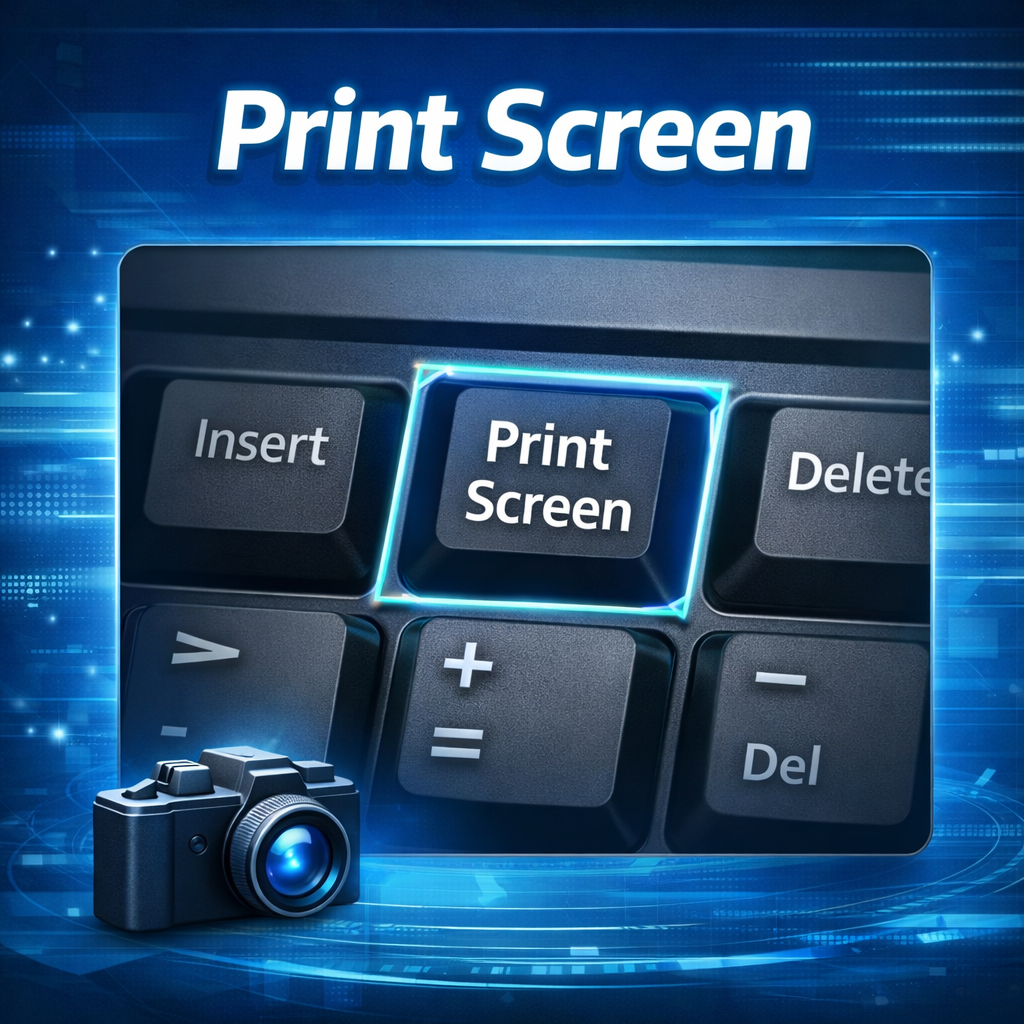
This is the oldest and most basic method to capture screen. A single press on the Print Screen key captures the entire screen and stores the image on the system clipboard. Users can later paste this image inside Paint, word processor, chat box, or email to save it as a separate image file.
Alt + Print Screen
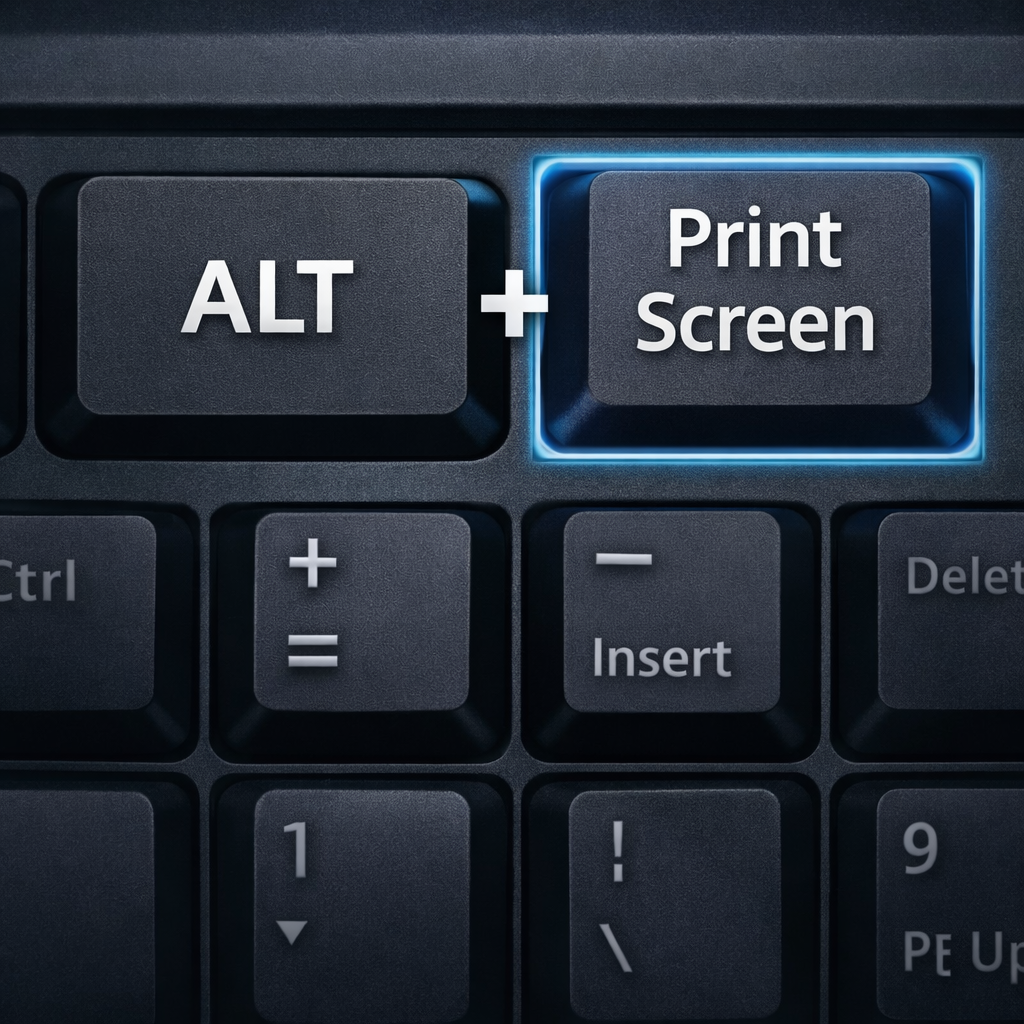
This shortcut works perfectly for users who do not need the full screen capture. This key combination captures only the currently active open window, and ignores all other background windows and taskbar. Most people use this shortcut while sharing app settings or error messages, as the capture stays clean and focused. The captured image gets stored in the system clipboard.
Windows + Print Screen
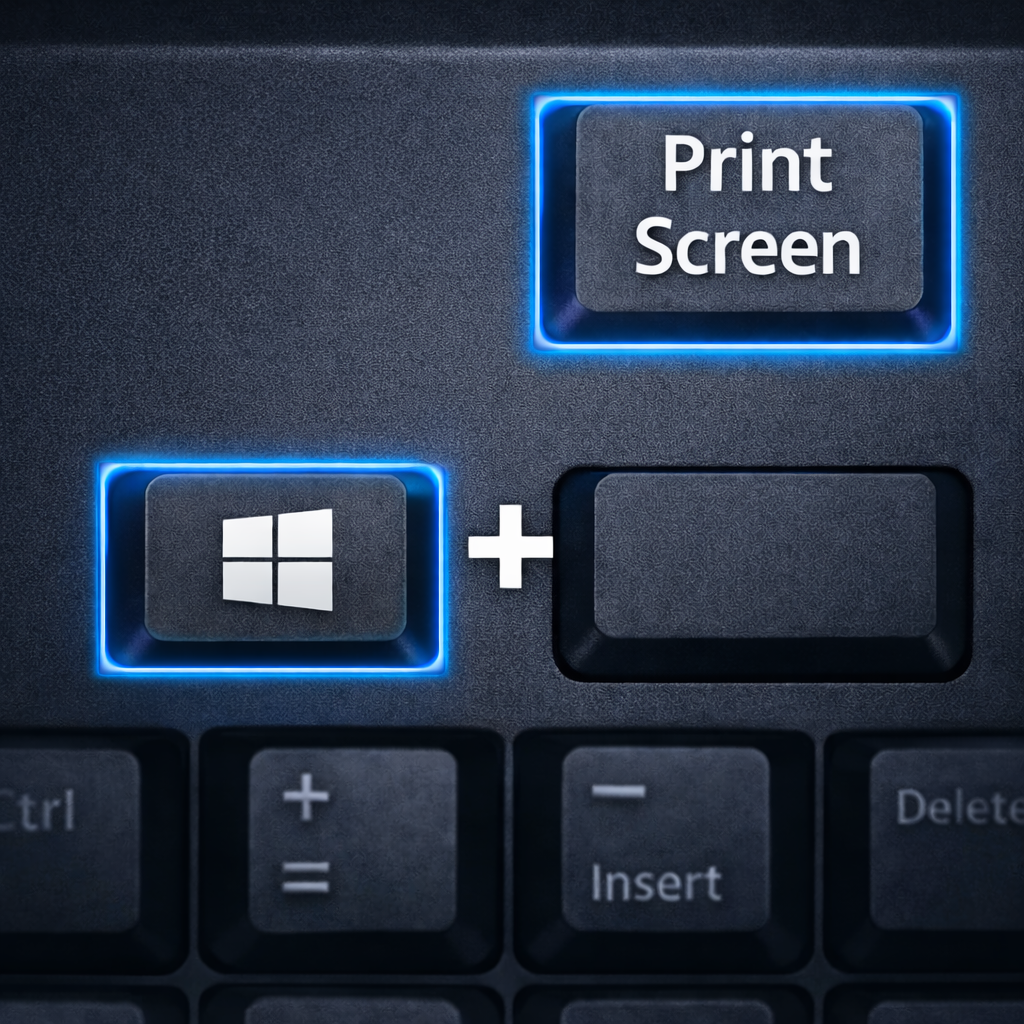
Users who want to save screenshots without any extra steps should use this shortcut at all times. This key combination captures the full screen, and automatically saves the image file inside the Pictures > Screenshots folder of the device. This shortcut removes all confusion related to save location of screenshots.
Windows + Shift + S
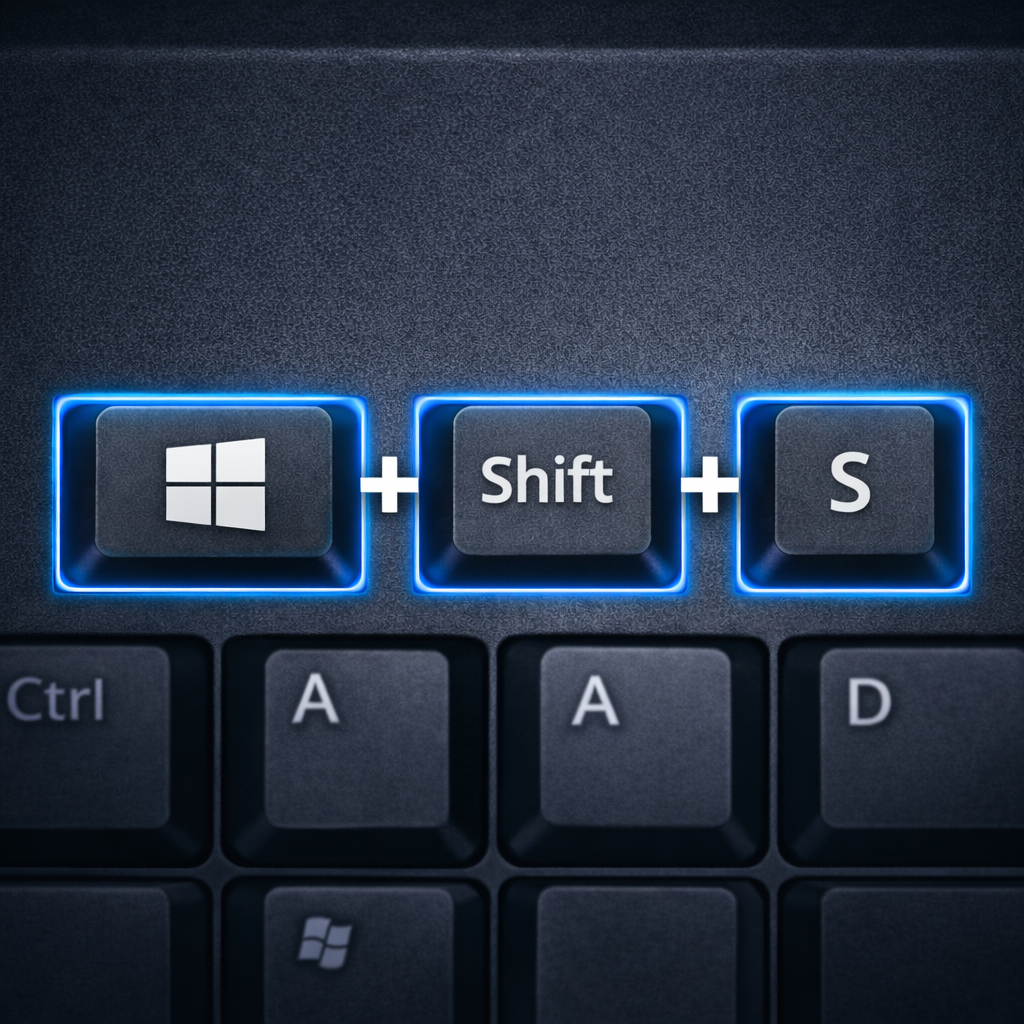
This is the most useful shortcut for precision based capture. A press on this key combination opens the Snipping Tool directly, and lets users select any custom area, single window, or full screen as per requirement. Most regular users rely on this shortcut for most of their daily screenshot requirements, as it lets users capture only the required part of the screen.
Fn + Print Screen
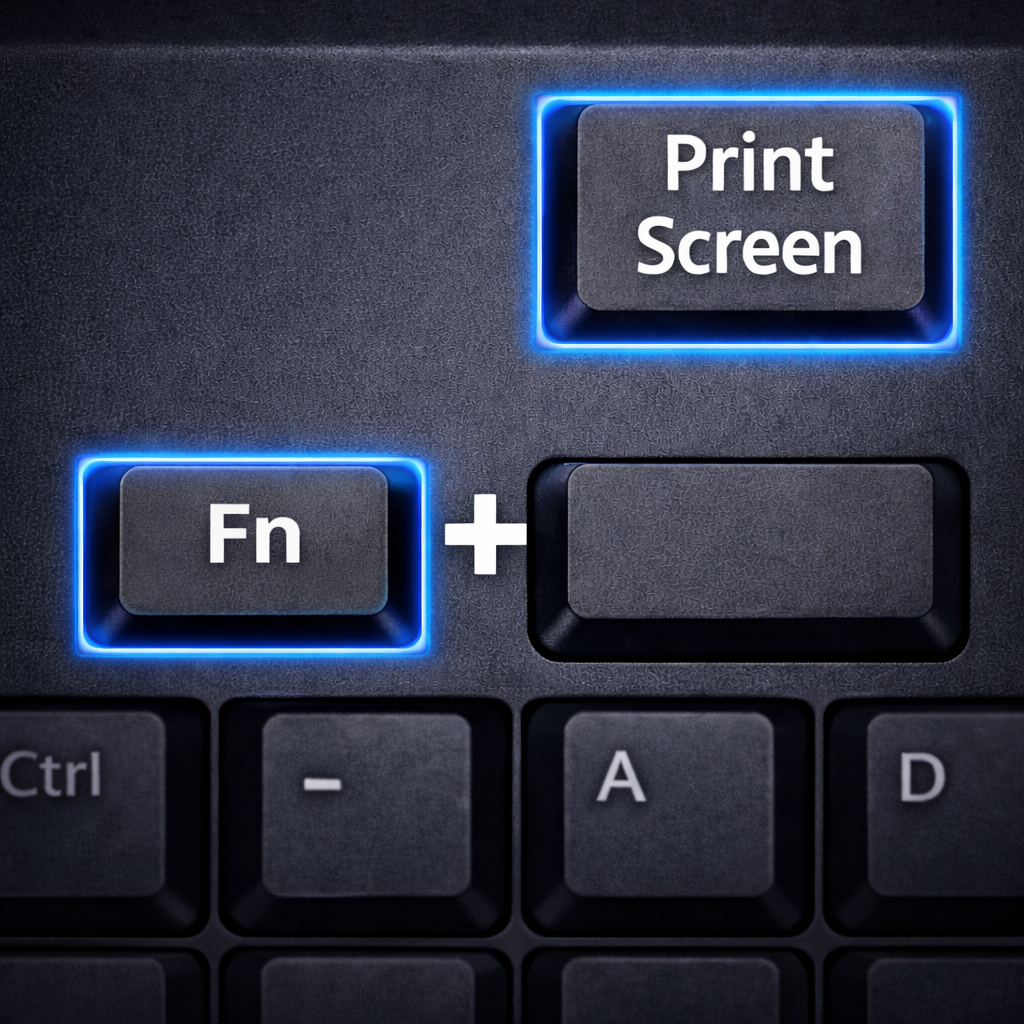
Many budget range HP laptops come with combined function keys on the top keyboard row. On these devices, the Print Screen function shares the same key with another feature. Users on these devices need to press and hold the Fn key along with the Print Screen key, or Fn key along with the Spacebar key to capture the full screen. The process feels unusual for the first few uses, but becomes automatic after regular practice.
Users can use these shortcuts to store a screenshot of their SSD health report, after they upgrade your HP laptop storage to SSD to get much faster read and write speed from the device How to Remove Hard Drive from HP Laptop.
How to Screenshot on an HP Laptop Using the Snipping Tool
The pre installed Snipping Tool is the best option for users who want to capture custom selected areas of their screen, such as a specific part of a webpage, error message, or study material. Users do not need to capture full screen and crop the image later, if they use this tool. The tool works exactly the same on Windows 10 and Windows 11.
What Is the Snipping Tool?
This tool comes pre installed with all modern versions of Windows. People can compare this tool to digital scissors for the computer screen. Users do not need to edit the captured image later if they select the right area during capture. This tool works perfectly for creating work guides, study notes and troubleshooting tutorials.
Steps to Use the Snipping Tool on HP Laptop
The process to use this tool is very simple. Open the Snipping Tool from the start menu, select the type of capture from rectangular, freeform, single window, or full screen, then select the area that needs to be captured. Users can add annotations, highlight important sections, and save the file to any preferred location on the storage. Many regular users keep a separate dedicated folder to store all screenshots to keep files organized. Users can also open the saved image file later inside Microsoft Paint for further edits if required.
If a user captures a screenshot of hardware damage to share with the official HP service center, the user must follow the How to Remove Battery from HP Laptop guide before opening the back panel of the device for repair work to avoid short circuit issues.
Snipping Tool Shortcut
Users can press Windows + Shift + S key combination to open the Snipping Tool instantly without opening the start menu. The captured image gets saved to the clipboard directly, so users can paste it inside documents, emails or chat boxes without saving the file separately. The process of taking custom area screenshots becomes very natural after using this tool for a few days.
How to Take a Screenshot Using Windows Game Bar
The Windows Game Bar works perfectly for capturing screenshots of video content, live streams, or gameplay. Earlier users often missed important moments while trying to capture full screen content that plays in motion. This tool removes all these issues, and works smoothly on both Windows 10 and Windows 11.
Best for Games and Videos
This tool is not limited to only gaming use cases. It works perfectly for any type of full screen moving content.
Shortcut: Windows + G
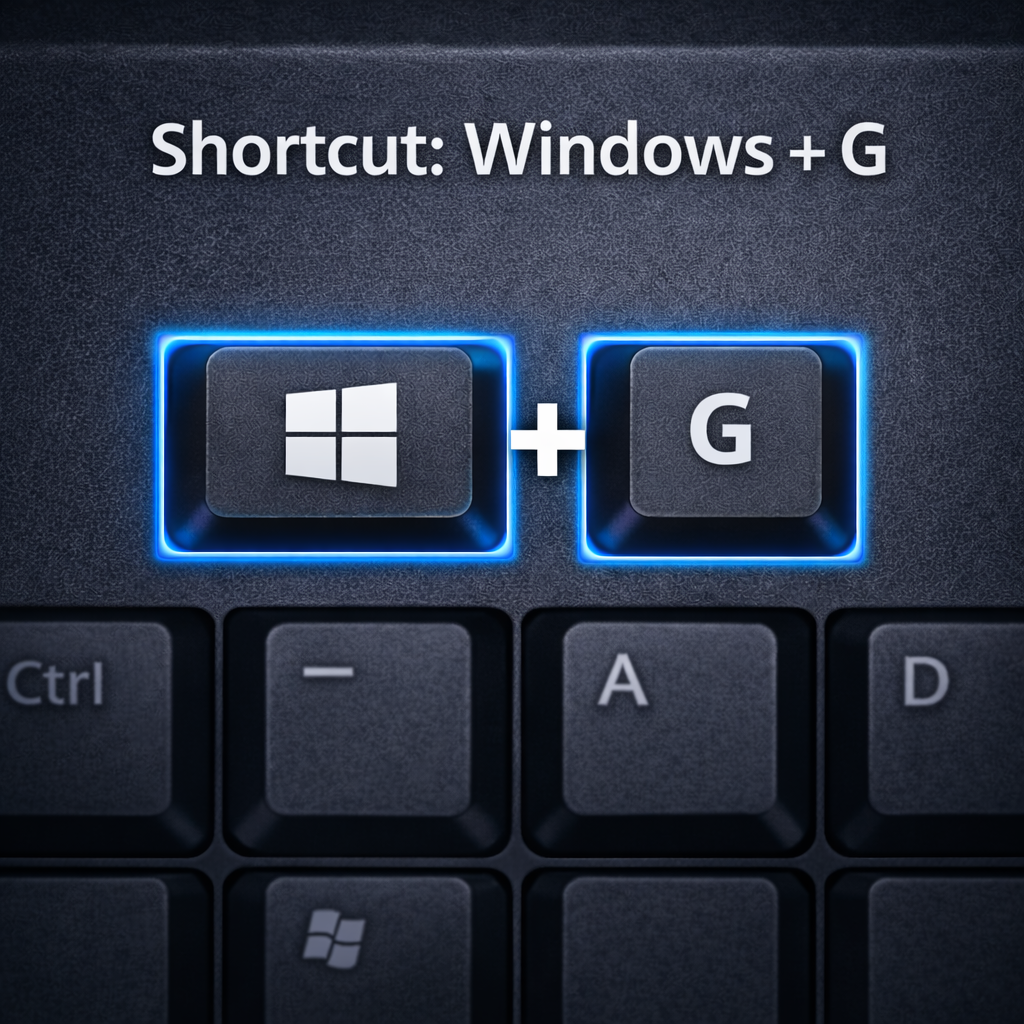
Press the Windows + G key combination to bring up the Game Bar overlay on top of any running full screen content.
Capture Screenshots and Screen Recordings
Click on the camera icon on the Game Bar to take an instant screenshot, or use the record button to capture full screen video. Some touch screen HP devices also let users take screenshots by pressing the power button and volume down button at the same time.
Where Game Bar Screenshots Are Saved
All screenshots and screen recordings captured with the Game Bar get saved automatically inside the Videos > Captures folder by default.
Where Are My Screenshots Saved on HP Laptop?
Most new HP laptop users search for their captured screenshots right after taking the first capture, as they do not know the default save locations.
Screenshot Save Locations Explained
- Windows + Print Screen → Saved automatically inside Pictures > Screenshots folder
- Print Screen / Alt + Print Screen → Saved only to system clipboard, users need to paste the file inside Microsoft Paint to save it
- Snipping Tool / Snip & Sketch → Users get the option to select custom save location manually
- Game Bar → Saved automatically inside Videos > Captures folder All captured image files are fully editable, users can rename, move or edit these files as per requirement.
Can I Change Where Screenshots Are Saved?
Users can easily change the default save location for screenshots captured with the Windows + Print Screen shortcut, and this change makes file organization much easier.
How to Change the Default Folder
- Open the Pictures folder from File Explorer
- Right click on the Screenshots folder and select the Properties option
- Open the Location tab from the top menu
- Click on the Move option and select any preferred folder as the new save location
OneDrive Auto-Backup
Users who have activated OneDrive backup on their device can enable the option to automatically upload all new screenshots to cloud storage as backup.
Organization Tips
- Create separate folders to store work related, study related and personal screenshots
- Rename screenshot files right after capture to find files easily later
- Use a mix of keyboard shortcuts and Game Bar as per the type of content you want to capture
Advanced Screenshot Tips for HP Laptop Users
As mentioned earlier, many HP laptop keyboards require users to press Fn + Print Screen or Fn + Spacebar to capture screenshots, as per the keyboard layout of the specific model. These shortcuts become muscle memory after regular use, and the entire process feels completely effortless.
Screenshot Tools and Software for HP Laptops (The Right Way!)
The pre installed tools such as Snipping Tool, keyboard shortcuts, and Microsoft Paint are more than enough for almost all regular use cases, and work very fast without any compatibility issues.
Common Screenshot Problems & Fixes (The Right Way!)
Blurry Screenshots
- Check if the display resolution is set to the recommended maximum level
- Adjust the display scaling setting to 100 percent
- Always save the screenshot as a file instead of pasting it directly to other platforms
If the exact same horizontal dark line appears on every screenshot captured from the device, the detailed Black Line on Laptop Screen HP guide will help users fix this permanent display hardware related issue.
Why Is the Print Screen Key Not Working on HP Laptop?
- Try using the Fn + Print Screen key combination first
- Use the Windows + Shift + S shortcut as an alternative
- Update the keyboard drivers from the official HP support website
Fn Key Requirement
On many HP laptops, you must press Fn + Print Screen together. This is common on compact keyboards. Once you get used to it, screenshots become smooth again.
Disabled Shortcut
Sometimes the shortcut is disabled in settings or replaced by another function. Try using Windows + Shift + S instead. It’s reliable and works the same on Windows 10 and 11.
Keyboard Driver Issues
Outdated keyboard drivers can cause keys to stop responding. A quick driver update often solves the issue. After updating, check again where do screenshots go on HP laptop so you know everything works properly.
FAQs
Where do screenshots go after using Windows + Shift + S?
These captures get saved directly to the system clipboard.
Can I change where screenshots are saved?
Yes, users can change the save location by changing the path of the default Screenshots folder
Can I edit screenshots on HP laptops?
Yes, users can edit captured screenshots using the Snipping Tool, Microsoft Paint, or the default Photos application.
Why are my screenshots blurry?
Blurry screenshots mostly appear due to incorrect display scaling settings or non recommended screen resolution.
Where is the Print Screen key on HP laptops?
This key stays placed on the top row of the keyboard, and on many models users need to press the Fn key to use this function.
Conclusion
The process of taking screenshots on an HP laptop is much simpler than most new users assume. Users can choose the right method from keyboard shortcuts, Snipping Tool, or Game Bar as per their requirement, and all these methods work perfectly across all keyboard layouts and Windows versions.
Mastering these screenshot methods saves a lot of time on a daily basis, and makes all regular work related and personal tasks much more efficient.
2 thoughts on “How to Screenshot on HP Laptop (Windows 10 & 11 – All Methods Explained)”
Really helpful guide! The step-by-step instructions on taking screenshots on an HP laptop are clear and easy to follow, especially for beginners. I also liked that you covered multiple methods like using keyboard shortcuts and built-in tools. It would be even better if you could add some troubleshooting tips for users who face issues with screenshot keys. Overall, great content—keep it up!
Thank you very much for this proper feedback, this is extremely helpful for us.
You are 100% correct about the troubleshooting part. I am actually going to add that whole section to this article tomorrow. Nobody has ever pointed this out before.
Really appreciate you took the time to write this properly. Have a good one!