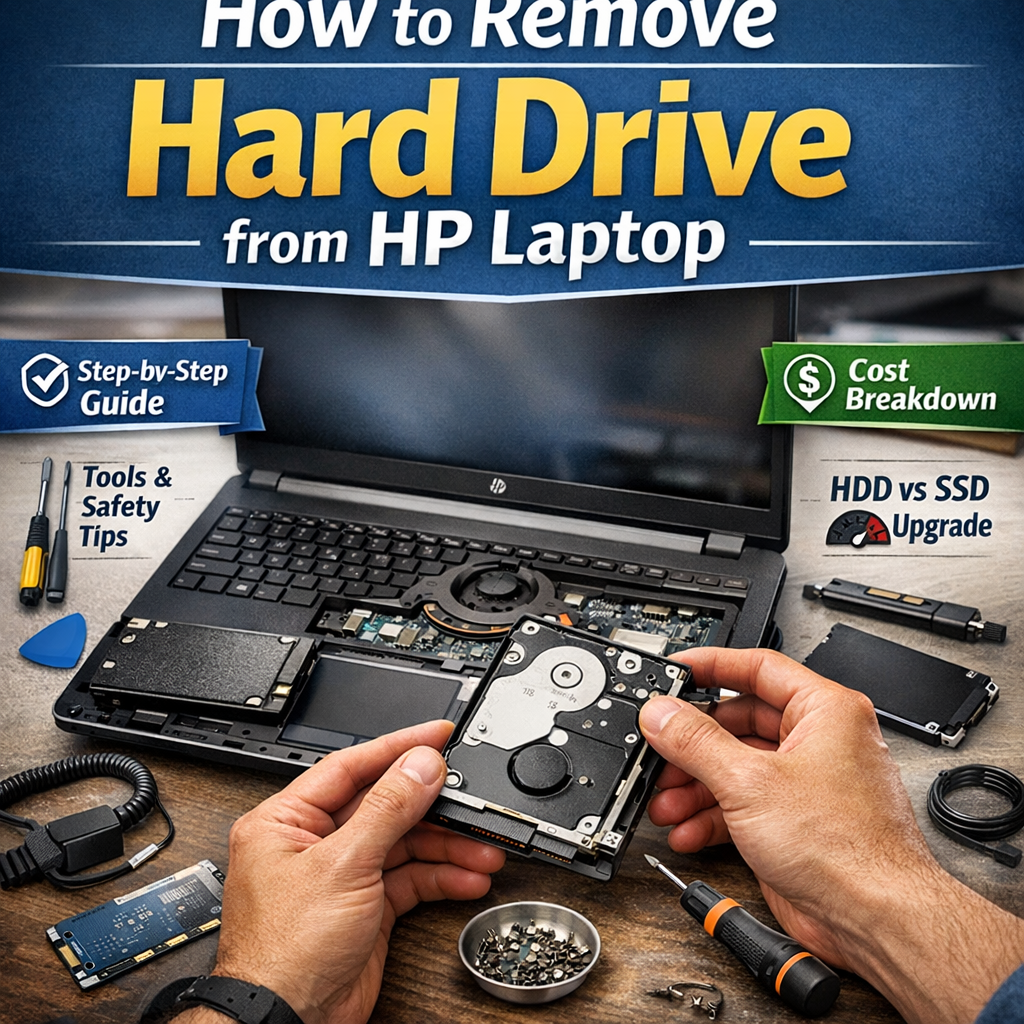
Is your HP laptop acting slow? I can help you fix it. In this guide, you will learn how to remove hard drive from hp laptop parts safely. We will also chat about HP laptop SSD replacement tools and costs. It is very easy.
What You Should Know Before You Start
Before we start the HP laptop hard drive removal process, let’s take a breath. I know you are eager to fix your machine. But patience is key here. I have broken enough plastic clips to know that a little prep saves a lot of stress. Let’s get ready first so we don’t regret it later.
Why You Might Remove Your Hard Drive
Why take the drive out? Maybe it is clicking or dying. You remove a hard drive to replace a failing part, upgrade speed, or wipe data. Most people do this for an HP laptop SSD replacement. An SSD is much faster than an old spinning drive. It makes an old laptop feel brand new. It is the single best upgrade you can make.
Types of Drives in HP Laptops
You need to know what is inside your machine. HP laptops usually hold a 2.5-inch SATA HDD or a small M.2 NVMe SSD. The old HDD looks like a small metal box. The newer SSD looks like a stick of gum. An HP laptop HDD replacement is often easier than swapping an M.2 stick. Check what you have before you buy parts.
Is Your Model Compatible?
Not all HP laptops open the same way. Some have an easy back door. Others need a full teardown. Check your specific model number to see if your laptop allows easy drive access. I once pried open a laptop only to find the drive under the motherboard! Don’t be like me. Check your manual or a teardown video first.
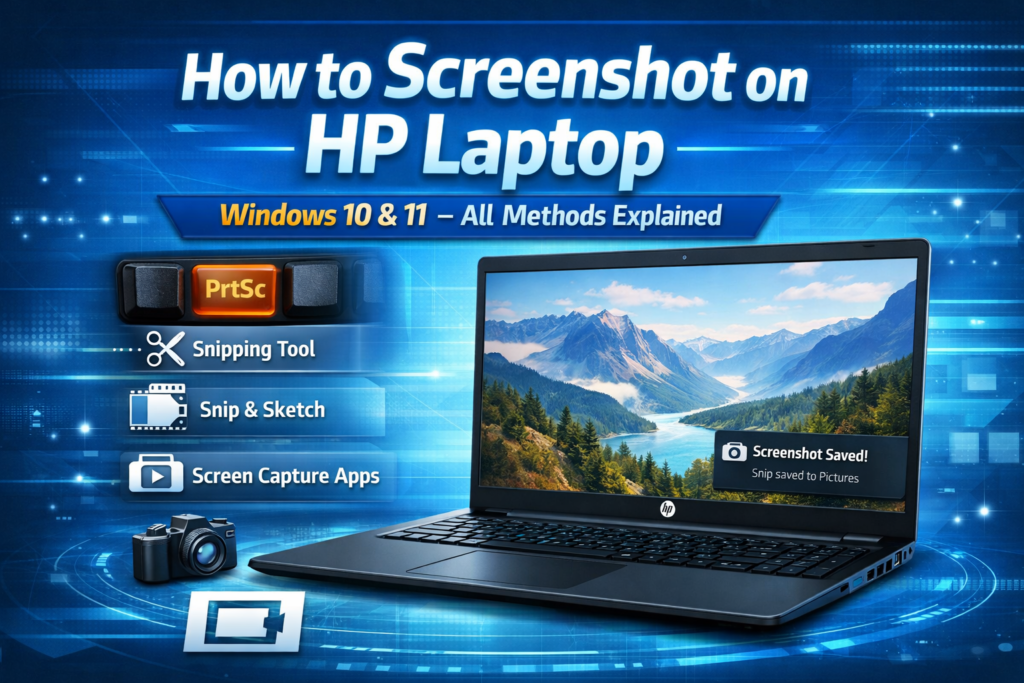
Keep that model number safe! It is smart to snap a picture of it for later. If you need help capturing the screen, read our guide on how to screenshot from an hp laptop.
Safety & Preparations
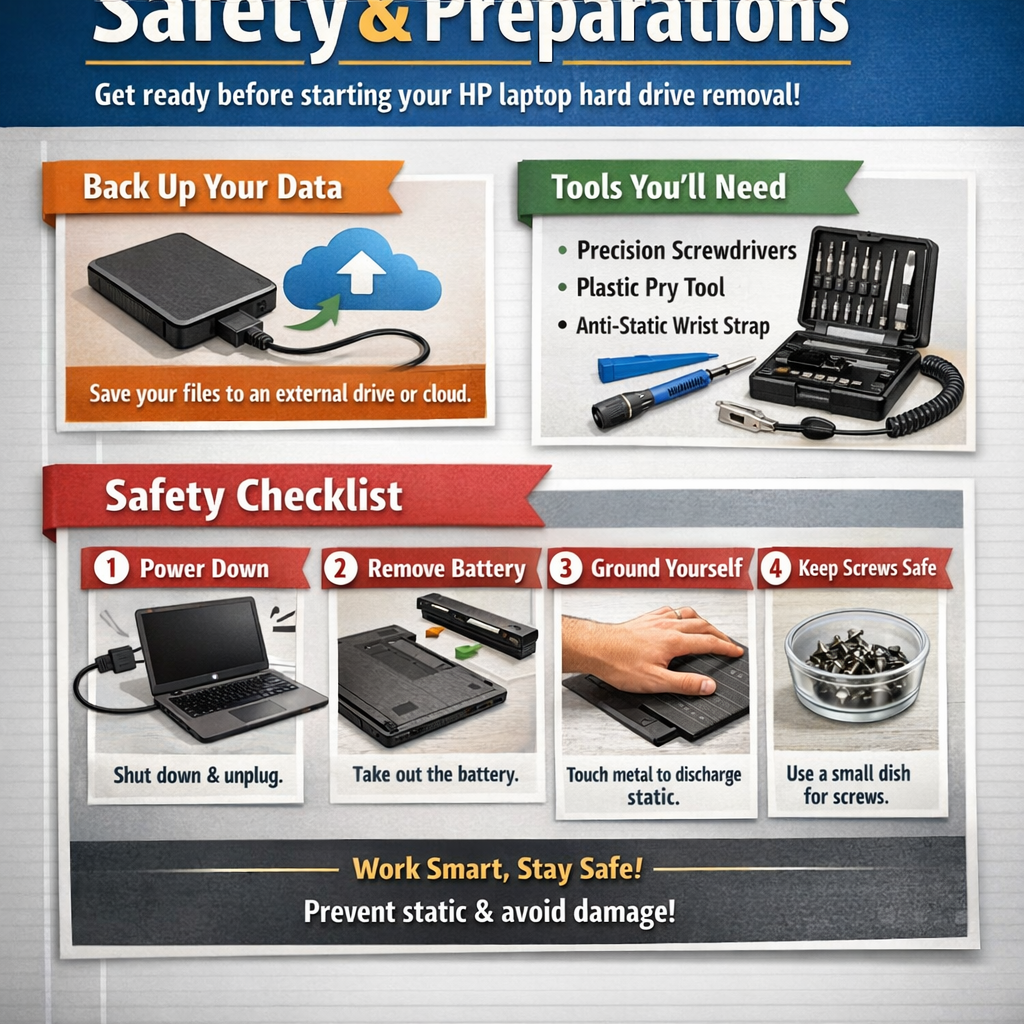
Let’s get organized first. I know you want to jump right in, but patience pays off. Good safety prep protects your laptop from static shocks and drops. It takes just a minute. Let’s make sure you have everything you need right here.
Back Up Your Data
Imagine losing all your photos in a blink. That hurts, trust me. Always back up your data to an external drive or the cloud before you start an HP laptop storage upgrade. It ensures your files are safe if something goes wrong. I once lost years of work by skipping this step. Please do not be like me.
Tools Required
You don’t need a fancy toolkit. You only need a precision screwdriver set, a plastic pry tool, and maybe an anti-static wrist strap. A guitar pick works great if you don’t have a pry tool. Keep your screws in a small dish so they don’t roll away. It saves so much stress later.
Safety Checklist
Let’s cut the power completely. Shut down the laptop, unplug the charger, and take out the battery to stay safe. This step stops any sparks or shorts. If your battery is sealed inside, don’t worry. You can unplug it after you open the case.
Struggling to get that battery out? Some HP clips are very tricky. If it feels stuck, check our simple guide on how to remove battery from hp laptop. It will show you exactly how to release the latch without breaking it.
Step-By-Step: How to Remove Hard Drive from HP Laptop
Step 1: Power Off & Disconnect
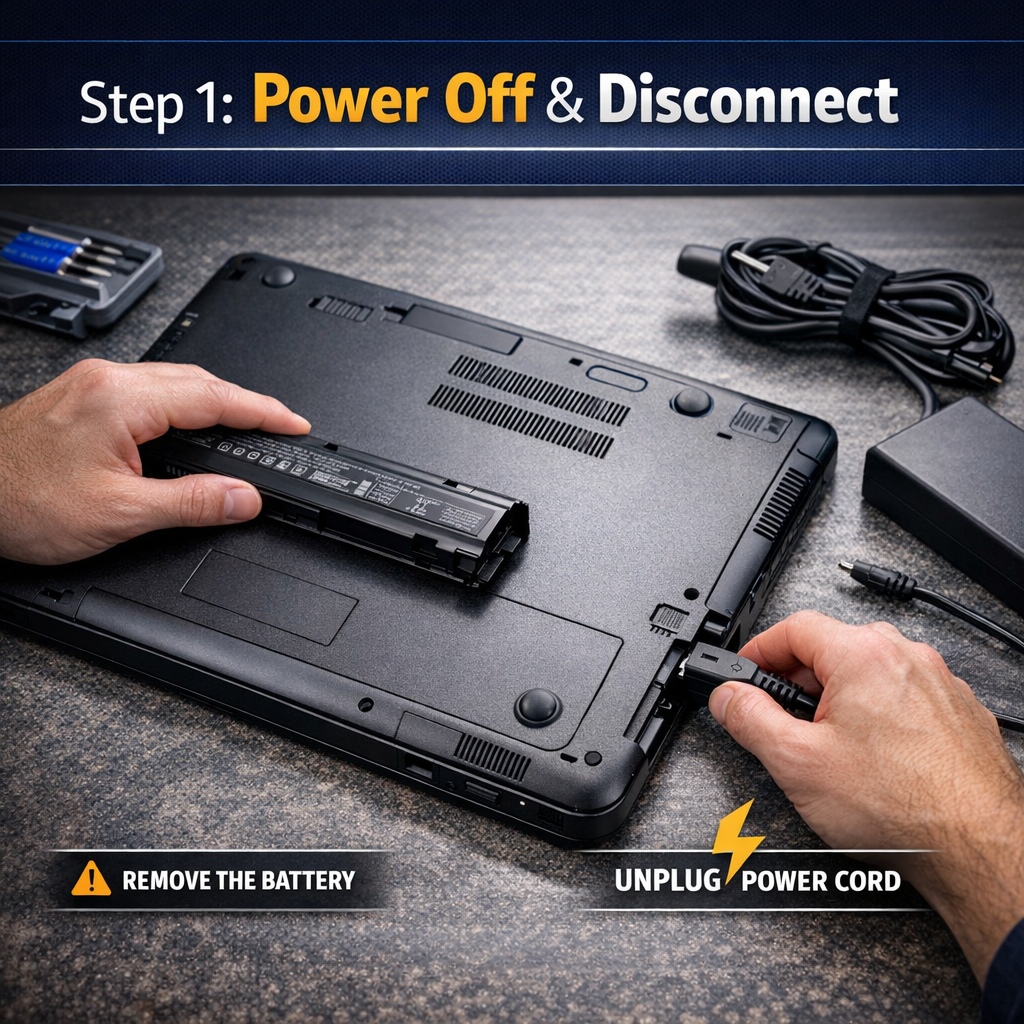
Let’s play it safe first. Shut down your laptop completely and unplug the power cord from the wall. If your battery comes out easily, slide the latch and remove it now. This stops any power from flowing while you work.
Step 2: Access the Hard Drive Compartment
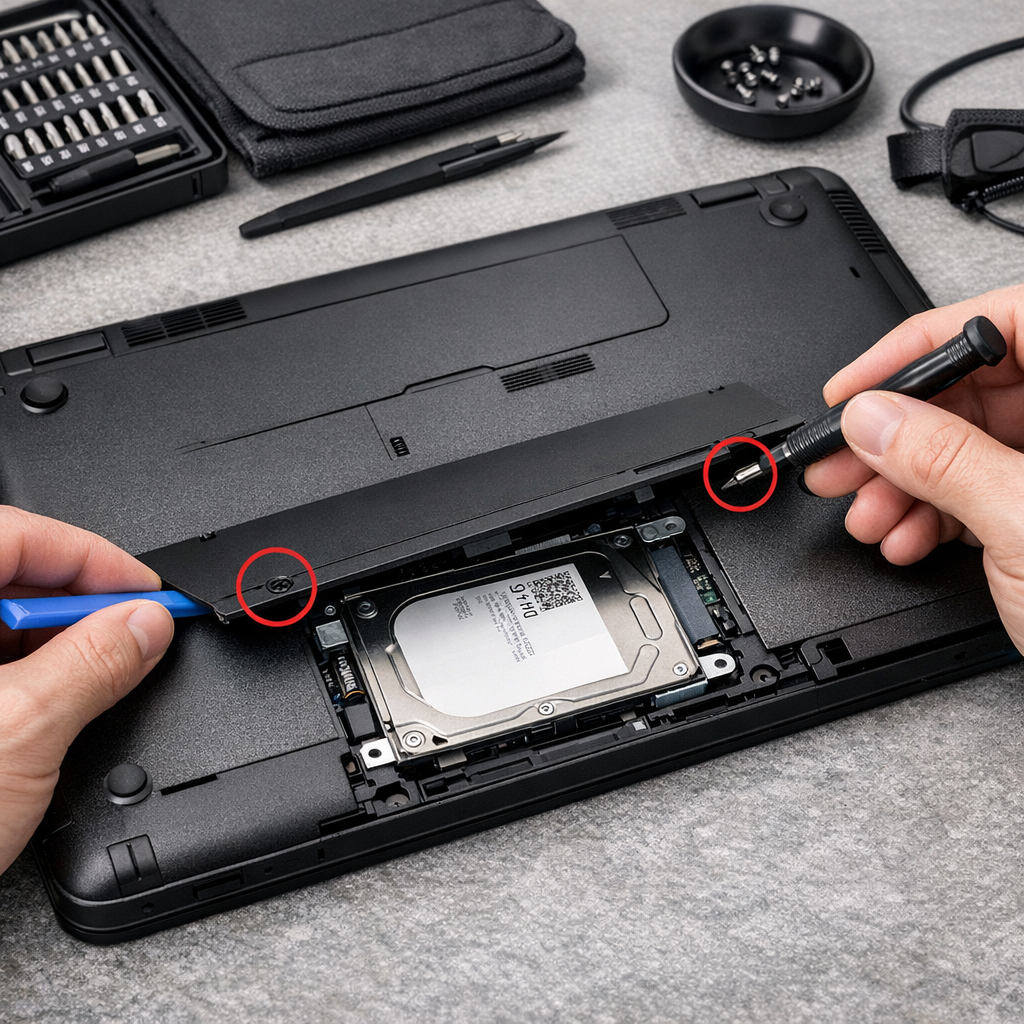
Flip the laptop over. To start the HP laptop hard drive removal, find the screws on the bottom panel. Look closely! Some screws hide under rubber feet or stickers. I often use a plastic tool to pop the cover open gently.
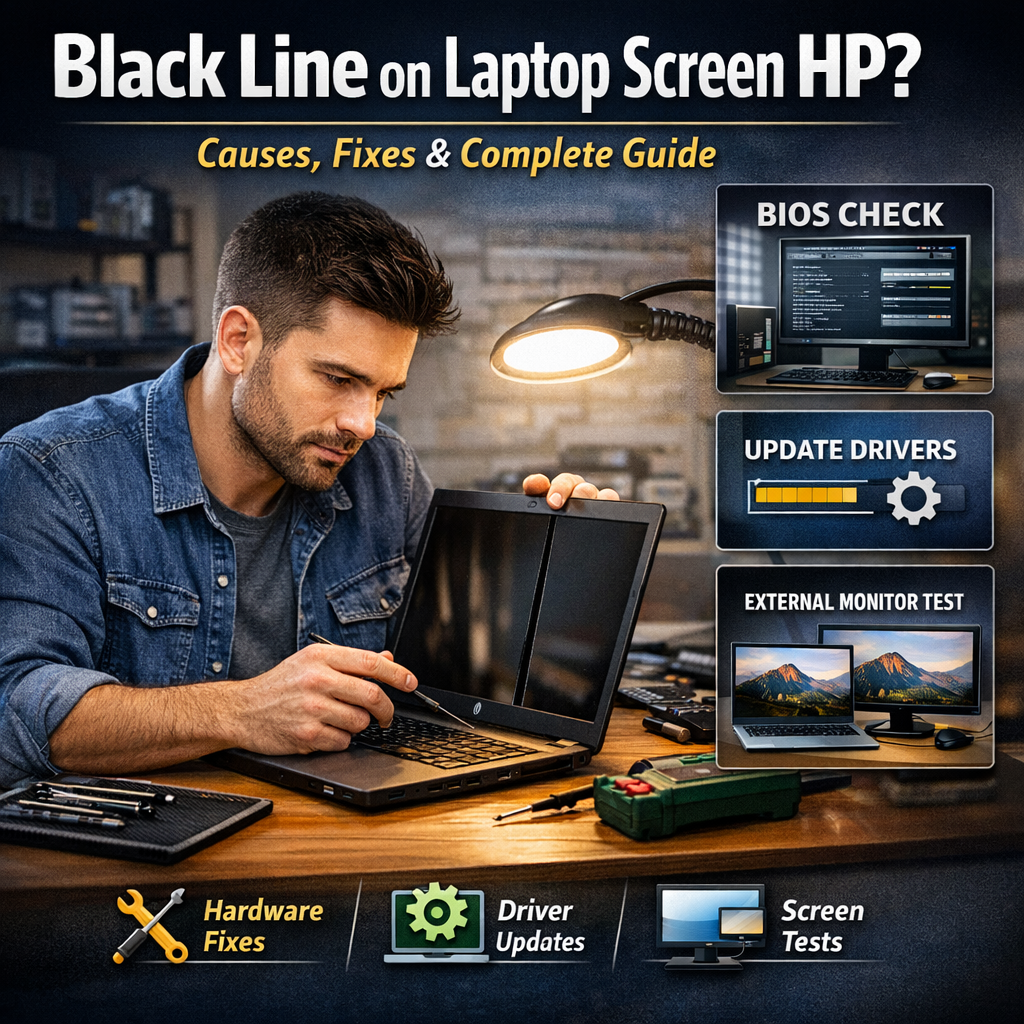
Be very careful near the hinges. Too much pressure can hurt your display. If you spot a black line on laptop screen hp , check this guide to fix it.
Step 3: Locate the Hard Drive
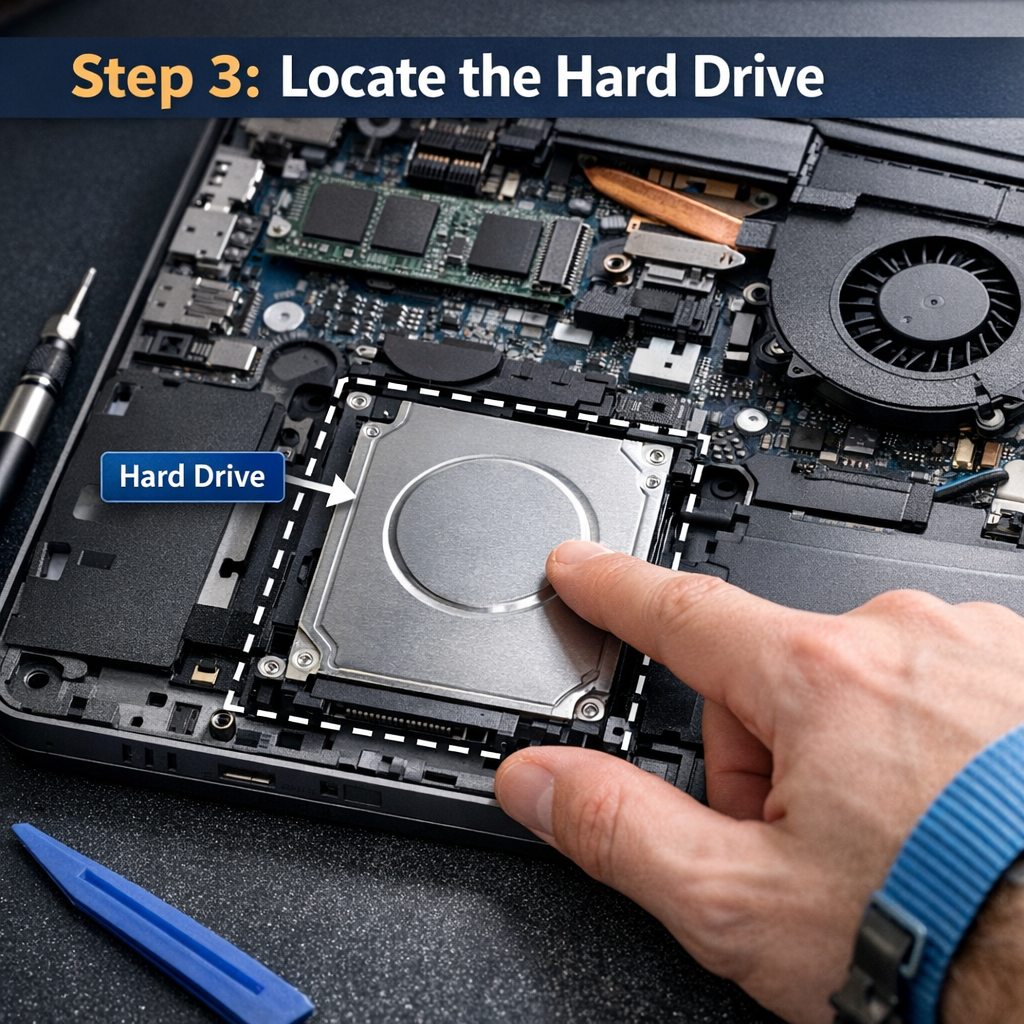
Take a peek inside. Find the hard drive; it usually looks like a small silver or black box. It sits in a bay near the edge. If you have an SSD, it might look like a small stick. Note how it sits there.
Step 4: Unscrew & Slide Out the Drive
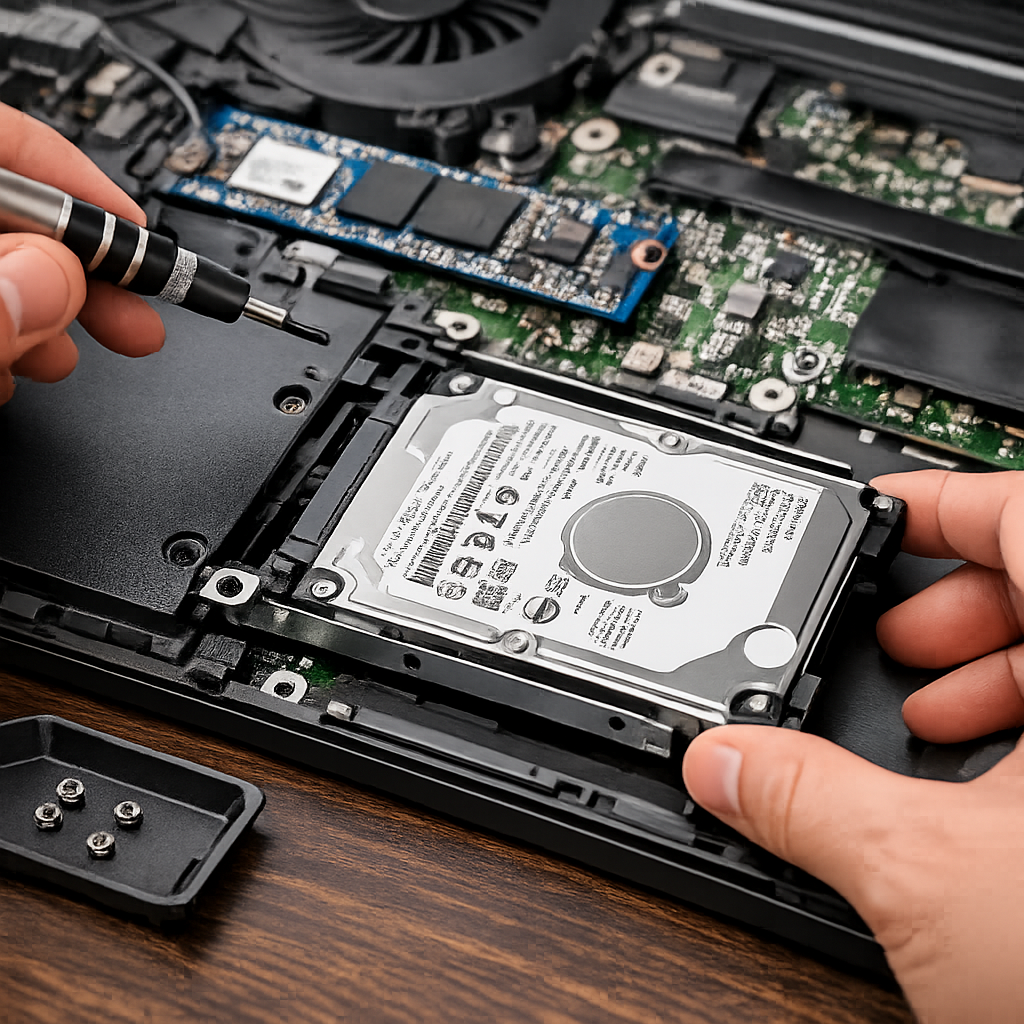
Grab your screwdriver. Remove the mounting screws and gently slide the drive sideways to unplug it. Do not pull it straight up! This step is key for any HP laptop HDD replacement.
Step 5: Remove Hard Drive Bracket (if applicable)
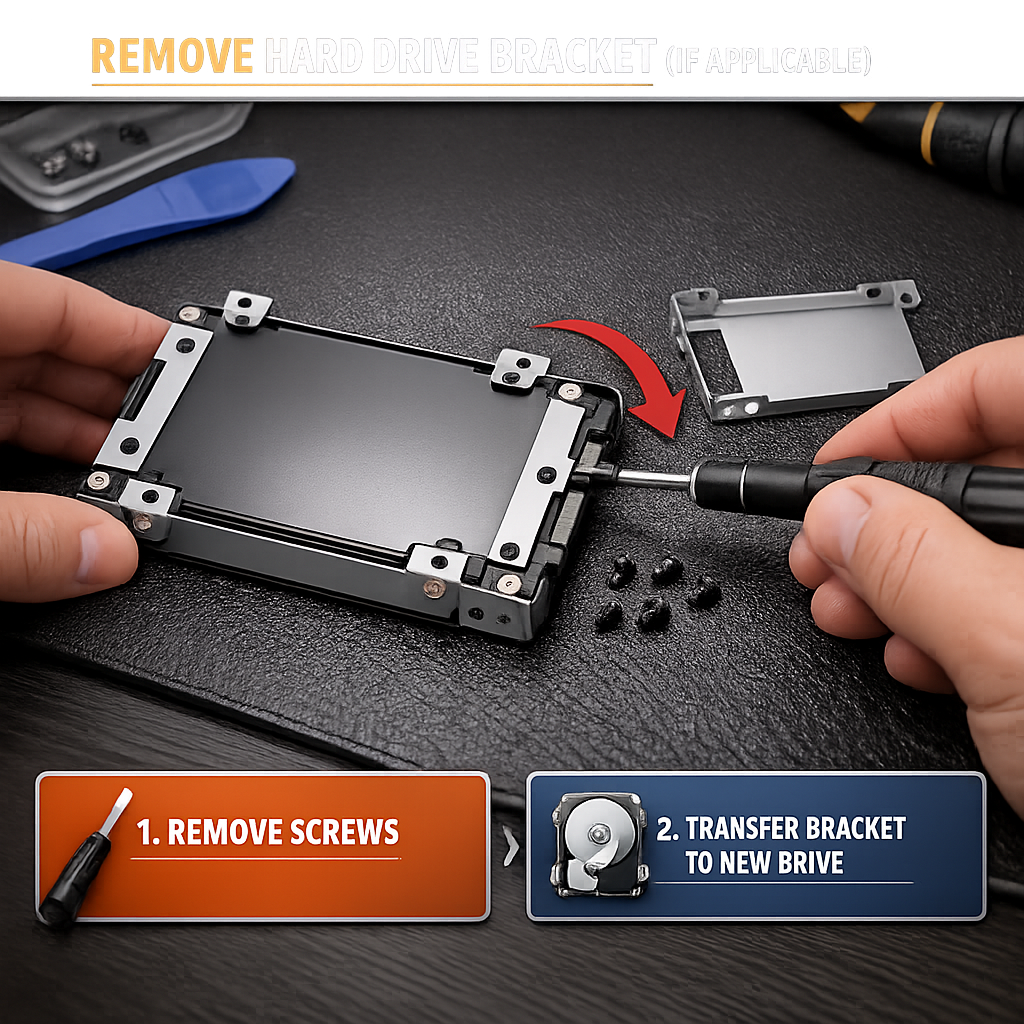
Look at the drive you just pulled out. You need to unscrew the metal bracket or caddy from the old drive. You must move this bracket to your new drive. Keep these tiny screws safe.
How to Replace or Upgrade the Hard Drive
Choosing a Replacement
Which drive should you buy? An HP laptop SSD replacement is the best choice for speed and durability. SSDs are much faster than old spinning drives. They used to be pricey, but now the HP laptop hard drive replacement cost is very low. Just make sure the new drive matches your old one’s size.
Installing New Drive
Let’s put the new part in. Attach the bracket to your new drive to complete your HP laptop storage upgrade. Slide it into the connector firmly but gently. You should feel it sit flat and snug. Put the screws back in to hold it tight.
Reassembling Laptop
Time to close it up. Snap the bottom panel back on and tighten the screws to secure the chassis. Don’t force the plastic; it should fit easily. Put your battery back in and plug in the charger. You are done.
After Removal: What to Do Next
Booting After Replacement
Great job on the swap! Now, turn it on. You need to enter the BIOS menu to make sure the laptop sees your new drive. Usually, you tap F10 or F2 right when the logo appears. If it shows up there, you are ready to install Windows from a USB stick.
Cloning Your Old Drive
Do you want to keep your old files? Cloning copies your exact system onto your new HP laptop SSD replacement drive. You just connect the old drive with a USB adapter. I love this method because it saves hours of setup time. It feels like you never even switched drives!
Recycling & Disposal Tips
Don’t toss that old drive in the trash. You must securely wipe your data or physically destroy the drive to protect your info. I often take a magnet to my old broken drives. Then, drop them off at an e-waste center. It keeps the earth clean and your data safe.
HP Laptop Hard Drive Replacement Costs
Thinking about upgrading your HP laptop but worried about the cost? Let’s break down everything you need to know about HP laptop hard drive replacement costs, so you can make the best choice for your budget.
DIY Cost vs Professional Service Cost
If you’re comfortable with a screwdriver, doing a DIY HP laptop hard drive replacement is a smart way to save money. The main cost is the new drive itself. A basic HDD can cost as little as $20 to $60, while a new SSD perfect for speeding up your laptop—usually ranges from $40 to $150, depending on the storage size and brand.
If you’d rather have a pro handle the job, expect to pay extra for labor. Most repair shops charge between $50 and $150 for the service, plus the price of the drive. While this is more expensive, it can give you peace of mind, especially if your laptop is a higher-end model or you’re not confident in your DIY skills.
Typical HP Laptop Hard Drive Replacement Cost Ranges (HDD vs SSD)
Let’s compare the numbers so you can decide what’s best for you:
HDD (Hard Disk Drive): These drives are cheaper and offer more storage for less money. You can usually find a 1TB HDD for $30 to $60. However, they’re slower and less durable than SSDs.
SSD (Solid State Drive): SSDs are pricier but much faster and more reliable. A 500GB SSD typically costs between $40 and $80, and it will make your HP laptop feel like new.
For most users, the speed boost from an SSD is worth the small extra cost. But if you just need more storage space and don’t care about speed, an HDD might be enough.
Labor Considerations
Doing the HP laptop hard drive replacement yourself is straightforward if you follow a good guide and take your time. Just remember to back up your data first! If your laptop has a special design or the drive is hidden under the motherboard, you may need extra tools or a bit more patience.
If you’re not sure about opening your laptop or you want to avoid voiding any warranties, it’s fine to pay for professional installation. Some HP laptop models are built to be easy to upgrade, while others are a little trickier. Checking your model’s manual or watching a teardown video first can save you time and headaches.
Troubleshooting & Common Issues
Upgrading your HP laptop with a new hard drive or SSD is a great way to give your device a new lease on life. But sometimes, things don’t go exactly as planned. Don’t worry! Let’s talk about the most common issues you might run into and how to fix them quickly.
Hard drive not ejecting easily
Is the drive stuck? Do not force it. Check again for hidden screws if the drive feels stuck during your HP laptop hard drive removal. Sometimes the connector holds on tight. Wiggle it gently to break the seal.
Laptop won’t boot after removal
Does the screen stay black? Your laptop won’t boot if the new drive is loose or not detected in BIOS. Don’t panic! Open it back up and check the connection. This happens to me all the time during an HP laptop SSD replacement.
Static damage risks
Watch out for silent sparks. Static electricity can hurt your new parts, so touch a metal object before you start. I tap my metal desk leg to stay safe. It is a small step that saves your HP laptop storage upgrade from failing.
FAQs
Can you remove the hard drive while laptop is on?
No, never do this. You must always shut down the laptop before removing a hard drive to avoid damage. If you pull it while power is flowing, you risk a short circuit. I have seen sparks fly from doing this! It hurts the board and the drive. Always play it safe and power down.
Will removing the drive delete data?
Your files are safe. Removing the drive does not delete data; it just stores it off the laptop. Think of it like taking a book off a shelf. The story is still inside the book. When you plug the drive back in, your photos and docs will be right there.
Can I use my old HP hard drive in another laptop?
Yes, you usually can. An old HP drive works in other laptops if the connectors match. Most 2.5-inch drives fit standard slots. You might need to install new drivers, but it is a great way to recycle. It works well for an HP laptop storage upgrade too.
Conclusion
You did it! We just finished the full HP laptop hard drive removal process together. You learned how to swap that old part for a fast HP laptop SSD replacement. It is a fantastic way to boost your laptop’s speed.
Taking it slow is the secret to success here. Doing the work yourself saves a lot of cash on HP laptop hard drive replacement cost. Your machine will feel brand new without breaking the bank. Just remember to keep track of those tiny screws!
Did this guide help you fix your slow laptop? Drop a comment below and let me know! You can also click subscribe for more easy tech tips. Don’t forget to grab my free printable checklist for your next repair job.