
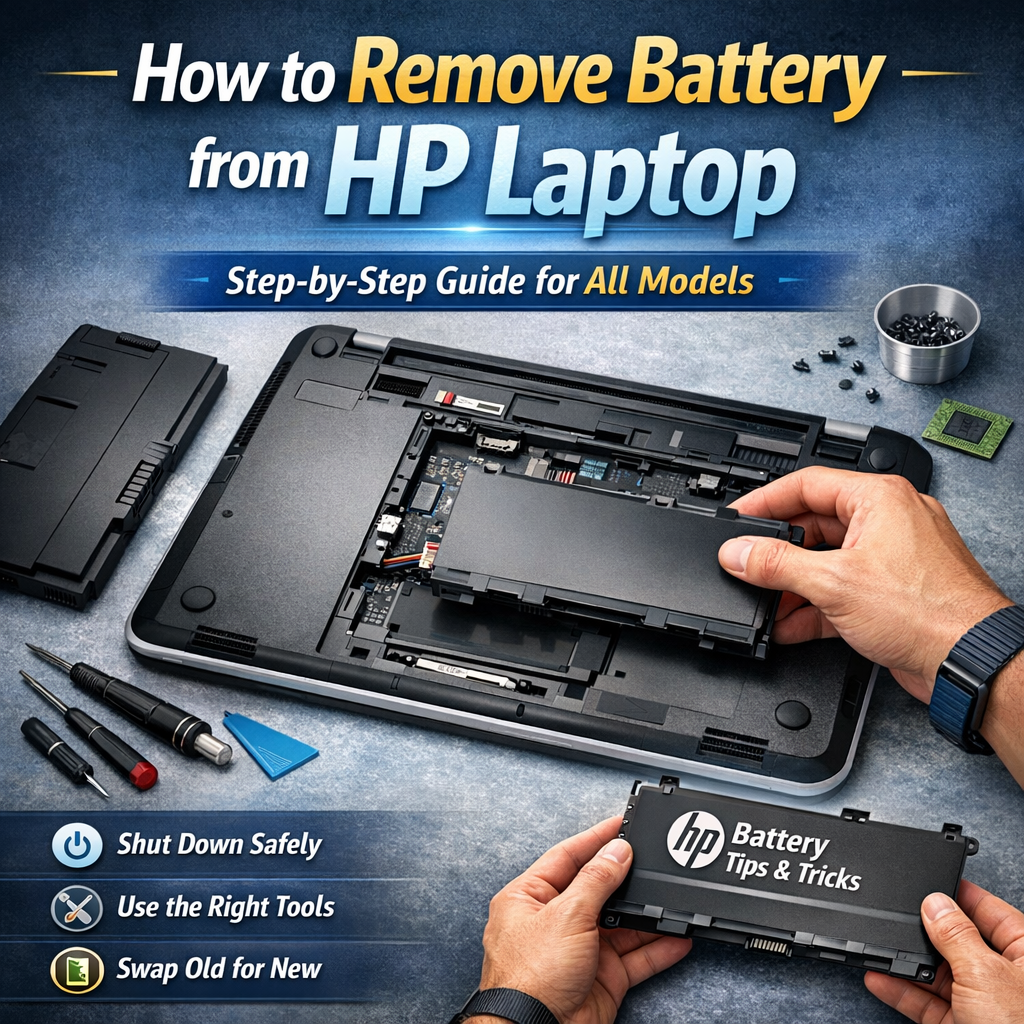
Does your laptop turn off way too fast? It is a real pain when you lose power. I have fixed this exact issue on many computers over the years. Learning how to remove battery from hp laptop is actually very simple. You do not need expensive tools or special skills to do it. Let me show you the safe and easy way right now.
How to Remove Battery from HP Laptop
In a rush? I get it. Sometimes you just need to know how to remove battery from hp laptop right now without the fluff. I have done this hundreds of times, and it is quite safe. Here is the fast way to get it done.
Steps for HP Laptop Battery Removal:
Turn it off. Shut down the PC and unplug the power cord.
Clear the ports. Unplug your mouse, USB drives, and headphones.
Flip it over. Lay the laptop face down on a soft towel or mat.
Open it up. Slide the release latch or unscrew the back panel.
Disconnect it. Lift out the battery or gently unplug the small cable.
Start it up. Put the case back on and turn on the power.
That is the basic process for HP laptop battery removal. It works for most models, old or new. If you take your time, you will do just fine. Now, let’s look at the details for your specific model.
Before You Remove the Battery (Important Safety Tips)
Before we dive into how to remove battery from hp laptop, we need to prep. Think of this like washing your hands before you cook a meal. A few quick checks will keep you and your computer safe. It makes the whole process feel much less scary. Let’s get your workspace ready for a smooth fix.
Shut Down, Don’t Just Sleep
First, make sure your laptop is fully off. Do not just close the lid or use sleep mode. Power still flows through the parts when it sleeps. Click the “Shut down” button in your Windows menu. This cuts the power completely and makes HP laptop battery removal safe.
Stop the Static Spark
You know that little zap you feel on a doorknob? That static shock can actually hurt your computer chips. You do not want that to happen here. Just touch a metal table leg or the laptop’s metal hinge first. This simple trick clears the static from your hands.
Gather Your Simple Tools
You do not need a big, fancy toolbox for this job. For older models, your hands are the only tool you need. If you have an internal battery, grab a small Phillips screwdriver. A plastic gift card works great to gently pry open the case.
Save Your Stuff First
I always tell my friends to back up their data. While HP notebook battery replacement is usually very safe, accidents can happen. I once lost a file because I rushed a repair. Save your photos and docs to a USB drive or the cloud. It gives you real peace of mind.If you want to get 3-4 times faster performance along with new battery, you can follow the How to Remove Hard Drive from HP Laptop guide to upgrade to SSD.
HP Laptop Battery Removal – Based on Battery Type
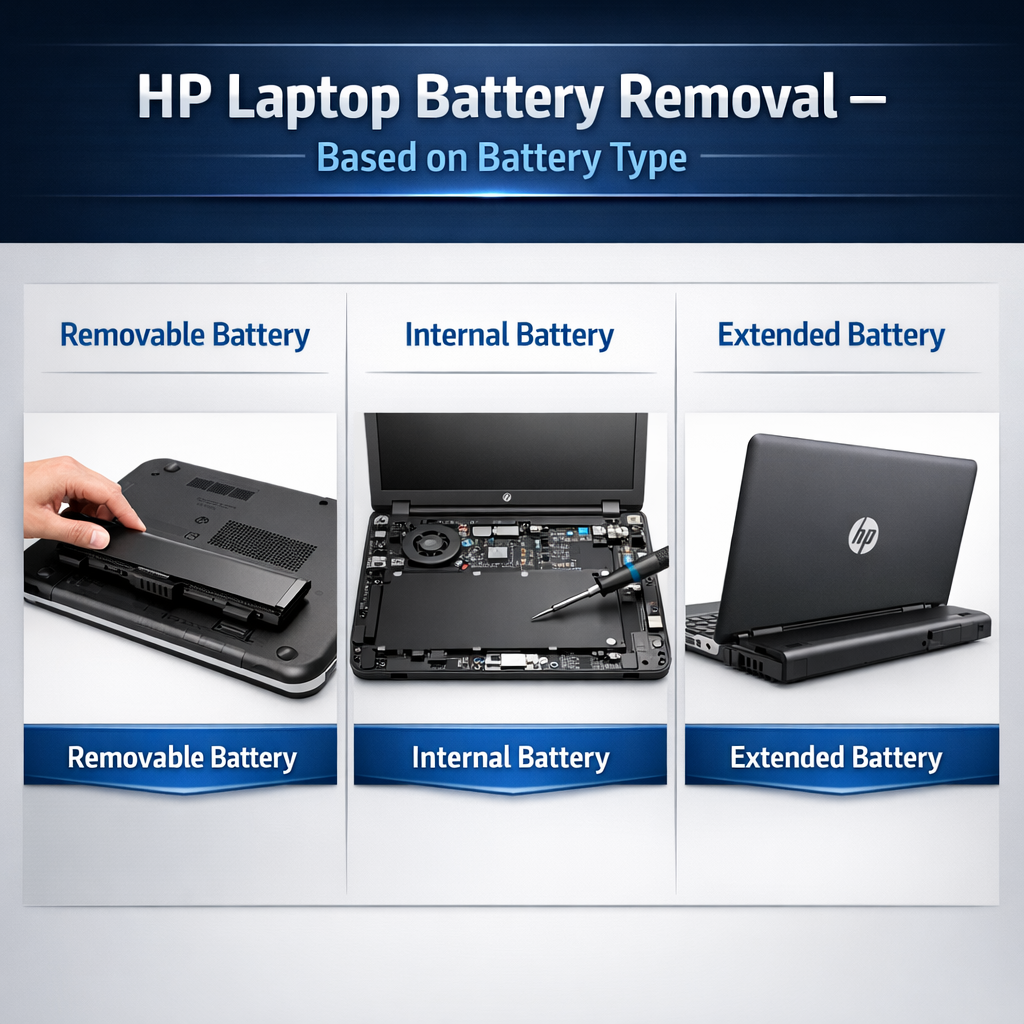
Not all laptops are built the same way. It is a bit like cars. Some hoods open with a lever, while others need a tool. To figure out how to remove battery from hp laptop, look at the bottom case. Do you see a switch? Or is it smooth with screws? This tells us which path to take. Let us look at the two main ways to get this done.
Method 1: How to Take Out HP Laptop Battery (External Battery Models)
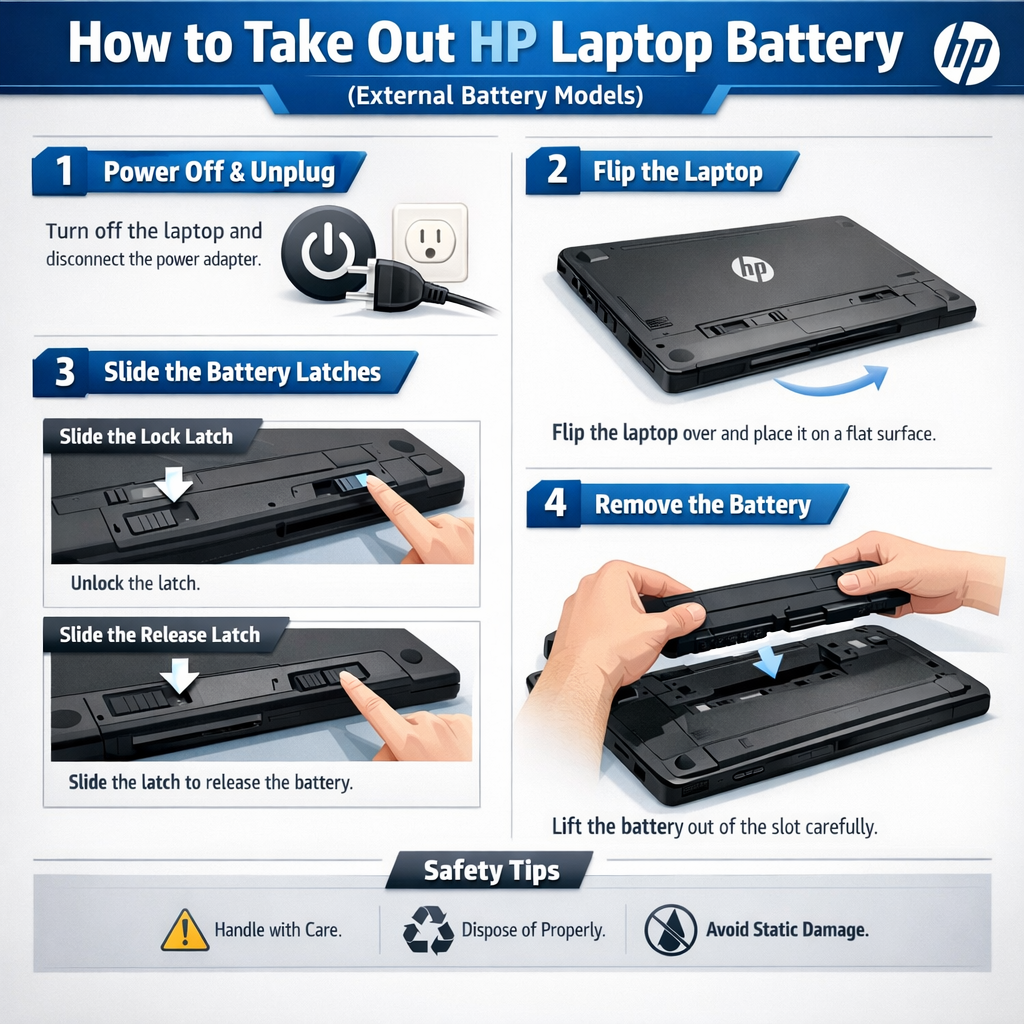
If you have an older HP Pavilion or HP Notebook, you are in luck. These are the easiest to fix. You do not need any tools at all. I love these models because swapping power packs takes ten seconds. It is a simple “slide and click” job.
Steps to Remove an External Battery:
Find the latch. Look for a switch on the bottom. It usually has a lock icon.
Slide and hold. Push the latch to the unlock side. Hold it there firmly.
Lift it out. The battery should pop up slightly. Grab the edge and pull it free.
That is really all there is to it. If the latch feels stuck, do not force it. Just wiggle it gently while you pull. This method covers most standard HP laptop battery removal tasks for older units.
Method 2: How to Remove Battery from HP Laptop (Internal Battery Models)
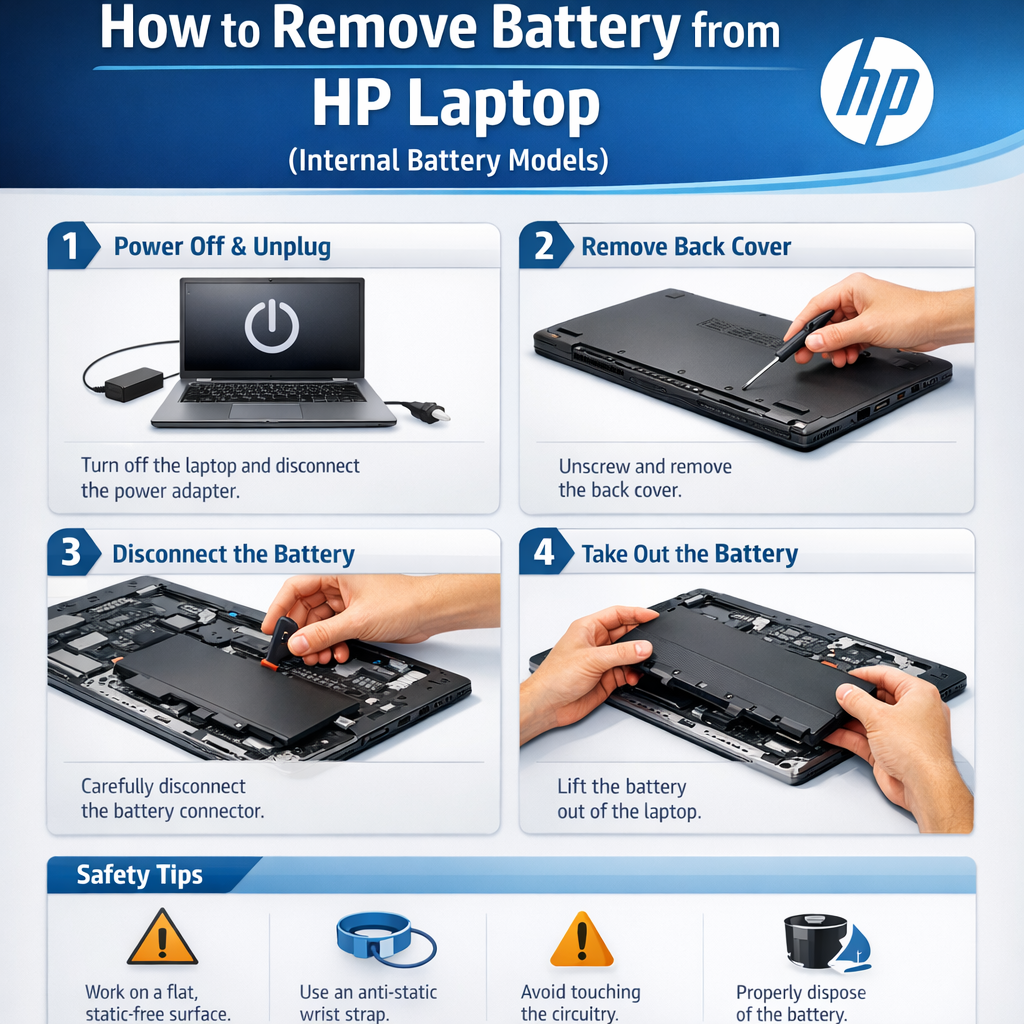
Most new laptops look very sleek. Models like the HP Envy, Spectre, and ProBook hide the battery inside. This might feel scary at first. You have to open the case. But trust me, it is safer than it looks. I was nervous my first time too. Just go slow and breathe.
Steps to Remove an Internal Battery:
Remove the screws. Use your small screwdriver. Take out all the screws on the bottom case. Put them in a cup so they do not roll away.
Pop the cover. Use a plastic card or pry tool. Slide it in the seam of the case. Gently twist to pop the clips open.
Find the cable. Look for a colored wire connecting the battery to the board.
Unplug it. Gently pull the plastic plug, not the wires. This stops the power flow.
Free the battery. Unscrew the few screws holding the battery down. Lift it out of the laptop.
This is the standard way for HP notebook battery replacement on modern devices. Once the back is off, the battery is right there. It is just like changing batteries in a big toy, just with a few more screws.
How to Remove Battery from HP Laptop Windows 10/11
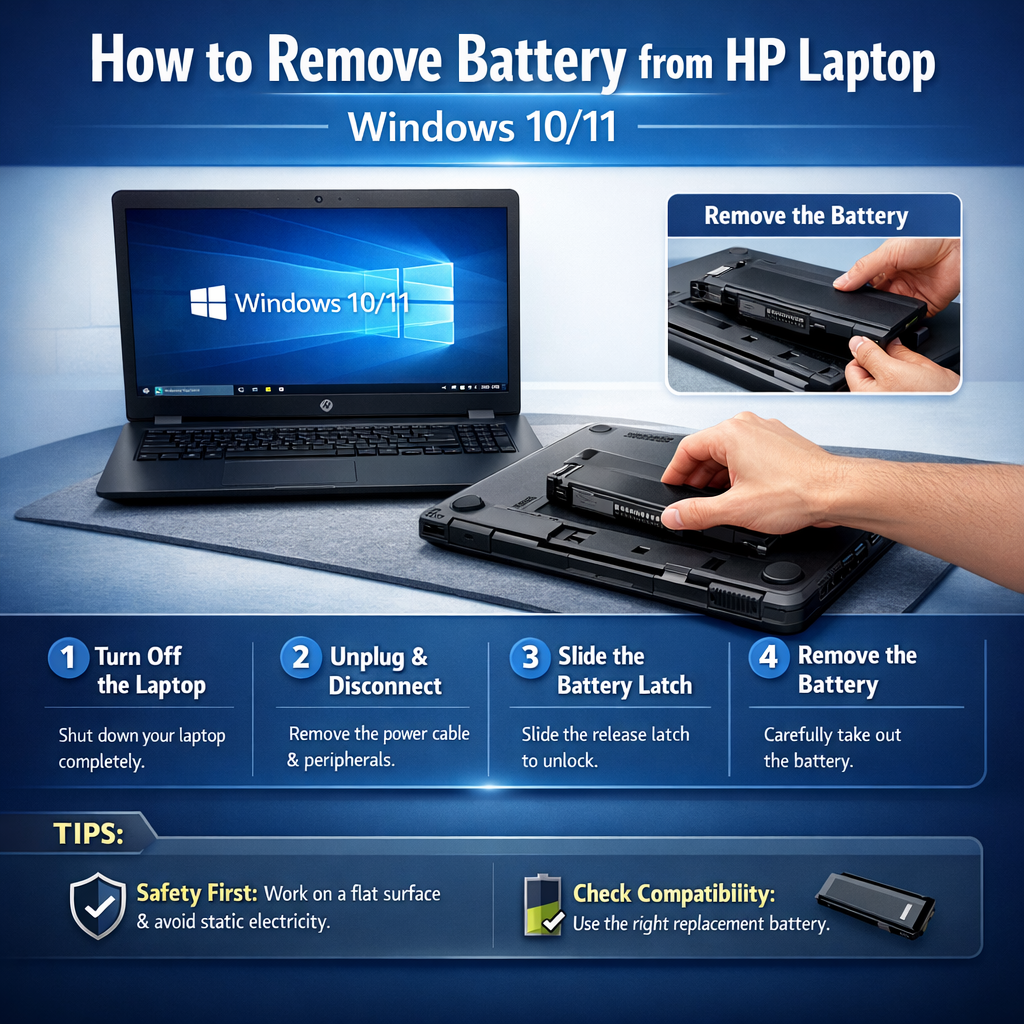
Many friends ask me if they can click a button to eject the power pack. It would be cool, right? But how to remove battery from HP laptop Windows 10/11 is not a software trick. You cannot click a mouse to take it out. But Windows can help you fix power bugs before you open the case.
Check Your Power Settings
Sometimes the battery is fine, but Windows is confused. It might hide the icon or act weird. Go to your Settings menu. Click on System and then Power. Reset the plan to default. This simple click fixes many false alarms. If you ever need to save a picture of these settings or an error code, check out How to Screenshot on HP Laptop (Windows 10 & 11).
Try a Soft Reset First
You might need how to reset HP laptop battery logic, not a screwdriver. Shut down the laptop completely. Hold the power button for 15 seconds. This drains the “ghost” power from the board. It clears glitches that look like a bad battery.
Calibrate Before You Replace
Windows might lie about your charge level. It says zero, but you have juice left. Let the laptop die completely. Then charge it fully without turning it on. This teaches Windows the true size of your battery.
When Physical Removal is Required
Did those software tricks fail? Then the battery is likely dead. You must physically take it out. If it swells or gets too hot, do not wait. Use the steps above to swap it safely. It is the best way to get your mobility back.
HP Notebook Battery Replacement (After Removal)
So, the old battery is out. Great job! Now comes the fun part: finding a fresh one. HP notebook battery replacement gives your laptop a second life. It feels like getting a brand-new computer for a fraction of the cost.
How to choose the correct replacement battery
Buying a battery can feel like buying shoes. You need the right fit, or it just won’t work. Do not guess or pick the cheapest one. A wrong match can actually hurt your laptop. Let’s make sure you pick the perfect mate for your machine.
OEM vs compatible battery
You will see two types: OEM and compatible. OEM means it was made by HP. These are safe but cost a bit more. Compatible ones are made by other brands. They are cheaper, but read the reviews first. I usually stick to OEM to be safe.
Model number matching
Every battery has a unique name tag. It is a mix of letters and numbers. Look for a code like “HT03XL” or “LA04.” Match this exact code when you shop online. Close enough is not good enough here.
Voltage & mAh check
Check the voltage (V) on the label. It must match your old one exactly. Then look at the “mAh” number. Higher mAh means it lasts longer. It is okay if the new mAh is higher, but the voltage must be the same.
Where to find battery model on HP laptop
Flip that old battery over. You will see a lot of small text. The model number is usually in the top left or right corner. It is often bold or in a box. Take a clear picture of it with your phone before you throw it away.
How to Reset HP Laptop Battery (After Reinstallation)
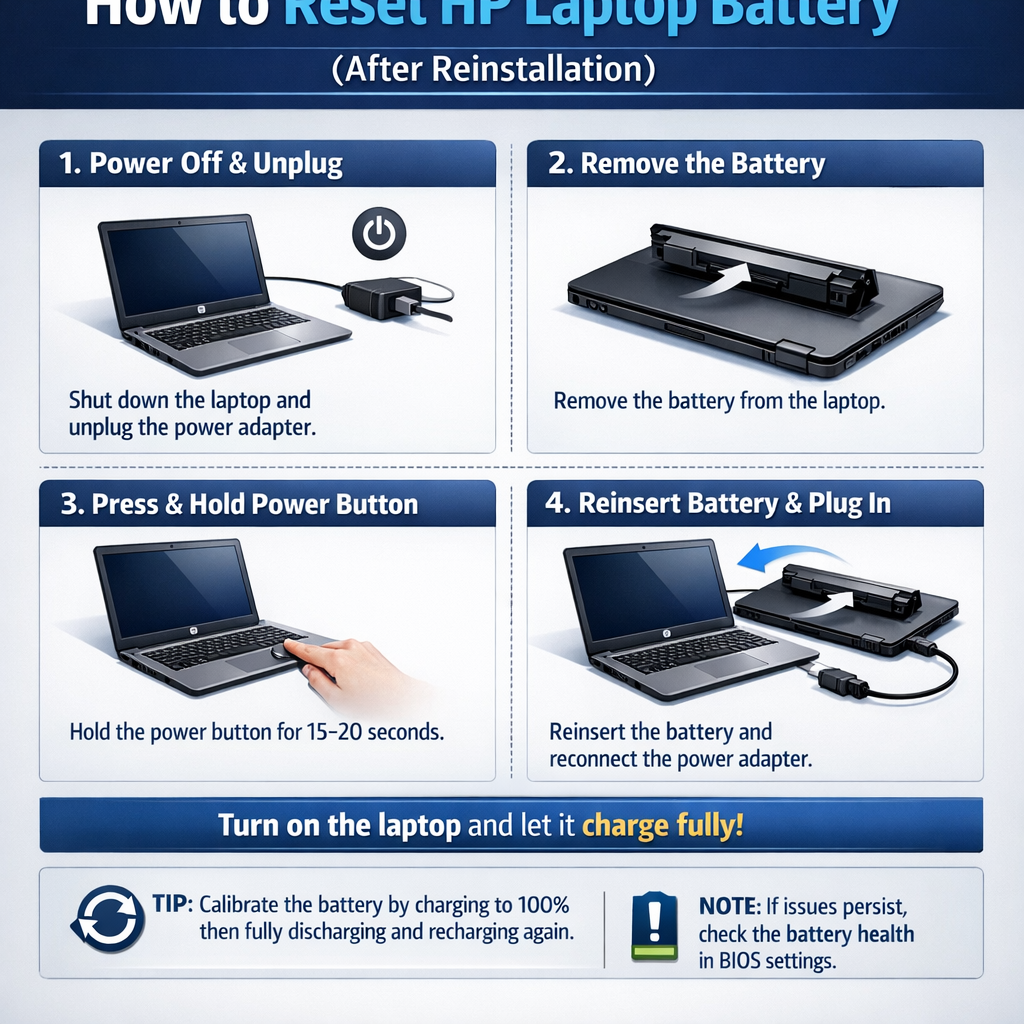
You put the battery back in, but the job is not quite done. Sometimes, the laptop acts a bit confused. It might not charge right away or show the wrong percentage. This is why knowing how to reset HP laptop battery logic is so important. It tells the system to forget the old data and welcome the new part.
Battery reset steps:
This is like a secret handshake for your computer. It clears out bugs without deleting your files. Follow these simple steps to get a fresh start.
Reconnect battery
Make sure the battery is locked in tight. If you used screws, give them one last check. A loose fit can cause power drops. It needs to sit perfectly flat.
Plug charger (without turning on)
Grab your AC adapter. Plug it into the wall and your laptop. Do not press the start button just yet. We need a steady flow of power first.
Hold power button 15 seconds
Here is the magic trick. Press the power button and keep holding it down. Count to fifteen slowly. This drains the left-over static charge from the motherboard.
Boot and recalibrate
Let go of the button, then press it once to turn on the PC. Your laptop should start up fresh. If the battery meter looks odd, charge it to 100% to fix it.
Battery Calibration for Better Battery Life
Your battery meter might lie to you. It says you have an hour left, then—poof—it shuts down. This is frustrating. It happens when the software gets out of sync with the hardware. Calibration fixes this. It teaches your laptop the true limits of its power.
Windows 10/11 calibration steps
This is the manual way. It is easy but takes time. It works on any laptop.
- Charge to full. Plug it in and reach 100%. Keep it plugged in for two hours to cool down.
- Drain it dry. Unplug the cord. Use the laptop until it turns off by itself.
- Let it rest. Leave it off for at least five hours.
- Charge it up. Plug it back in and fill it to 100% without stopping.
HP BIOS calibration
HP makes this easier on some models. It has a built-in tool that runs a test for you.
- Start the menu. Turn on the PC and tap the F2 key fast.
- Find the test. Click “Component Tests” in the menu.
- Run the tool. Select “Power” and then “Battery Extensive Test” or “Calibration.”
- Wait. Follow the screen prompts. The system will handle the drain and charge cycle. If you want to install fresh Windows after battery replacement, you can follow the Boot from USB HP Laptop guide for full step by step process.
When calibration is necessary
Do this if your battery percentage jumps around. For example, if it drops from 40% to 5% instantly, you need to calibrate. It is also smart to do this right after you learn how to remove battery from hp laptop and install a brand new one. It helps the new cell settle in.
How often to do it
You do not need to do this often. Once every three months is plenty. Think of it like an oil change for your car. It keeps the readings accurate. If you do it too much, it just wastes your time and adds wear to the battery.
Common Problems After HP Laptop Battery Removal
After you finish the steps for how to remove battery from hp laptop, you might hit a snag. It happens to the best of us. I once spent an hour panicking over a loose cable, only to find I hadn’t pushed it in all the way. Let’s fix these common glitches together so you can get back to work.
Laptop won’t turn on
Did you press power and get nothing? Do not panic yet. First, check your charging cable. Ensure it is plugged in tight at the wall and the PC. If you just did an internal swap, the battery cable might be loose. Open it up and press that plastic plug firmly again.
Battery not detected
Sometimes Windows shows a big “X” on the battery icon. It acts like the slot is empty. This usually means the battery is not sitting right. Turn it off and take the battery out. Clean the gold metal contacts with a dry cloth. Put it back in and listen for a solid click.
Charging light blinking
A blinking light is like a secret code from your computer. If it flashes orange or white non-stop, the laptop is unhappy. It often means the battery is too low or not the right match. Try a hard reset by holding the power button. If it keeps blinking, the new battery might just be a dud.
BIOS error
You might see a black screen with text about “CMOS” or “Time Not Set.” This looks scary, but it is actually harmless. Removing the main battery can sometimes reset the internal clock. Just press Enter to continue. Windows will fix the time automatically once you connect to Wi-Fi.
Laptop only works with charger
If it dies the second you unplug the cord, the battery is not helping. The laptop is running solely on wall power. Double-check the model number on the label. If the voltage is wrong, the laptop will refuse to use it. Or, the new battery might just need a long, overnight charge to wake up fully. Most of these common issues get fixed automatically after a hard reset. If you still notice permanent horizontal dark line on your display after reassembling the laptop, the Black Line on Laptop Screen HP guide will help you fix this issue permanently.
Model-Specific Battery Removal Tips
Every laptop model has its own little quirks. It is like how every car door handle feels a bit different. I have opened up almost every type of HP out there. Here are my specific tips for your machine to make HP laptop battery removal a breeze.
HP Pavilion battery removal
The Pavilion is a classic workhorse. Older models use the easy external latch method. Newer x360 models require a screwdriver to open the back. Watch out for hidden screws under the rubber feet strips. Peel them back slowly to find them.
HP Envy battery removal
Envy laptops are thin and tight. You often need a special Torx (star-shaped) screwdriver here. The battery plug is usually very small. Use a plastic tool to gently push it out. Do not pull on the thin wires.
HP ProBook battery removal
ProBooks are built for easy repair. Many feature a “service door” that slides right off. This makes the job super fast. You often do not need to remove the whole bottom case. It is designed to be fixed quickly.
HP EliteBook battery removal
These are strong business machines. Older units have a simple slide lock on the bottom. Newer ones are sealed up tight with screws. Be careful with the metal clips when prying the cover. They can be sharp, so go slow.
HP Spectre battery removal
Spectre models are fancy and very slim. They use very tiny screws, so keep a magnet handy. The battery takes up most of the inside space. Be extra gentle, as the connecting cable is delicate. Take your time with this premium device.
HP Notebook battery replacement
This series is great for beginners. It is the easiest place to learn how to take out HP laptop battery safely. Most use the simple external latch system. If it is internal, the screw layout is very clear. It is hard to mess this one up.
Can You Use HP Laptop Without Battery?
You successfully followed the steps on how to remove battery from hp laptop. Now, you are staring at a laptop with an empty slot. Can you still turn it on? The answer is yes, but it changes how you use it. It becomes more like a desktop computer. Let’s talk about what to expect.
Is it safe?
Yes, it is totally safe to do this. I run my old workshop laptop this way all the time. The machine simply draws power directly from the wall. It skips the battery charging step entirely. Just make sure your power brick is healthy and working well.
Performance impact
You might feel a slight difference in speed. Some laptops slow down a little bit on purpose. They do this to prevent sudden shutdowns if the power fluctuates. It is usually not a big deal for web browsing. But gaming or video editing might feel a bit sluggish.
Power stability risks
Here is the real danger. You are working without a safety net. If the power goes out, your screen goes black instantly. You lose any unsaved work in a blink. It is like walking a tightrope without a harness. Be very careful with the power cord so you do not trip on it.
Recommended usage time
Do not leave it like this forever. Use this method only while you wait for your HP notebook battery replacement to arrive. An open battery slot invites dust and bugs inside your computer. Dirt can clog the fans over time. Try to get a new battery installed within a few weeks.
When You Should NOT Remove the Battery
Just because you know how to remove battery from hp laptop does not mean you always should. Sometimes, it is smarter to step back. There are times when a DIY fix is too risky. Let’s look at the red flags where you should stop.
Warranty issues
Is your laptop brand new? If you bought it less than a year ago, stop. Opening the back case might end your warranty. HP may not fix it for free if they see you opened it. Check your purchase date before you grab a screwdriver.
Sealed models
Some super-thin laptops are glued shut. They do not have any screws on the bottom. If you pry them, you will likely crack the case or screen. These units are not made for home repair. They need special heat tools to open safely.
Swollen batteries (safety warning)
Does your touchpad look lifted or bent? We call this a “spicy pillow” in the tech world. A puffy battery is a fire risk. Do not squeeze, poke, or pry a swollen battery. If you puncture it, it can spark and burn.
When to contact HP support
If you see a swollen battery, call the pros. Also, call them if you smell chemicals or see smoke. It is okay to ask for help when things look scary. Your safety is worth more than a repair fee. Let the experts handle the dangerous parts.
FAQ
1. How do I remove the battery from my HP laptop safely?
First, shut down the PC completely. Unplug the power cord and any USB drives. Then, follow the steps for your model. If you have a latch, slide it. If not, remove the screws. Never force it open.
2. Can I remove HP laptop battery without opening the back?
Only if you have an older model. Look at the bottom of the case. If you see sliding switches, yes. If the bottom is smooth, you must open the case. Most new laptops require a screwdriver.
3. How do I reset my HP laptop battery?
This is a great trick. Turn off the laptop and unplug the charger. Hold the power button down for a full 15 seconds. This clears out static. It solves many power bugs.
4. How long does HP laptop battery last?
Most batteries last about two to four years. It depends on how you use it. Heat is the enemy. If you game a lot, it might die sooner. If it holds a charge for less than an hour, it is time for a change.
5. Is HP battery removable in Windows 11 laptops?
Yes, absolutely. Windows 11 is just software. The battery is a physical part. You can take it out of any laptop. You just need the right tools for your specific model.
6. How do I know if my HP battery needs replacement?
Watch the power meter. Does it jump from 100% to 50% in minutes? That is a bad sign. Also, look at the case. If it looks puffy or bent, stop using it. That is a swollen battery.
7. Does removing battery fix charging issues?
It often does. Taking it out and doing a hard reset clears errors. It resets the connection between the battery and the board. It is the first thing I try when a laptop won’t charge.
8. What happens if I use HP laptop without battery?
It works just fine. Your laptop acts like a desktop PC. It runs off the wall power. Just be careful. If the cord gets pulled out, the screen goes black instantly. You will lose unsaved work.
Conclusion
We have covered a lot today. Learning how to remove battery from hp laptop is a great skill to have. It saves you a trip to the repair shop. Just remember the golden rule: turn it off first. Take your time and be gentle with the clips.
Now that the old part is out, get a fresh one. A quality HP notebook battery replacement makes your laptop feel young again. Do not forget to calibrate it once it is installed. This simple step helps the new cell last much longer.
I would love to hear how it went for you. Which HP model are you fixing today? Drop a comment below if you get stuck on a step. I am here to help you get powered up again.