

Hey, friend, is a stubborn black line on laptop screen HP suddenly popping up and messing with your work or binge-watching sessions? I remember the first time it happened to me on my old Pavilion those thin vertical streaks felt like a nightmare, making everything look glitchy and unreliable.
As a tech troubleshooter who’s fixed countless HP laptop screen lines for myself and buddies, I know it’s often something simple like a loose flex cable or wonky drivers, not a total disaster.
In this guide, we’ll dive into how to fix black horizontal lines on HP laptop screen with easy steps, from quick restarts to checking that HP black line on display in BIOS. Let’s tackle your HP laptop vertical black line together right now start with a simple reboot and see the magic happen!
How to Identify the Type of Black Line
Before we start fixing, we need to know what we are fighting. Not all lines are the same. I always tell my clients to look closely at the shape first. This gives us a big clue about the root cause.
Visual Identification
The shape and movement of the line tell a story. I treat this part like a puzzle. By looking at how the line acts, we can guess which part is broken.
Horizontal vs. Vertical Lines
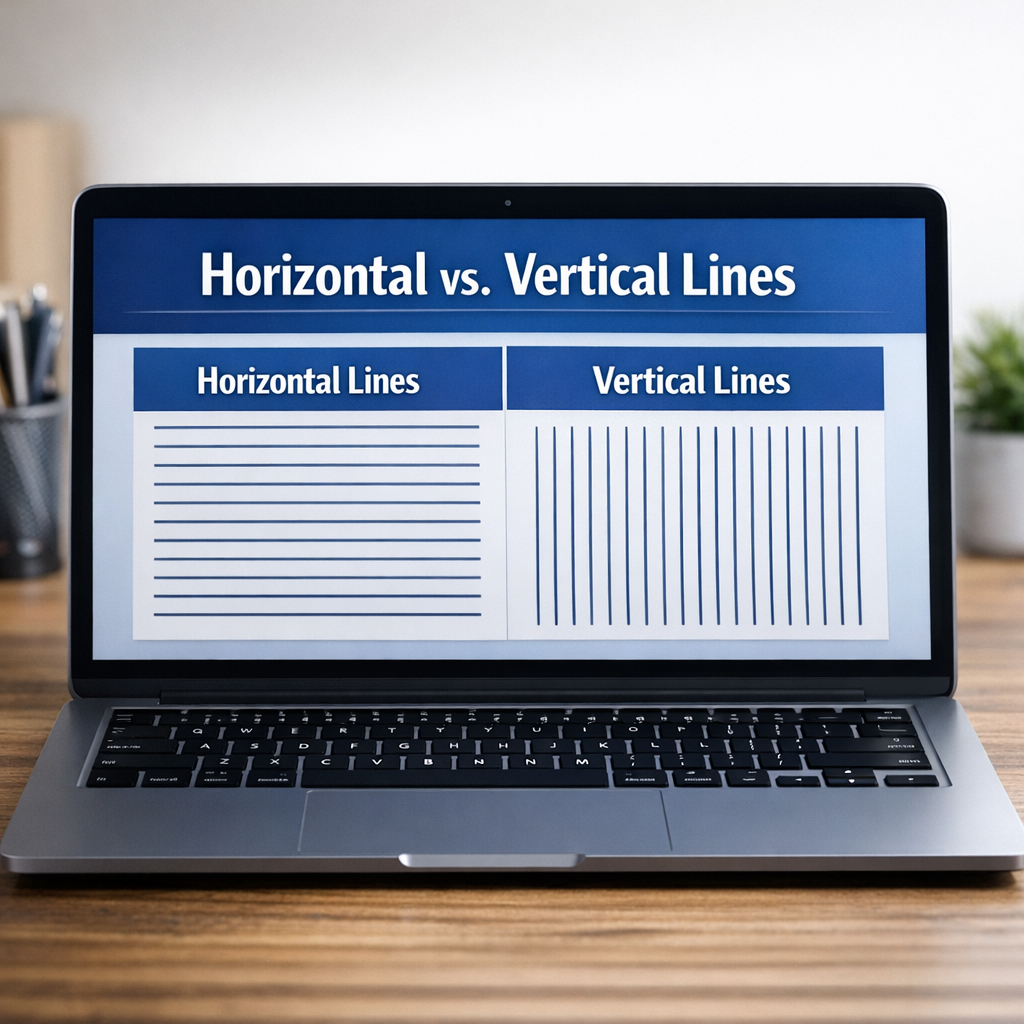
Vertical lines: Often indicate display cable issues or panel damage.
Look at the direction of the mark. Is it running up and down? An HP laptop vertical black line often points to a loose wire near the hinge. This is common and often fixable.
Horizontal lines: May signal panel failure, especially if they start at the top and move downward.
If the lines go side to side, the screen panel might be hurt. This is trickier. If you need to know how to fix black horizontal lines on hp laptop screen, it often involves checking for physical pressure marks first.
Static vs. Fluctuating Lines
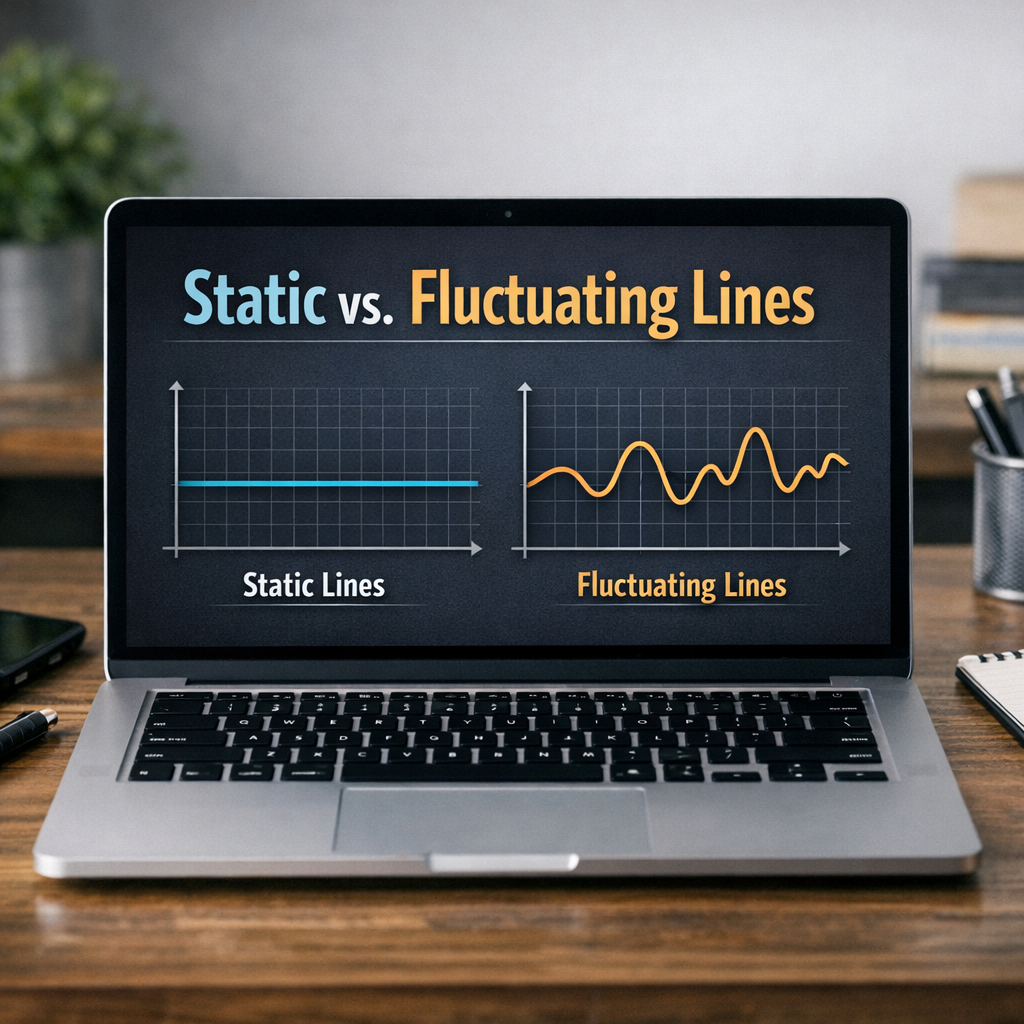
Static lines: Remain in the same position (common in hardware issues).
If the line stays still like a statue, the damage is likely permanent. This helps us decide if we need a screwdriver or just a software update.
Fluctuating lines: Move or change with screen adjustments (often cable-related).
Gently adjust the lid of your laptop. Do the HP laptop screen lines flicker or jump when you touch them? If they move, it is likely a loose HP screen line flex cable.
Key Diagnostic Tests
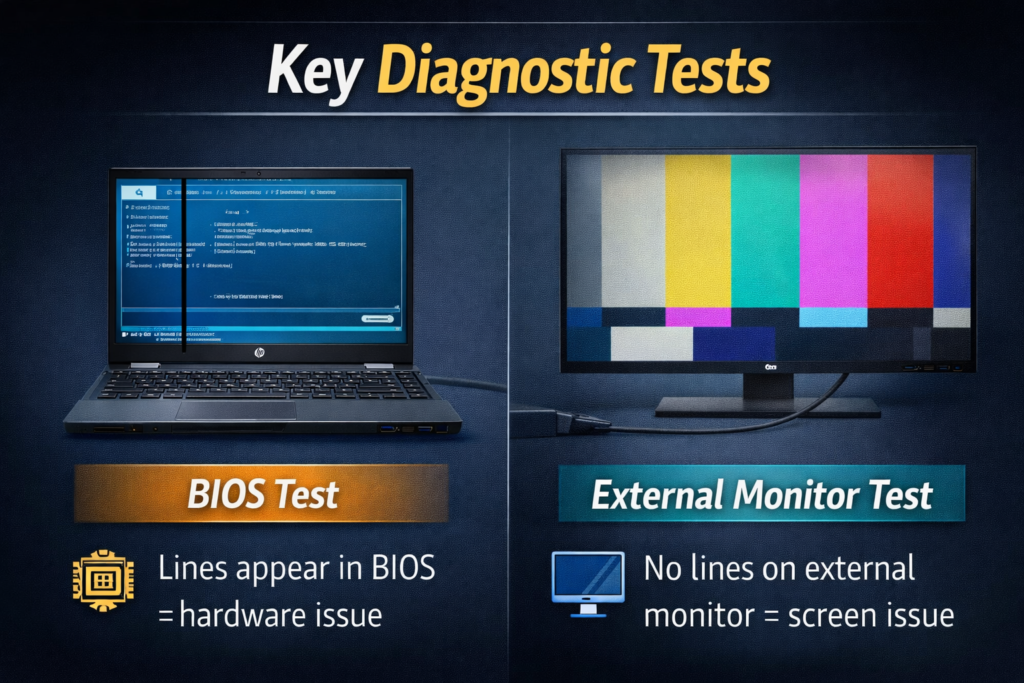
BIOS Test: If lines appear in BIOS (before Windows loads), it’s likely a hardware issue.
Restart your laptop and tap the F10 key right away. If the HP black line on display shows up here, a part is broken. If the screen is clean, it is just a software bug.
External Monitor Test: Connect to an external display.
Plug your laptop into a TV or monitor. If the picture looks clean on the big screen, your laptop display is the issue. If lines are on the TV too, it is a software or graphics card problem.
Common HP Models Affected
I see patterns with different models. Knowing your laptop type helps us guess the problem faster.
HP Pavilion Series
These are great laptops, but I see them often for hinge issues. The cable can get pinched. This wear often leads to a flickering screen over time.
HP Omen Gaming Laptops
These machines are powerful but get very hot. Heat can mess with the graphics card. If you game a lot, the lines might be from heat stress.
HP Envy & EliteBook Series
These pro models are sturdy. If you see lines here, check if you have a warranty. They often have better support options than budget models.
HP ProBook & Stream
I see these workhorses a lot. The issue here is usually just daily wear. Opening and closing the lid thousands of times can loosen the internal video cable.
Root Causes Analysis
Finding the root cause is the key to fixing the mess. Think of it like a doctor’s check-up for your computer. We need to know if the brain is confused or if a bone is broken. This helps us pick the right cure without wasting time.
Software Issues (40% of Cases)
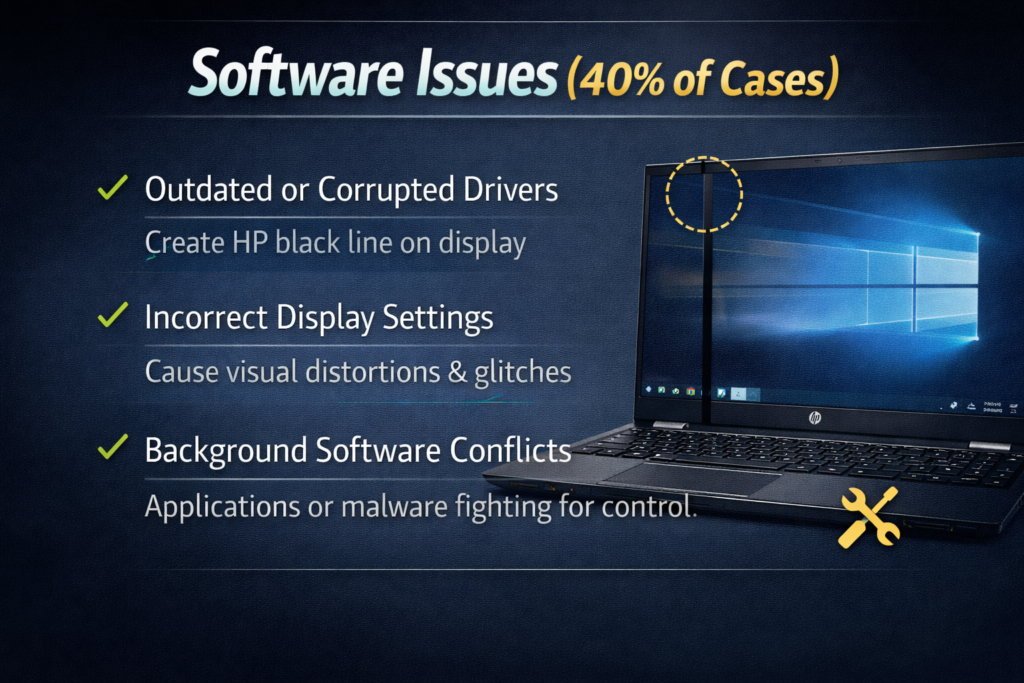
About 40% of the time, the problem is just inside the system. This is actually good news for you. It means nothing is physically broken, so the fix is usually free and fast.
Outdated or Corrupted Graphics Drivers
Often, an old driver acts up after a Windows update. It is like the software and screen are speaking two different languages. This confusion creates that annoying HP black line on display.
Incorrect Display Settings
Sometimes, the screen settings are just set wrong. A bad resolution or refresh rate can cause weird visual glitches. Resetting this can show you how to fix black horizontal lines on hp laptop screen instantly.
Background Software Conflicts
Apps running in the back can clash with your display. Malware or a buggy program might be the villain here. They fight for control and leave marks on your view.
Temporary Glitches
Other times, it is just a random hiccup. A simple restart clears the computer’s brain. It wipes away temporary errors and gives the system a fresh start.
Hardware Issues (60% of Cases)
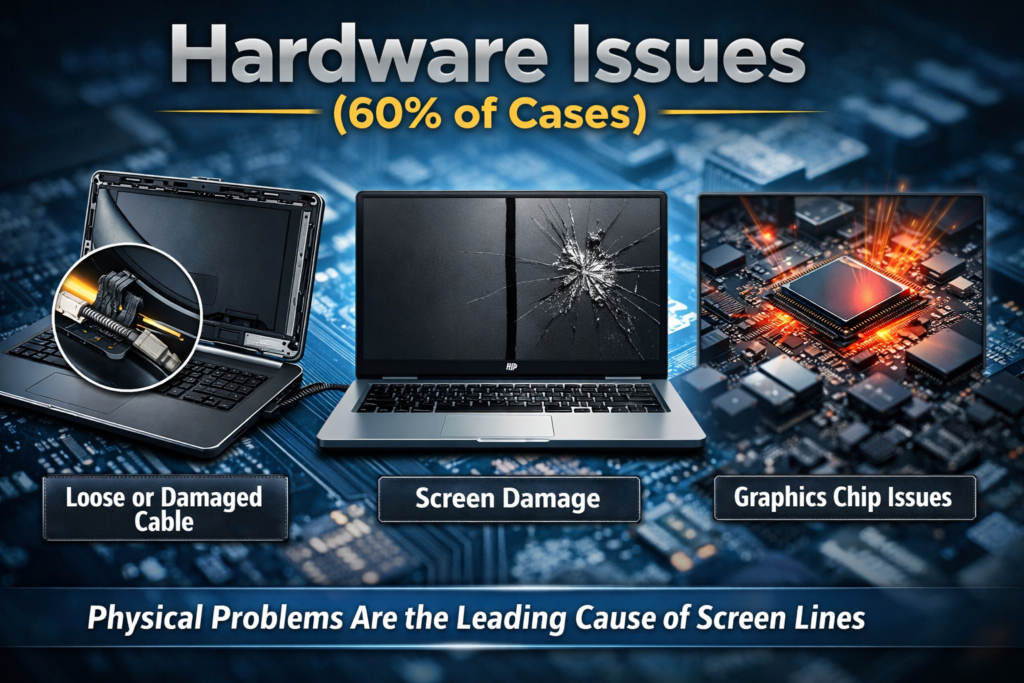
Sadly, hardware is the culprit in most cases. This means a physical part is hurt or loose. It sounds scary, but identifying the broken piece is half the battle.
Loose or Damaged Display Cable
The most common issue is the HP screen line flex cable. Every time you open the lid, this wire bends. Over time, it gets tired like a bent paperclip and sends bad signals.
Physical Damage
Drops or bumps leave marks too. Even a little pressure in a tight bag causes HP laptop screen lines. The liquid crystals inside get squished and break under the stress.
LCD or LED Panel Failure
Sometimes, the screen panel itself just fails with age. You might see a thin HP laptop vertical black line that stays put forever. It is a sign that a row of pixels has died.
Graphics Chip or Motherboard Issues
In rare cases, the graphics chip gets too hot. This usually happens on gaming laptops. High heat can damage the connection and distort the image on your screen.
Step-by-Step Troubleshooting Guide
Let’s roll up our sleeves and fix this. We will start with the easy stuff first. Most of the time, we can clear those HP laptop screen lines without tools. Take a deep breath, and let’s go one step at a time.
Quick Software Fixes (5–10 Minutes)
These are safe and fast. I always start here because software bugs love to play tricks on us.
Simple Restart
It sounds too simple, but it works. A normal restart is good, but a “hard restart” is better. Turn off the laptop. Hold the power button down for 15 seconds. This drains all the power and clears the system’s memory.
Update or Roll Back Graphics Drivers
Drivers are like translators for your screen. If they get confused, you see an HP black line on display. Go to the Device Manager. Find “Display adapters” and click update. If this started after an update, try the “Roll Back” option instead.
Adjust Display Settings
Sometimes, the settings just get bumped. Right-click your desktop and go to Display Settings. Make sure the resolution is set to “Recommended.” Resetting this can show you how to fix black horizontal lines on hp laptop screen in seconds.
Advanced Diagnostics (20–30 Minutes)
If the easy fixes failed, we need to dig a little deeper. We need to find out if the screen is broken or if Windows is just acting up.
External Monitor Test
This is my favorite trick. Plug your laptop into a TV or monitor. If the picture on the TV is perfect, your laptop screen has a physical issue. If you see the HP laptop vertical black line on the TV too, the problem is deep in the system software.
BIOS/Startup Screen Test
Turn your laptop off. Turn it on and tap the F10 key right away. This opens the BIOS menu. If the lines are still there, it is definitely a hardware problem. If the screen is clean here, Windows is the culprit.
Clean Boot
Sometimes, an app fights for control. A “Clean Boot” starts Windows with no extra apps running. This helps us catch any software bullies causing the trouble.
Hardware Troubleshooting (30–60 Minutes)
If we are here, it might be a physical part. Be gentle and take your time.
Display Cable Reseating
The HP screen line flex cable connects the screen to the board. Sometimes it just wiggles loose. Gently press on the bezel frame near the hinge. If the lines flicker or move, the cable is loose.
Temperature Management
Is your laptop hot to the touch? Heat can make the screen act weird. clear out the dust from the vents. A cool laptop is a happy laptop.
Physical Inspection
Look closely at the screen. Do you see any tiny cracks or ink-like spots? Be honest if it took a tumble recently. Physical cracks mean the panel needs a swap.
When the Black Line Is a Hardware Failure
If the software fixes did not work, the issue is likely physical. It is hard to hear, but we have to face it. The screen or a wire inside is broken. Do not worry, though. You still have options to get your clear view back.
Panel Damage or Pixel Row Failure
Sometimes, the screen itself just gives up. A permanent HP laptop vertical black line often means a row of pixels has died. It is like a burnt-out lightbulb; you cannot just turn it back on. Sadly, you cannot “repair” dead pixels. You have to replace the whole screen to banish these HP laptop screen lines.
Cost Breakdown
Money is always a big factor. If you go to a repair shop, expect to pay between $150 and $300. This pays for the part and their time. If you are brave and handy, you can buy a screen for $100 to $200. Doing it yourself saves cash, but it takes a steady hand.
Warranty Considerations
Stop before you spend a dime. Check your warranty status. HP might fix that HP black line on display for free if the laptop is new. Go to the HP website and type in your serial number. It takes two minutes and could save you hundreds of dollars.
Communication with Technicians
If you go to a shop, be ready. Tell them you tested the drivers and the BIOS. Mention if you think it is the HP screen line flex cable. Ask them specifically how to fix black horizontal lines on hp laptop screen for your model. Being clear helps them fix it faster and keeps the price fair.
Model-Specific Solutions
Not every HP laptop is built the same. I have learned that different models have their own unique quirks. Knowing which machine you have can speed up the fix. Here is what I usually see with the most popular lines.
HP Pavilion
The Pavilion is a great all-around laptop, but the hinges can be tight. This puts stress on the internal wires every time you open it. If you have an HP screen line flex cable issue, it is likely here. The cable gets pinched over time and causes those annoying HP laptop screen lines.
HP Omen
These machines are beasts built for gaming. But high performance means high heat. Often, an HP black line on display here isn’t the screen’s fault. It is the graphics card getting too hot. Update your drivers and clean those dust vents immediately to cool it down.
HP EliteBook
I love these for work because they are built like tanks. If you see an HP laptop vertical black line, check your docking station first. Sometimes the dock connection is loose, not the screen. Also, these often come with great business warranties, so use them to learn how to fix black horizontal lines on hp laptop screen for free.
Prevention & Best Practices
Once we fix those HP laptop screen lines, let’s keep them away for good. I treat my laptop like a fragile egg now. Prevention is always cheaper than a repair bill. A few small habits can save your screen from future disasters.
Physical Protection
I learned this lesson the hard way after closing my lid on a pen. It sounds silly, but a tiny object can shatter the glass. Always check the keyboard before you snap the lid shut. Also, invest in a thick, padded bag for travel. It acts like a helmet for your computer.
Software Maintenance
Software bugs can return if you ignore updates. Think of driver updates like vitamins for your computer. Keeping them fresh stops that HP black line on display from coming back. It is the easiest way to avoid learning how to fix black horizontal lines on hp laptop screen again.
Environmental Care
Electronics hate extreme heat and cold. I never leave my laptop in a hot car. High heat warps the plastic and hurts the HP screen line flex cable. Give your laptop space to breathe so it stays cool. This simple habit stops the HP laptop vertical black line from appearing due to heat stress.
Expert Tips & Tricks
I have a few secret weapons left to share. These are the tricks I use when the normal steps fail. They might look technical, but I promise they are safe and easy to try.
Hidden Windows Commands
Windows has a hidden repair tool called System File Checker. It acts like a spell check for your computer files. Type sfc /scannow into the Command Prompt to find missing data. This simple magic trick can show you how to fix black horizontal lines on hp laptop screen. If you want to document the error before fixing it, learn How to Screenshot on HP Laptop to windows 10-11 save the image.
Registry Tweaks (Advanced Users)
This next tip is for the brave souls. We can tweak the “registry,” which is the deep brain of Windows. Please back up your data first, just to be safe. I only use this when deep software bugs cause the HP black line on display.
Temporary Workarounds
Need to finish your work right now? Try tilting your screen gently to find a “sweet spot.” This relieves pressure on a loose HP screen line flex cable. It is just a temporary band-aid, but it helps you get through the day.
Diagnostic Tools
Don’t forget the free tools you already own. The HP Support Assistant is like a built-in doctor. It runs deep scans to analyze that HP laptop vertical black line. It tells you quickly if the issue is a simple bug or a broken part.
FAQs
Why does my HP laptop have a black line?
Why is that HP black line on display haunting you? Usually, it is just a loose wire or a confused driver. Think of it like a loose lightbulb that flickers but isn’t broken. Other times, the HP screen line flex cable is just worn out from opening the lid.
Can I fix it without replacing the screen?
Can you learn how to fix black horizontal lines on hp laptop screen for free? Yes, if the cause is software. Updating drivers costs nothing and fixes many glitches. However, if the glass is cracked or pixels are dead, you will need a repair.
What’s the fastest way to tell software vs. hardware?
How do we know if it is a permanent HP laptop vertical black line or just a bug? The BIOS test is the best truth detector. Restart and tap F10; if the screen is clean there, your hardware is safe. If the line stays, a part is likely broken.
Will the line get worse?
Will those HP laptop screen lines grow? If the line moves or flickers, it often gets worse over time. It is like a small crack in a windshield that spreads. I suggest fixing it soon to avoid a total blackout later on.
Conclusion
We covered a lot today. Fixing HP laptop screen lines is often easier than it looks. Start with the easy wins like a restart or driver update. You now know how to fix black horizontal lines on hp laptop screen without panic. If the line stays, check the BIOS to rule out software.