
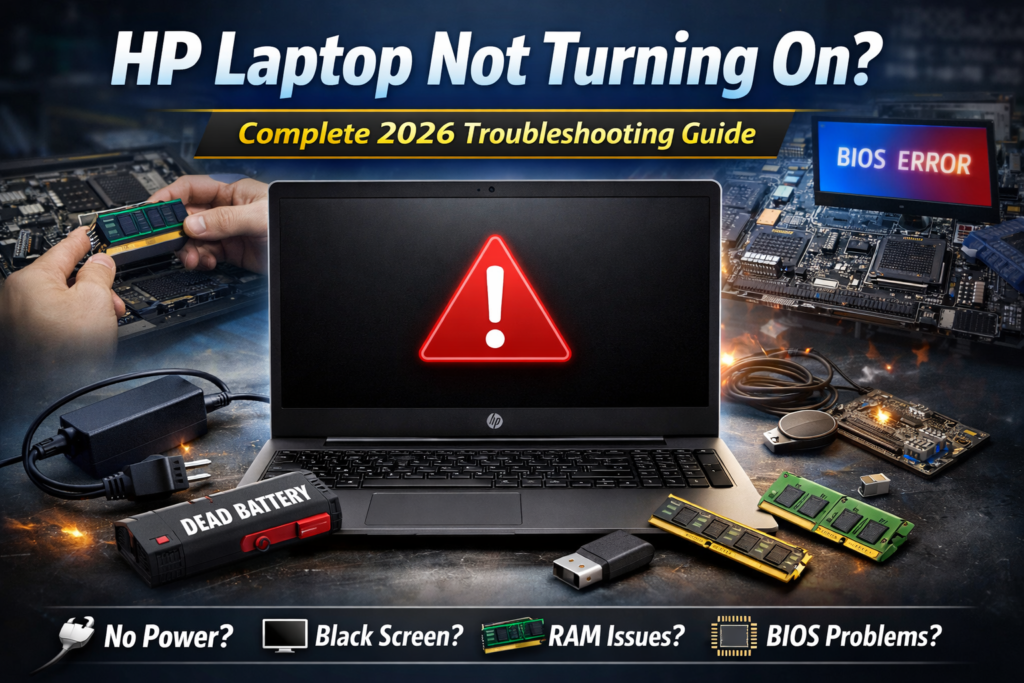
If your hp laptop not turning on has you worried, take a breath. In most cases, this problem is fixable at home. I have seen this a lot with HP Envy, Pavilion, and ProBook models, and the cause is often something simple like the charger, battery, RAM, or a black screen that hides a live system.
Why Is My HP Laptop Not Turning On?
It is incredibly frustrating when you press the power button and nothing happens. Please don’t panic, as I see this daily in my repair shop. Usually, the issue is not a total disaster but rather a simple glitch in the power flow.
Most often, you are dealing with a dead or faulty battery that simply needs a charge. Sometimes, a bad charger or power adapter is the culprit, failing to send energy to your device. In other cases, the power button might just be stuck, or the RAM needs to be reseated properly to help the system boot.
Less often, you might have a corrupted BIOS or a deeper motherboard issue. You may even have a case where the laptop is actually on, but you have a black screen because the display is not waking up. By checking these common spots, we can usually get your HP laptop running again in minutes.
Identify the Exact Problem (Very Important)
Before you start taking things apart, we need to know exactly what your laptop is doing—or not doing. Think of this like a doctor checking your vitals. By observing the lights and sounds, we can figure out the root cause much faster.
Case 1 – HP Laptop Not Powering On (No Lights, No Fan)
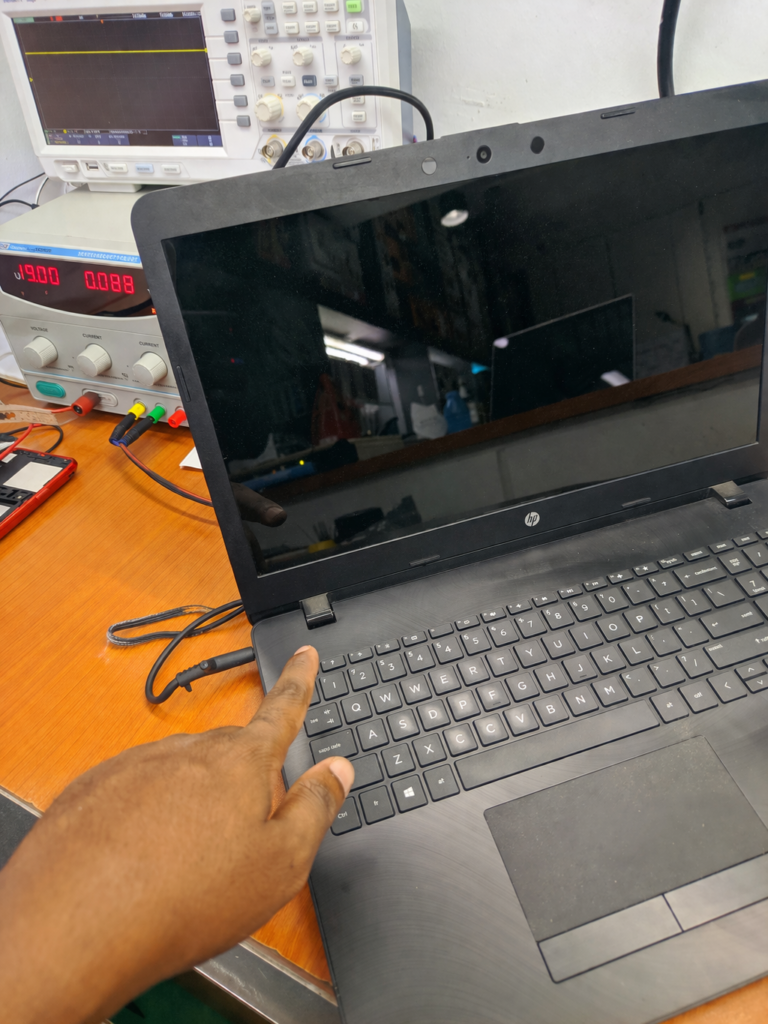
If you press the power button and absolutely nothing happens, your hp laptop not powering on situation is likely related to power delivery. You won’t see a single LED light, there is no charging indicator, and the fans stay completely silent. It feels like the machine is dead, but it usually just needs a little help.
Most of the time, this happens because the power simply isn’t reaching the motherboard. You might have a faulty charger that stopped working, or your battery has drained so low that it needs a “jump start.” In rarer cases, there could be an issue with the internal power chip, but let’s assume it’s something simple first.
My advice is to stay calm and check your connections. Often, a loose cable or a bad wall outlet is the real villain here. Once we rule out the easy power stuff, we can see if the machine wakes up.
Case 2 – HP Laptop Turns On But Screen Is Black
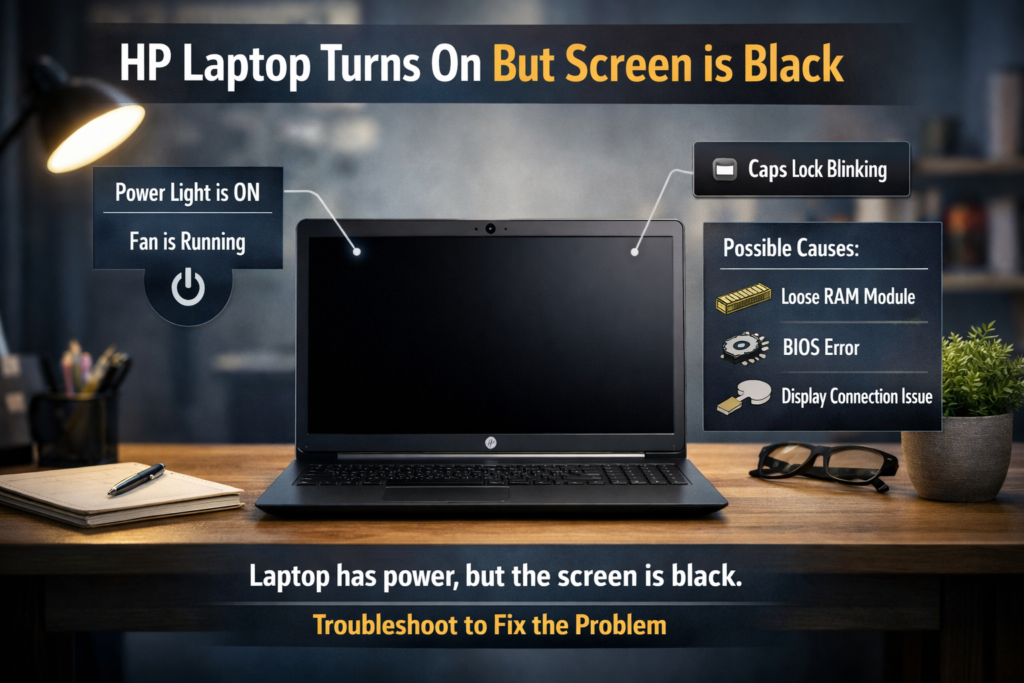
This situation is a bit different, and in my experience, it can be quite startling. If your power light is on, the fan is spinning, and you might even see the Caps Lock key blinking, your hp laptop not turning on black screen issue means the computer has power but can’t show you anything. It’s like the engine is running, but the headlights are off.
Often, this happens because the memory or RAM nside the laptop has a loose connection. Think of it like a puzzle piece that shifted just a tiny bit. Sometimes, the internal settings called the BIOS get a bit confused, or the display cable behind your screen needs a quick check.
Don’t lose hope just yet. Seeing those lights means the motherboard is alive and talking to you. It’s usually a small hiccup in the hardware communication, and with a few simple steps, we can often get that screen to light up and show you your desktop again.
Case 3 – Why Is My HP Envy Laptop Not Turning On?
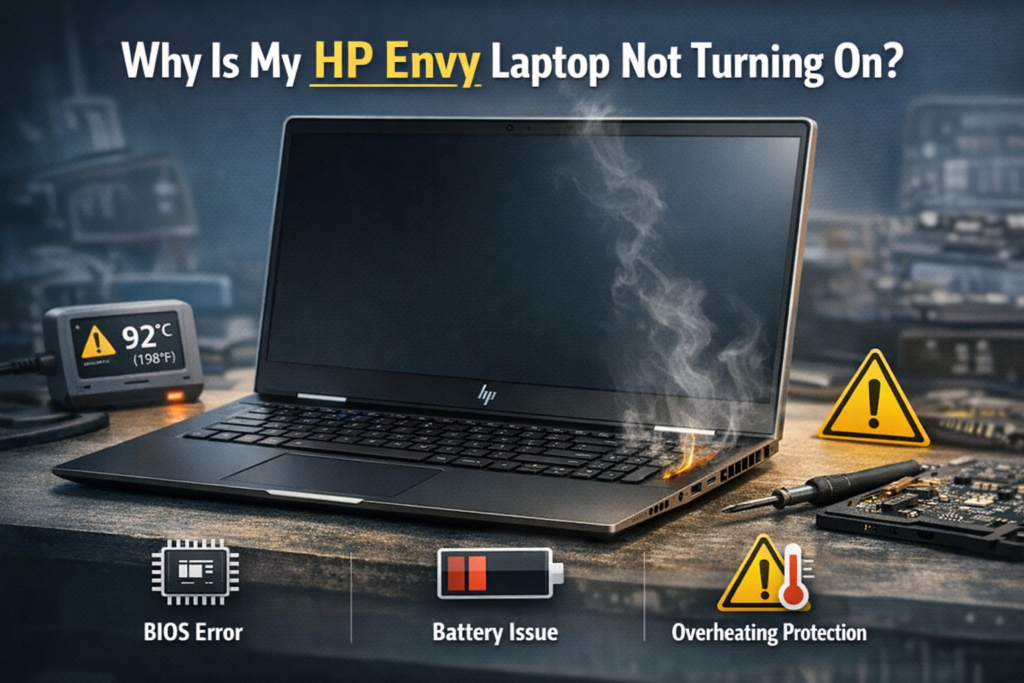
If you are a fan of the Envy series, you might have noticed these machines are quite powerful but can be sensitive. When you find yourself asking, why is my hp envy laptop not turning on, it often points to a specific internal quirk. These laptops have advanced power management systems that sometimes get “stuck” after an update or a sudden power loss.
Sometimes, an Envy will refuse to wake up due to an internal BIOS glitch that just needs a fresh start. These laptops are also designed to shut down instantly if they sense overheating to protect the hardware. If your vents were blocked, the system might stay locked in “protection mode” until it fully cools down and gets a proper power reset.
I’ve also seen cases where the battery in an Envy gets a bit finicky, preventing the whole board from starting up. Don’t worry, though; this doesn’t mean your motherboard is dead. These models are just very cautious, and a few simple resets are usually exactly what they need to get back to work.
Step-by-Step: How to Fix HP Laptop Not Turning On
Now that we have identified the likely cause, let’s get your device back to life. You do not need to be a tech genius to handle these repairs. I have guided many people through these exact steps, and most of the time, the laptop starts right up.
Knowing how to fix hp laptop not turning on is all about patience and taking things one step at a time. We will start with the easiest tricks that resolve most power issues. If one step does not work, do not worry; simply move to the next one.
I recommend that you work on a clean, flat surface with good lighting. Take your time, follow these instructions carefully, and keep your charger handy. Let’s roll up our sleeves and see if we can get your screen glowing again!
Step 1 – Perform a Hard Reset (Power Drain Method)
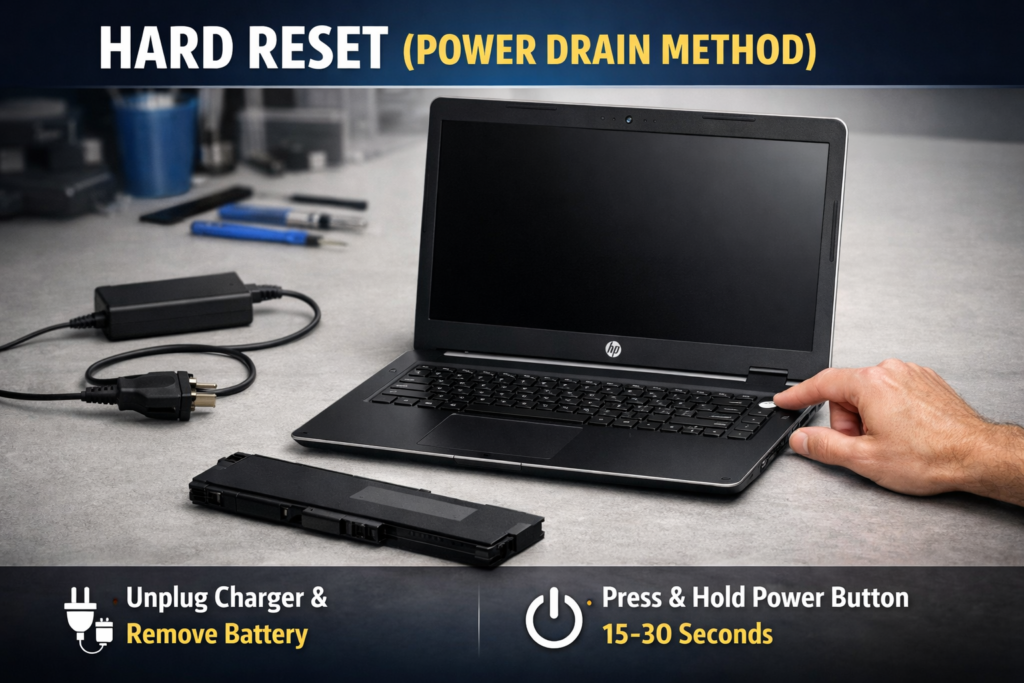
If you are wondering how to fix an hp laptop not turning on, a hard reset is your best first move. I call this the “magic button” trick because it clears out static electricity that gets trapped inside the motherboard. It essentially gives your laptop a fresh start without losing any of your files.
First, unplug your power charger from the wall and the laptop. If your model has a removable battery, take it out gently you can follow my guide on how to remove hard drive from HP laptop if you need a little help with that. Once the power is disconnected, press and hold the power button down for a full 15 to 30 seconds.
This simple act drains the tiny bits of lingering power that can sometimes cause the system to freeze or refuse to boot. After holding the button, plug your charger back in and try turning it on again. Many of the laptops I see in my shop wake up perfectly just by doing this quick, simple reset.
Step 2 – Check Your Charger and Adapter
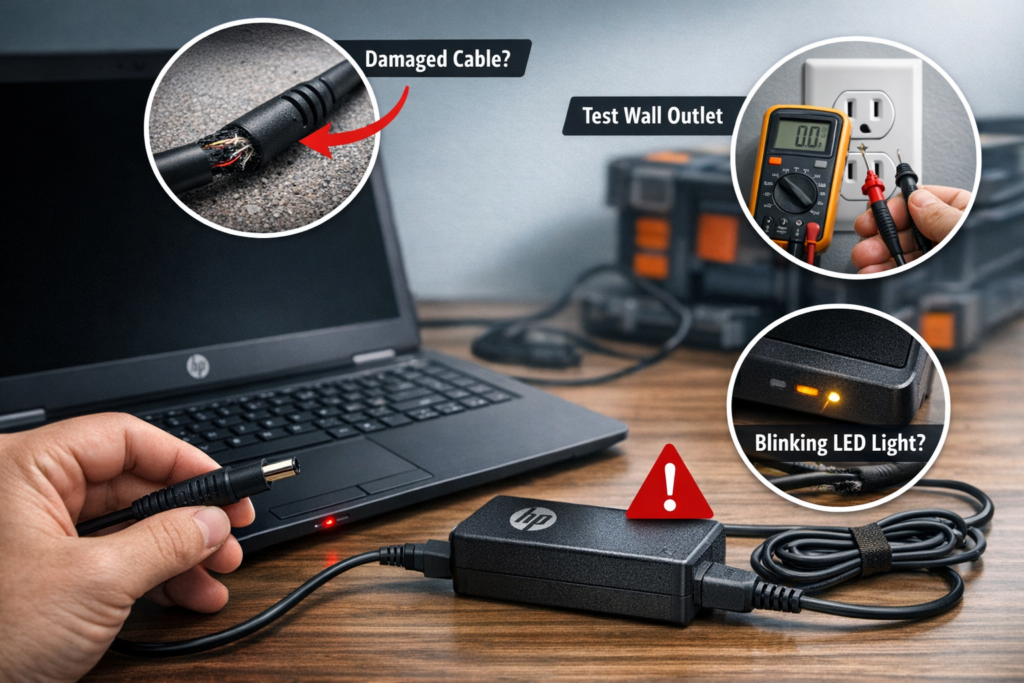
Sometimes the fix is as simple as a loose connection. Inspect your power cable for any frays or breaks, as a damaged cord can’t deliver enough power to wake your machine. Try plugging your charger into a different wall outlet to make sure your home power isn’t the problem.
Always try to use an original, compatible HP charger. If you see the charging LED light blinking, that is a huge clue; it often means the adapter is struggling or the battery needs a deep charge. Watch that light closely, as it tells us the laptop is at least “talking” to the power source.
Step 3 – Remove and Reseat the Battery
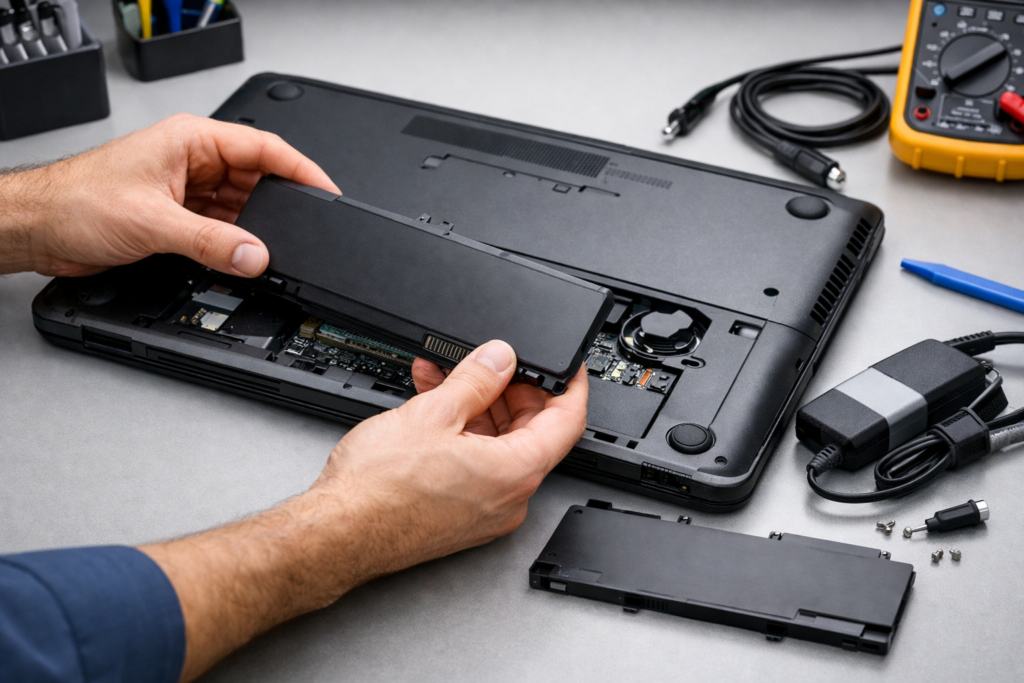
If you have a laptop with a removable battery, it is worth giving it a quick check. Take the battery out and look for any signs of swelling or damage. Try plugging in your charger and turning the laptop on without the battery inside at all.
Many HP models will run perfectly fine on just the wall adapter. If it boots up this way, you know the battery is the part that needs replacing. You can learn the safe way to do this in my guide on how to remove battery from HP laptop. It is a simple step that often solves the mystery of a laptop that won’t start.
Step 4 – Check the Screen (Very Common Issue)
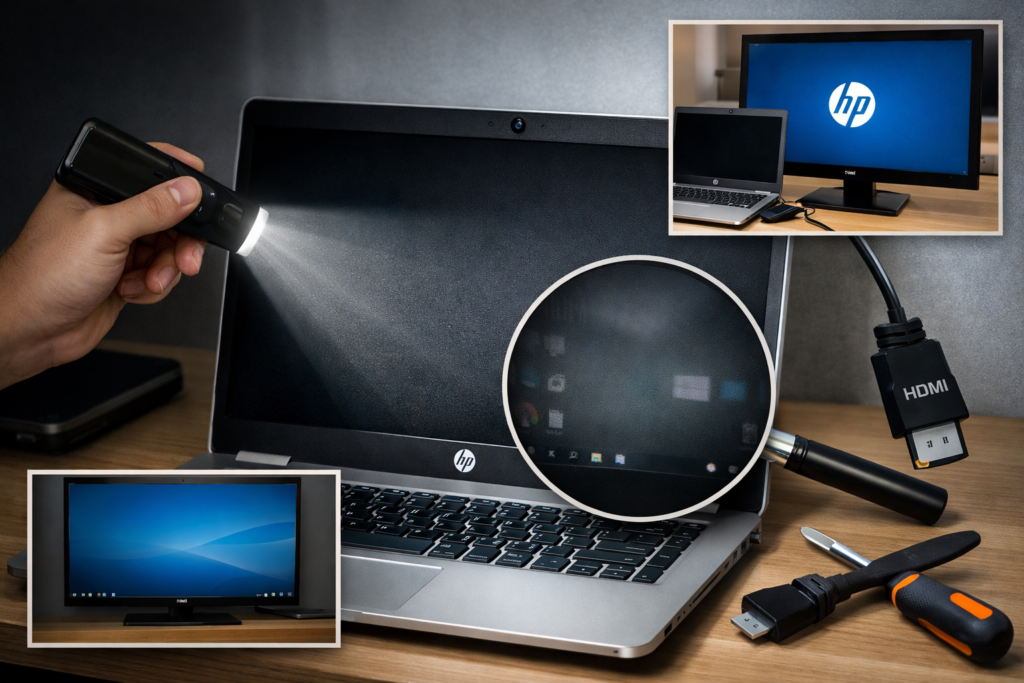
It is scary when your screen stays black, but the laptop might actually be running. Take your phone’s flashlight and shine it directly at the display at an angle. If you see a faint image of your desktop or icons, your backlight has failed.
You can also connect your laptop to an external monitor or a TV using an HDMI cable. If the image appears on the TV screen, we know the laptop is working, and the issue is just with your display panel. If you see strange lines, check my guide on black line on laptop screen HP for more specific help. Often, this isn’t a “dead” laptop at all, just a screen that needs a little professional attention.
Step 5 – Reseat RAM (Advanced but Effective)
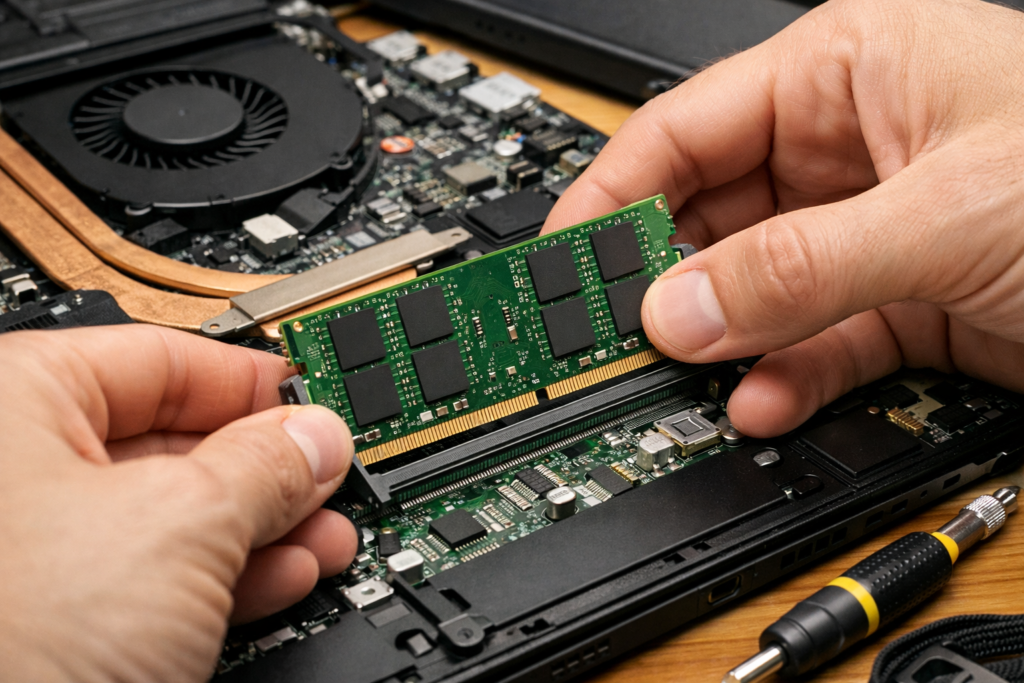
If your laptop still won’t boot, the RAM (memory) might have shifted slightly. I know opening your laptop sounds scary, but just stay calm and touch a metal surface first to get rid of static electricity. Locate the memory sticks, pop the side clips open, and take them out gently.
Wipe the gold pins with a soft, clean cloth and click them back into place until they snap securely. If you have two sticks, try testing one at a time to see if one is faulty. This simple “reseat” is a pro trick that often solves boot failures instantly.
Step 6 – Reset BIOS to Default
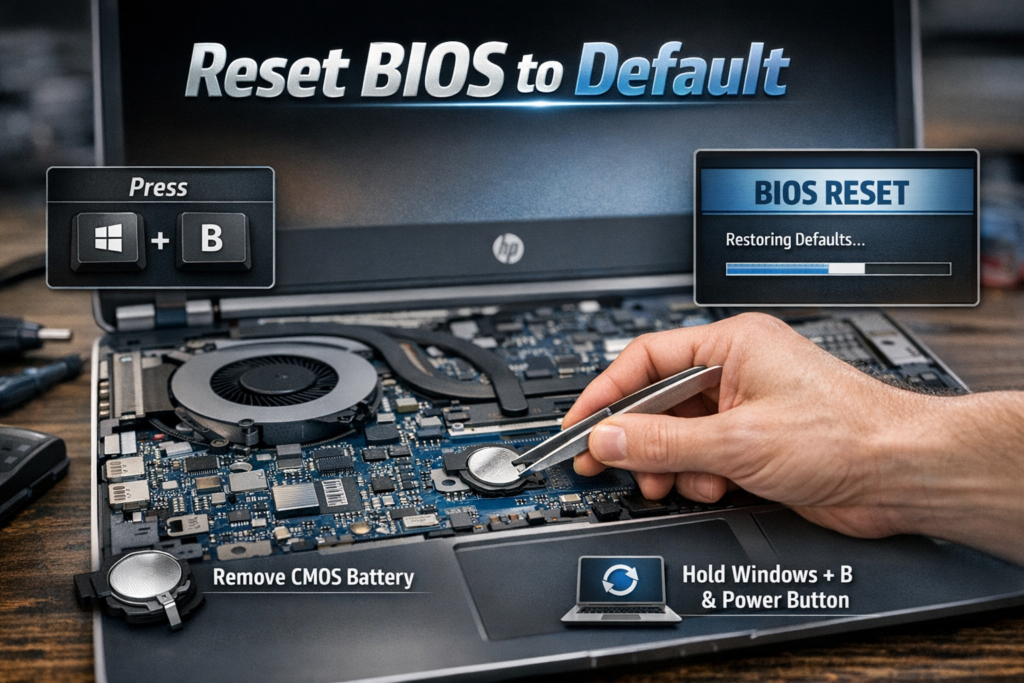
Sometimes, the BIOS (the laptop’s brain settings) gets a bit confused. To fix this, you can reset the CMOS by removing the tiny coin-shaped battery inside the laptop for a few minutes. This wipes the “memory” of those confused settings and forces the laptop to start with fresh, factory defaults.
If you aren’t comfortable opening the case, try the BIOS recovery key combinations. Just hold down the Windows key + B (or V on some models) while pressing the power button. It’s a clever way to tell your laptop to look for a backup copy of its settings.
Step 7 – Try Booting From USB (System Recovery)
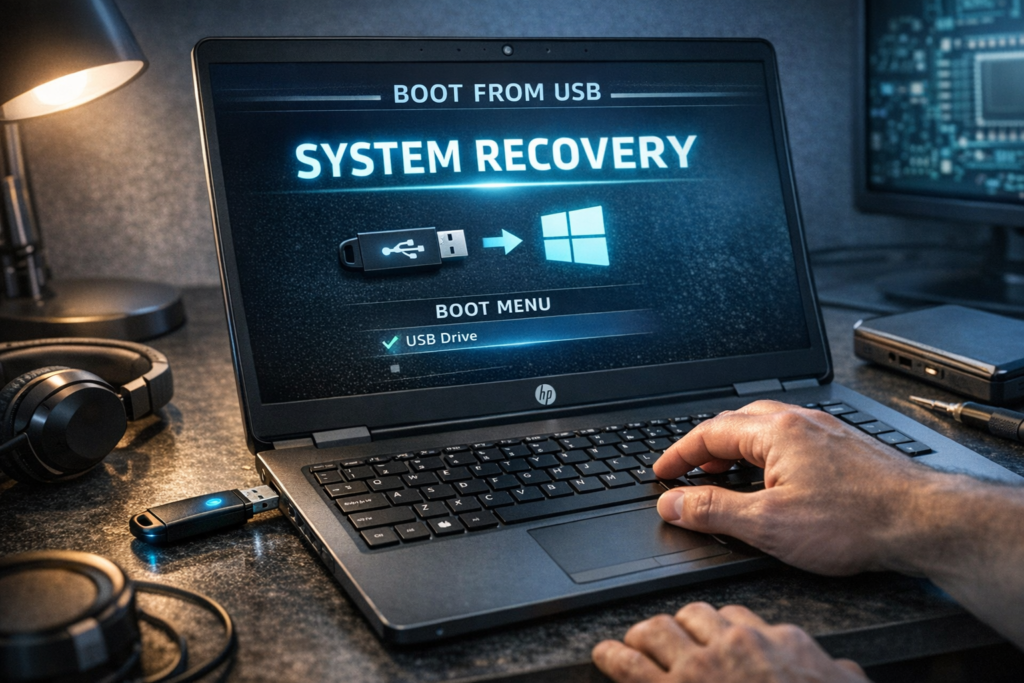
If your hardware is fine but Windows is corrupted, your laptop might get stuck in a loop. You can use a bootable flash drive to jump-start the system. Just plug it in, restart, and follow the prompts to repair your startup files.
I have a guide on how to boot from USB HP laptop that makes this process very si
mple. It is a fantastic way to bypass a damaged Windows installation and get back to your files.
Step 8 – Factory Reset as Last Software Fix
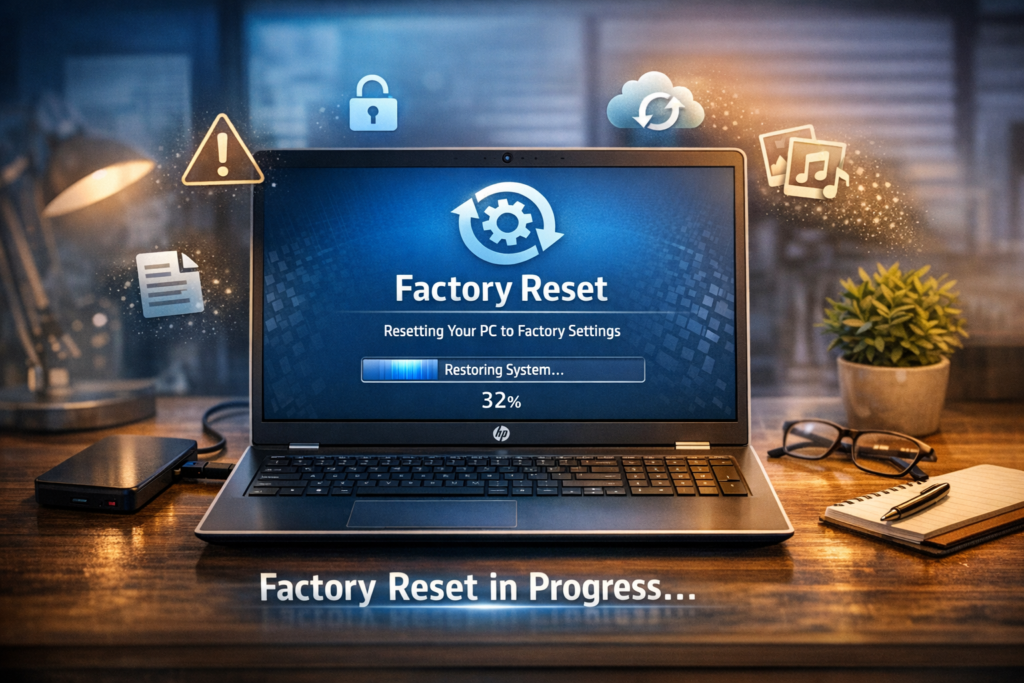
If your laptop finally turns on but refuses to load Windows, a factory reset is your final software resort. This will return your system to how it was when you first bought it. Make sure you have your files backed up before you start this process.
You can trigger this by using the recovery options in the HP menu. Check out my guide on how to factory reset an HP laptop for the full steps. It is a powerful way to clear out deep software glitches and start with a clean, fast machine.
What If Your HP Laptop Turns On But Won’t Boot?
It’s a huge relief when the power light finally glows, but I know how stressful it is to get stuck on the HP logo. If your machine starts up but gets caught in an automatic repair loop or hits a scary blue screen, don’t panic. This usually means the hardware is healthy, but the Windows software has hit a snag.
First, try letting the Automatic Repair tool run its course. It’s a built-in helper that fixes many common startup errors automatically. If that doesn’t work, you can use System Restore to jump your laptop back to a time when it was working perfectly.
If those options fail, don’t be afraid to use the Startup Repair tool in the recovery menu. It’s like a reset button for your boot files that often clears up those stubborn blue screen errors. As a last resort, reinstalling Windows will give you a fresh, clean slate, ensuring your HP laptop runs as smoothly as the day you bought it.
Warning Signs of Serious Hardware Failure
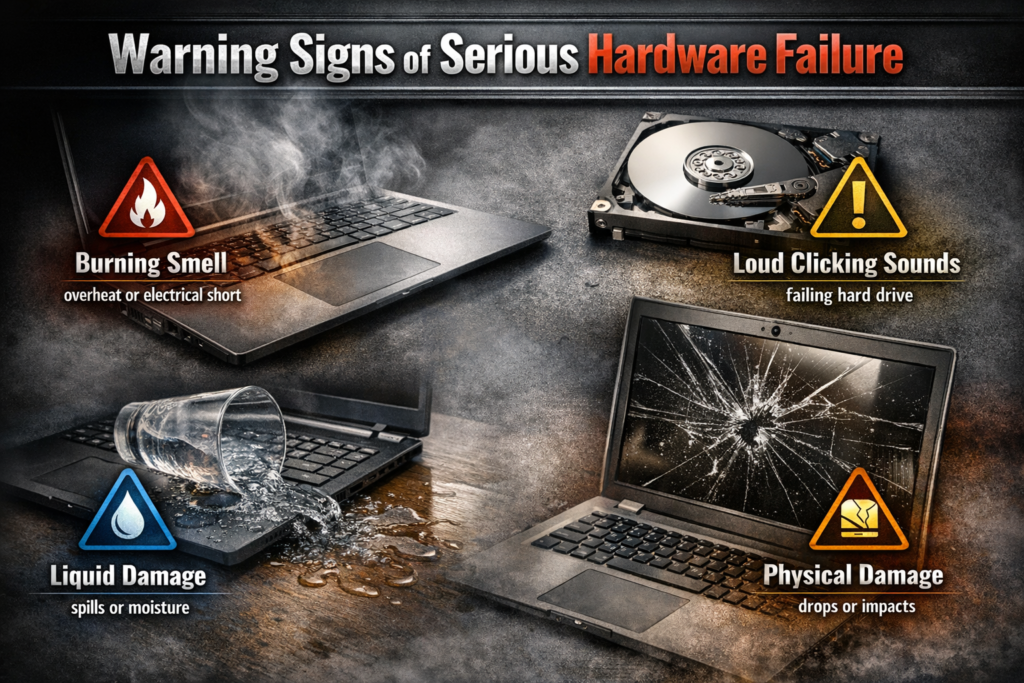
Sometimes, despite our best efforts, the laptop might have a problem that requires more than a simple reset. If you notice a burning smell, please unplug the device immediately and keep it off. That is a clear sign of an internal electrical short that could be dangerous if you continue to use it.
Listen closely for any loud clicking sounds, which often point to a failing hard drive. If you have recently dropped your laptop or had an accident with liquid spills, internal components may be physically damaged beyond a quick software fix. In these cases, your HP laptop needs professional care.
If you suspect liquid damage or physical trauma, it is best to visit a skilled technician right away. They have the tools to safely dry or repair the motherboard without causing more harm. Your safety and the health of your files are the top priority when dealing with deep hardware failures.
How to Prevent This Problem in the Future
Prevention is always easier than a cure, especially when it comes to keeping your HP laptop running smoothly. I always tell my customers that a little bit of care goes a long way. Keeping your vents clean is the best way to avoid overheating, which is the number one enemy of internal components.
Make sure you always use an original charger to provide stable power. Using cheap, generic adapters can slowly damage your battery over time. Also, try to get into the habit of a proper shutdown every evening instead of just closing the lid.
Finally, treat your battery to some regular maintenance. Letting it drain to zero occasionally and keeping the software updated can help prevent those nasty power glitches. With these simple habits, you can keep your laptop happy and avoid these scary power issues for years to come.
When to Replace Instead of Repair
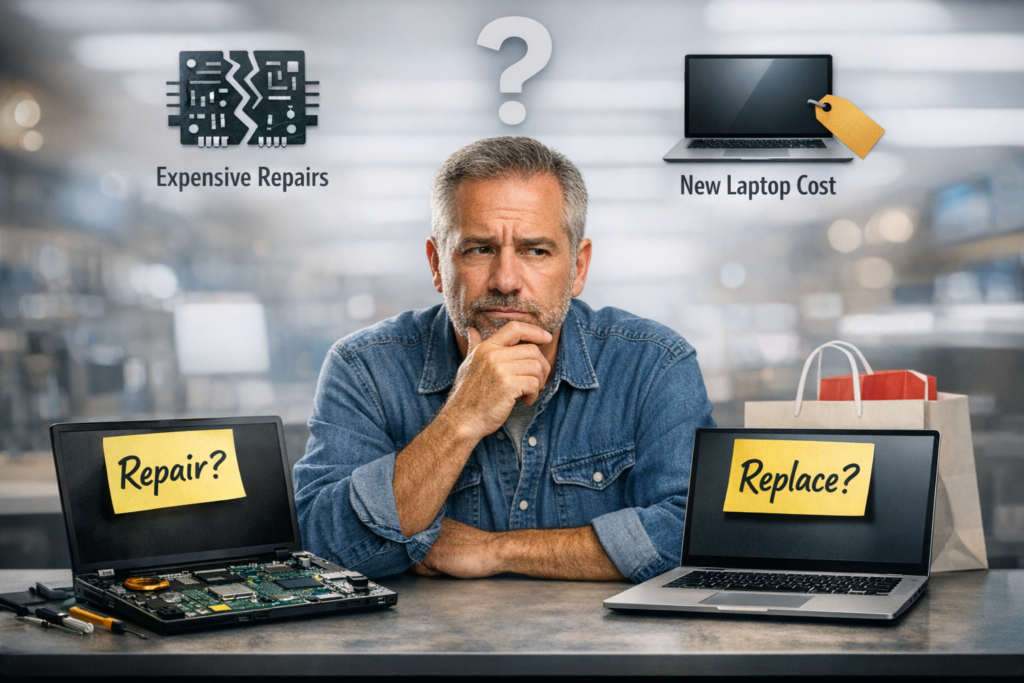
Sometimes, I have to be the bearer of tough news in my shop. If your laptop is several years old and the motherboard has failed, the repair cost might be more than the device is actually worth today. Replacing a logic board is a major surgery, and it’s often smarter to put that money toward a newer, faster machine.
However, the choice between a battery and a logic board decision is usually clear. A battery is a relatively cheap, easy swap that gives your old friend a new lease on life. If the core “brain” of the laptop is still good, it is almost always worth keeping.
Think of it like an old car; if it just needs a new battery, you keep driving it. But if the engine block is cracked, it’s time to move on to something better. Don’t feel bad if it’s time to upgrade—sometimes letting go is the best way to get back to a stress-free work day!
FAQ
Why is my HP laptop not turning on even when plugged in?
This often happens if the battery is fully drained and the motherboard is in a protection state. Try the “hard reset” method mentioned earlier to wake the power management system. If that fails, your charging cable might be broken or the power port itself could be loose.
Why is my HP laptop screen black but power light is on?
Your laptop is likely running, but the display signal isn’t getting through. This can be caused by a temporary memory glitch or a faulty connection between the screen and the motherboard. Plugging it into an external monitor is the best way to verify if the laptop is actually working.
Why is my HP Envy laptop not turning on after update?
Sometimes a system update gets “stuck” mid-install and freezes the computer. Your Envy laptop might just need a hard power drain to reset the internal BIOS. This clears the stuck process and allows the machine to boot up normally again.
How much does it cost to fix an HP laptop that won’t turn on?
If it’s a simple fix like a battery, a charger, or a RAM reset, you can often solve it for free at home! If you need professional help, costs vary wildly based on the part. Simple labor starts low, while motherboard replacements can be quite pricey.
Can a dead battery prevent a laptop from turning on?
Yes, it certainly can. If a battery is completely dead or damaged, it can prevent the laptop from booting even when the charger is connected. Removing the battery and trying to power it using only the wall adapter is the best way to test this.
Conclusion
I know how stressful it is when your hp laptop not turning on. Please remember that most of the time, this is just a minor glitch, not a disaster. By following these steps, you have likely saved yourself time and stress.
I hope this guide helped you get back to your work or favorite hobbies. If you found a unique fix that worked, please share it in the comments below. Your experience might be exactly what someone else needs to hear today.
Don’t forget to bookmark this page and explore my other HP troubleshooting guides for more helpful tips. Thank you for reading, and happy computing—you’ve got this!